Appearance
Video does not appear
When a live slot shows its placeholder, black, or nothing — in the editor or on air — and what each state means.
Each slot's row in the Data panel says how its source stands on this computer. Start there.
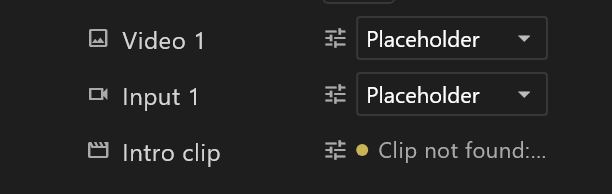
In the editor
A clip
| The row says | What it means | What to do |
|---|---|---|
| Size · rate · name · loop, in green | It is playing | — |
| Opening name… | It is starting | Wait a moment |
| Clip not found: name | The file is not on this computer | Choose it again with the settings icon, or put it in the Shared media folder |
| Clip not found: name (not in the shared media folder) | The clip is named relative to the shared media folder, and is not there | Copy it into that folder, or set the folder to where your clips are |
| name cannot be played on this computer | Windows cannot decode it | See below |
| name ended · holding its last frame | A clip that does not loop has finished | Tick Loop, or click the row to play it again |
"Cannot be played on this computer" means Windows has no decoder for the clip. Windows N editions need the Media Feature Pack for H.264, and ProRes needs a codec Windows does not include. Convert the clip to H.264 MP4 for the preview; the playout server can still play the original.
Click a row that shows a problem to try again.
A camera, through a DeckLink card
| The row says | What to do |
|---|---|
| DeckLink N is busy playing out | Something on this computer is sending out of that port, such as an airZ Engine. Pick another port |
| DeckLink N is turned off for preview here | Click the row to turn it back on, unless an airZ Engine on this machine uses that port |
| DeckLink N stopped | Click the row to start it again. Check the cable and the camera |
| Nothing but the placeholder | The scene plays None, or no port is chosen for its input on this computer: open the slot's settings |
A DeckLink card that is not switched on in Blackmagic's Desktop Video does not appear at all. See Monitor out and DeckLink.
On air
| What happens | Why | What to do |
|---|---|---|
| The whole graphic never comes on | A graphic with live slots waits until every slot has a picture. One slot is waiting for a source that is not coming | Check each slot's source in the rundown. A slot nobody fills should not be in the graphic |
| The slot shows the placeholder | No source was sent for it, and the scene plays none | Give the slot a source in the rundown, or set what the scene plays in the editor |
| The picture is too big or too small | Live video plays at its own size. The slot is not in a layout, so Fit does nothing | Put the picture in a layout; preflight says "This picture shows … but is not in a layout" |
| The slot went black, or froze, mid-show | The source stopped. When the source stops decides: last frame, placeholder, or black | Check the source. Set When the source stops to what the audience should see |
| No sound | Audio is off for the slot, or the source has none | Turn Audio on in the slot's settings |
| Colours look washed out or too strong | The source labels its colour space wrongly | Set Colour space in the slot's settings |
| The same camera works in one graphic but not two | A capture card's input can be opened only once | Capture the camera once on its own channel of the playout server, and route that channel into each slot |
Checking the server's inputs. airZ Engine can list each of its live inputs: what it is wired to on that machine, whether it is open, what the card is really delivering, and why an input failed. Ask whoever runs the playout server to check; the command is in the airZ Engine manual.
In another player
A player that is not airZ shows the placeholder in every slot: slots are filled by airZ Engine. That is expected.