Appearance
Graph editor
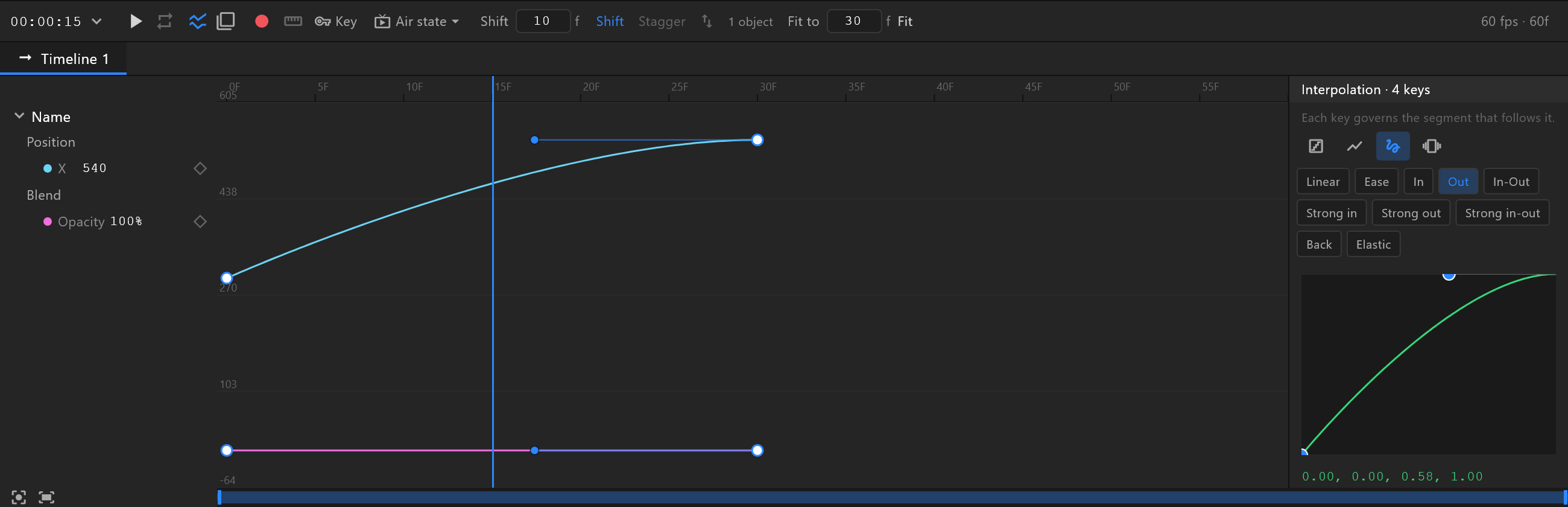
The same keys as the timeline, drawn as curves of value over time: for when the timing is right and the ease is not.
The graph button in the transport, beside the loop button. Click it again to go back to the keys.
What it does
The timeline answers when something changes. The graph answers by how much, and how fast. Each keyed number — a position, a scale, an opacity — is a line: up is a bigger value, along is time, and the steepness is speed. A key is a point on its line.
Nothing here is separate from the timeline. It is the same keys with the same eases, so a change made in one shows in the other.
Only numbers have a height, so only numbers are drawn. Colours and text keys stay in the timeline. A timeline with no keyed numbers says so: "No numeric channels on this timeline. Key a position, a scale or an opacity to draw a curve."
Which curves you see
- Nothing selected: every keyed number on the timeline.
- Keys selected: only the curves those keys are on, fitted to the height between their lowest and highest values.
The second is the one to work in. A position runs in the hundreds and a scale between 0 and 1: drawn to the same height, the scale is a flat line along the bottom. Select only the scale's keys and it fills the graph.
Each curve has its own colour, and keeps it as others come and go. The same colour marks its row on the left, so you can tell which line is which; hover a row and its curve is drawn heavier. The grey lines across the graph are marked with their values, so the height means something.
Changing a key
| What you do | What happens |
|---|---|
| Click a point | Selects that key |
| Click the line between two keys | Selects the key the line starts from — the one whose ease shapes it. The interpolation editor then edits the stretch you clicked |
| Drag a point up or down | Changes the value the key holds |
| Drag a point sideways | Moves the key in time, as dragging it in the timeline does |
| Click empty space | Selects nothing |
Shaping the ease
A selected key eased with Cubic — which every preset chip but Elastic gives — shows two handles: one leaving the key, one reaching back from the next key. Drag them to shape the ease: how it leaves, and how it arrives.
Hold Shift while you drag a handle and its angle stays put, and only its length changes. That is how an ease is made stronger or softer without changing its character.
Handles appear only on the selected key, so the rest of the curve stays clickable. Hold, Linear and Elastic keys have none: their shape is set in the interpolation editor.
A flat stretch — the same value at both ends — has no height to drag a handle in. Shape it in the interpolation editor instead.