Appearance
Image
A picture, or the slot a camera, a channel or a clip fills on air.
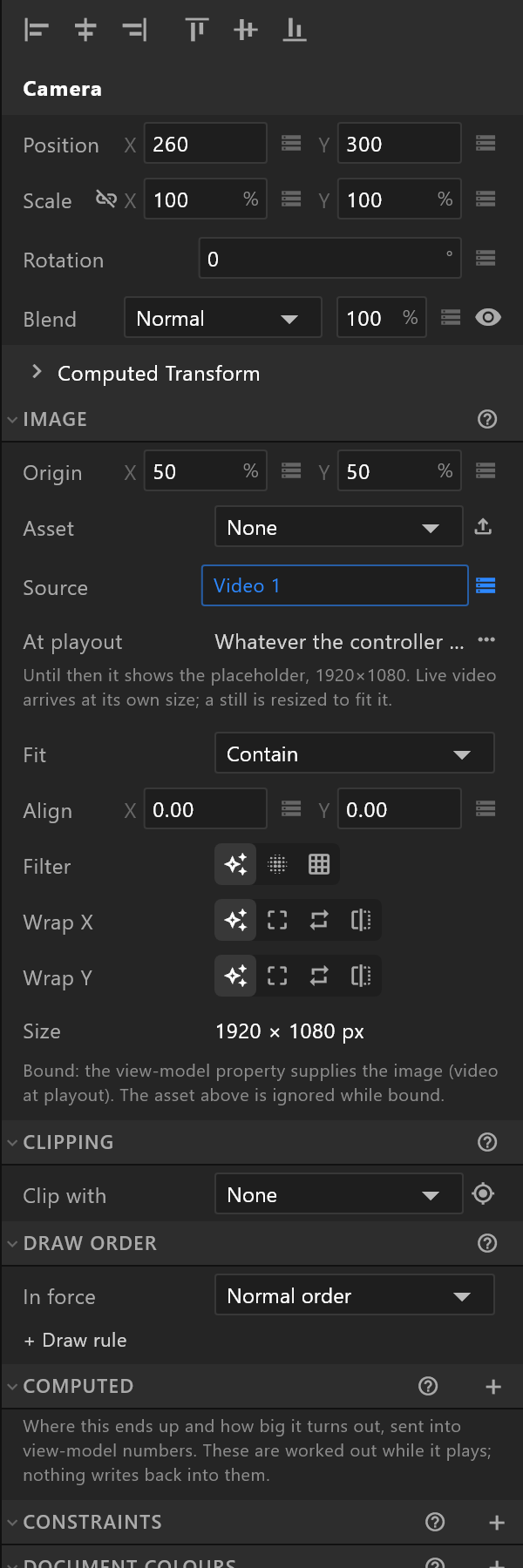
Picture or slot
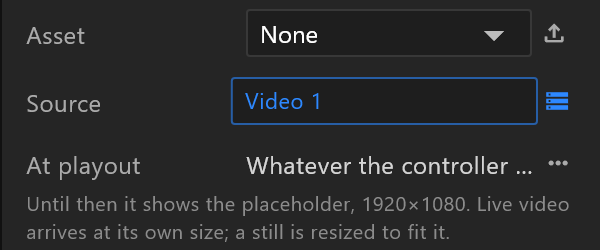
The same element does both jobs, and the Source row is the difference.
| What it shows | |
|---|---|
| Asset chosen, Source unbound | A picture from the document |
| Source bound to an Image property | Whatever the control system sends: a camera, a routed channel, a clip. The asset is ignored while it is bound |
The panel says which you have: "Pick a static image asset, or bind Source to an Image property for video", and once bound, "Bound: the view-model property supplies the image (video at playout)."
Placing the picture inside its frame
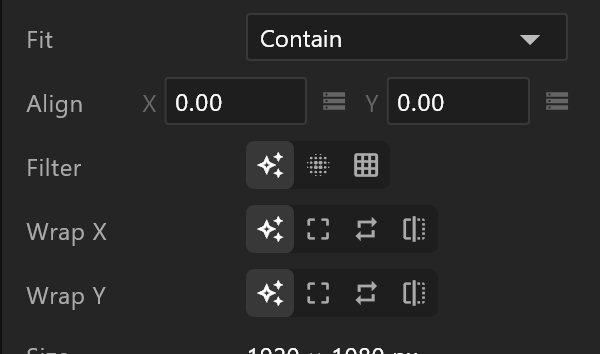
| Row | What it does |
|---|---|
| Fit | How the picture sits in its frame: Contain, Cover, Fill, Fit Width, Fit Height, Scale Down, None, or Resize (the frame takes the picture's own size) |
| Align | Which part is kept when the fit crops, from −1 to 1 in each direction. Shown for the fits where it makes a difference |
| Filter | How it is smoothed when scaled: The asset's own, Bilinear, or Nearest for pixel art. Hovering The asset's own says what the asset is set to, e.g. "The asset's own (Bilinear)" |
| Wrap X / Y | What happens beyond the edges: The asset's own (hovering says which, e.g. "The asset's own (Repeat)"), Clamp, Repeat or Mirror. A texture a script scrolls needs Repeat, or it smears at the edge |
| Origin | The anchor, as percentages |
| Size | The picture's own pixel size. Read-only |
Choosing a Fit on a picture that is not yet in a frame puts it in a frame its own size, and nothing moves on the artboard. From then on the Fit decides how the picture sits when the frame is resized or the picture is replaced.
At playout
Once Source is bound, an At playout row appears saying, in words, what the control system will send — a clip, a camera on this machine, a channel of the playout server, or nothing at all, leaving the choice to the rundown.
Under it, what you see meanwhile:
Until then it shows the placeholder, W×H. Live video arrives at its own size; a still is resized to fit it.
That sentence is the whole model in one line: the placeholder is a shape and a stand-in, not a size the video is forced into.
A live picture needs a layout, or a shape
If a picture takes live video and is not inside a layout, the panel warns:
Not in a layout: at playout the live frame is drawn at its own pixel size, and Fit does nothing. Put the picture in a layout, or fill a shape with the live texture instead (Fills and Strokes, Image…).
A camera feed that arrives 1280 × 720 into a 640 × 360 hole will not be resized to fit by itself.
Put it in a layout under the warning does it for you: the picture is wrapped in a layout its own size, nothing moves on the artboard, and it is one undo step.
When a live texture fills a shape instead, the panel says so — Fills "<shape>": Fit and Align place the live picture inside it — and the rows that no longer apply disappear.
Deform
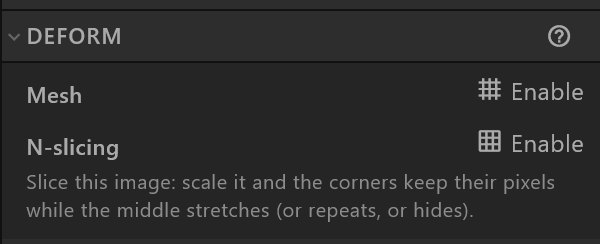
Mesh turns the picture into points you can bend: trace the outline automatically or draw it, set how dense the mesh is, then move points to warp the artwork. With bones bound to it, the picture deforms as they move.
Texture mapping moves, scales and rotates the picture within the mesh rather than moving the element.
N-slicing keeps the corners of a picture at their own size while the middle stretches — the way a rounded panel scales without its corners going soft. Set the four stops, then click a patch to cycle it between Stretch, Repeat and Hidden.
See also
- Live video slots — the whole slot dialog, and what happens when a feed drops out
- Layout · Assets panel
- Add a video or camera slot