Appearance
Selection and gizmos
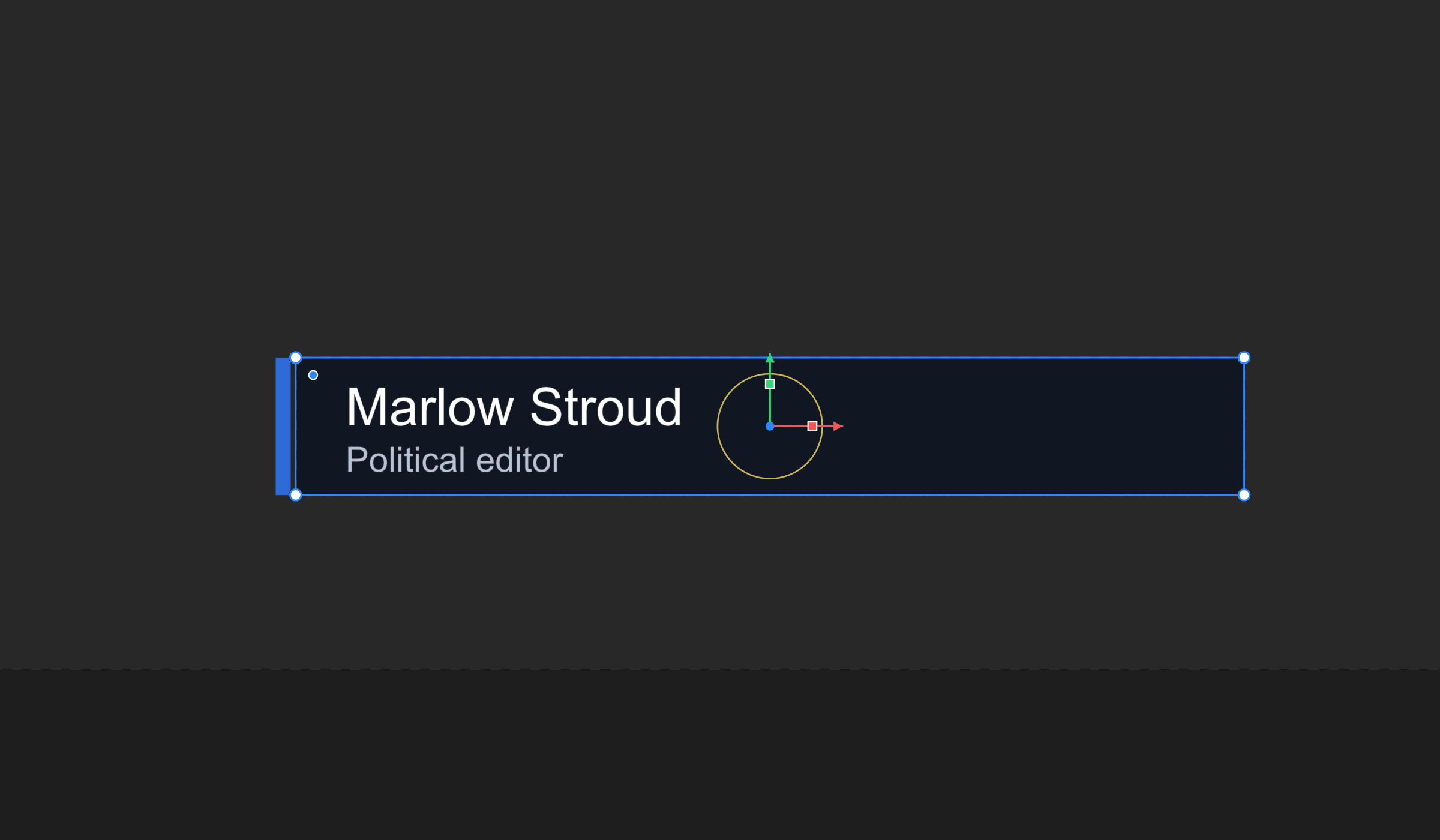
The handles around what you have selected, and what each one does.
What it does
Select something and handles appear around it. Which handles depends on the tool you are holding, so the same object offers move arrows under Translate and corner dots under Scale.
Handles stay the same size however far you zoom in, and each has a little room around it, so they are as easy to grab at 10% as at 400%. The part under the pointer lights up before you press — that is what tells you what a drag will do.
| Tool | What you get |
|---|---|
Select V | Everything: the box, the rotation ring, the move arrows, the scale squares, the corner dots, and the extra handles below |
Translate Q | The arrows, and the body to move freely |
Rotate W | The ring — and anywhere inside the box turns it too |
Scale E | Corner dots, edges, the scale squares, and the body for a uniform scale |
Freeze Y | Only the origin. See Snapping and freeze |
The handles
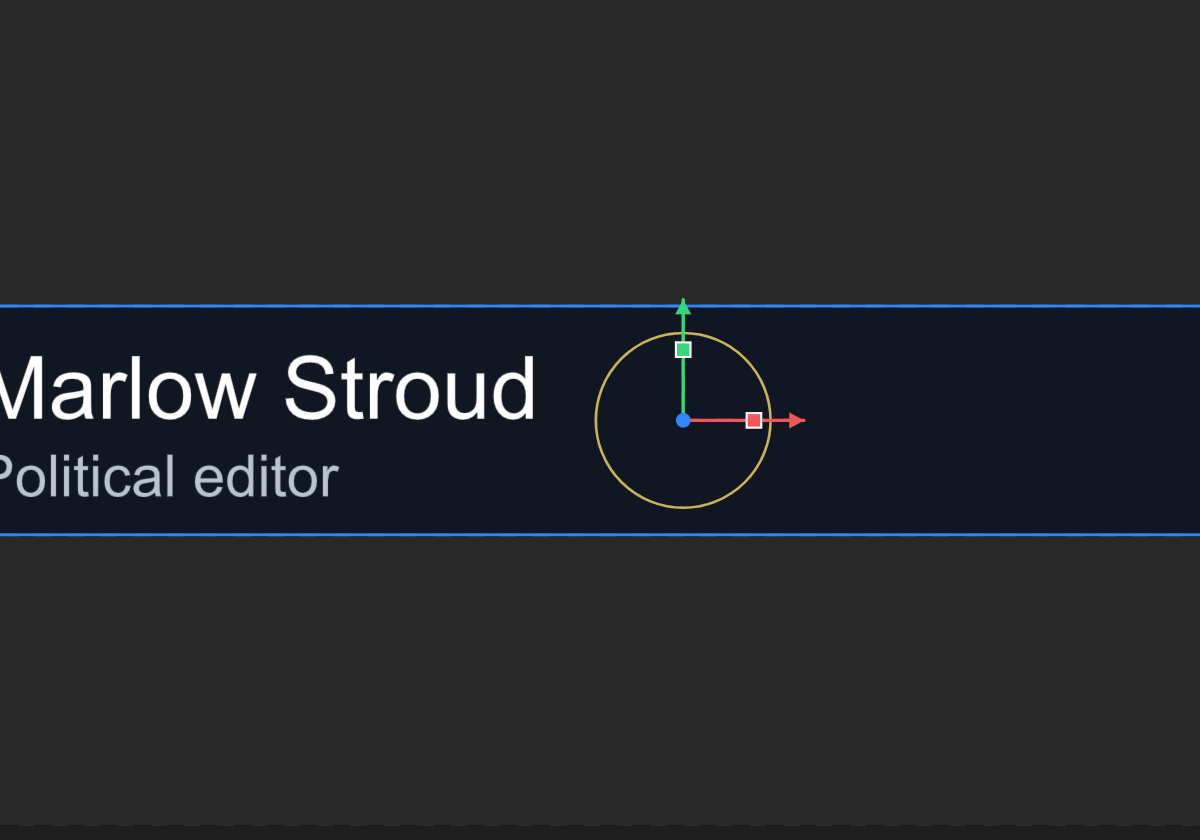
| Handle | What it does |
|---|---|
| The body | Moves the object, snapping to the guides |
| Red and green arrows | Move along the object's own axes, so a rotated object moves along its own edge rather than across the screen |
| The ring | Rotates around the object's origin |
| Corner dots | Resize, holding the opposite corner still |
| Box edges | Stretch one side; the other side stays |
| Red and green squares | Scale one axis about the middle. These change the scale percentage and leave the position alone |
| The origin dot | What rotation turns around and scale grows from |
While you drag, a small chip beside the pointer says what you are doing: a position, a size, a percentage, an angle, a radius.
Shift, and the one rule worth remembering
Shift always means the other one. Pictures keep their proportions when you drag a corner, so Shift frees them to stretch. Everything else stretches freely, so Shift constrains the proportions.
Hold Ctrl during any drag that snaps to suspend the snapping for that drag alone.
The extra handles
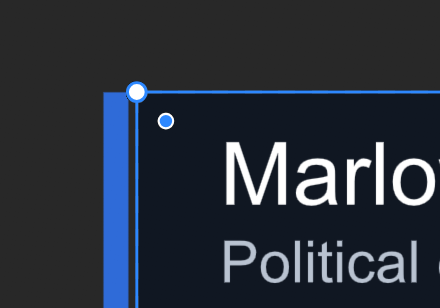
These appear with the Select tool on the objects that have them:
| Handle | On | What it does |
|---|---|---|
| A small hollow dot inside the top-left corner | Rectangles | Rounds the corners. Drag it in for more radius, up to half the shorter side |
| A bar with a dot at each end | A shape filled with a gradient | Where the gradient starts and ends |
| Dashed lines with small squares | Pictures and groups that are nine-sliced | The stops that keep the corners while the middle stretches |
Several objects at once
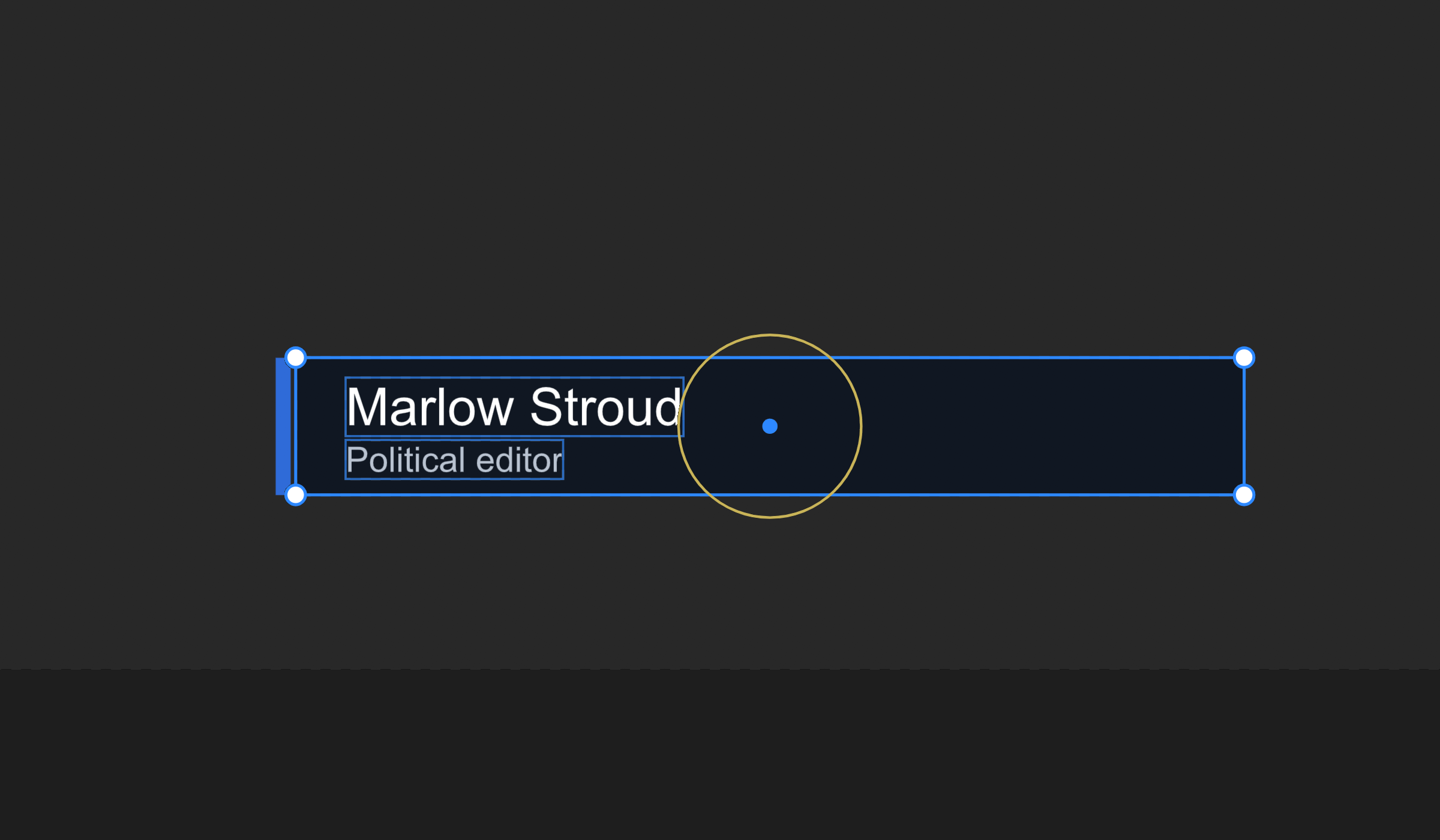
Select more than one and each gets a thin outline, with one box around them all. That box always behaves the same way whatever tool you hold:
- Corners scale everything about the middle of the box.
- The ring rotates everything about the middle of the box.
- The body moves everything, with snapping.
Dragging any one of the selected objects moves the whole selection.