Appearance
View aids and zoom
What you can see while you work, and how close you are to it.
Two menus at the right of the top bar: an eye, and the zoom percentage.

View aids
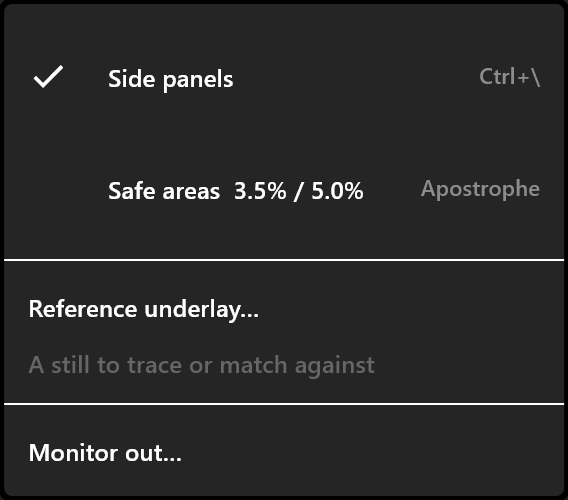
The eye is blue while safe areas are on or a reference image is loaded.
| Item | Keys | What it does |
|---|---|---|
| Side panels | Ctrl+\ | Hides the left and right sidebars to give the stage the whole window. Their widths and folds are kept, so they come back as they were. This menu is the way back if you hid them with the key and cannot remember it |
| Safe areas 3.5% / 5.0% | ' (Apostrophe) | Shows the action-safe and title-safe rectangles. The two numbers in the label are this document's own margins |
| Reference underlay… | Pins a still image (png, jpg, jpeg, webp) behind the artboard, to trace or to match a look against. Once one is loaded the item reads Replace underlay… | |
| Show underlay | Hides the reference without removing it | |
| Underlay opacity 100% | Each click steps it down by a quarter, then wraps back to full | |
| Remove underlay | Takes the reference out of the document | |
| Monitor out… | Opens Monitor out. While it is running the item reads Monitor out… (on) |
These are ways of looking, and they are saved with the document but never exported. A safe-area overlay is not in the file a player opens. They are also outside undo: Ctrl+Z will not bring back a reference image you removed.
Safe areas
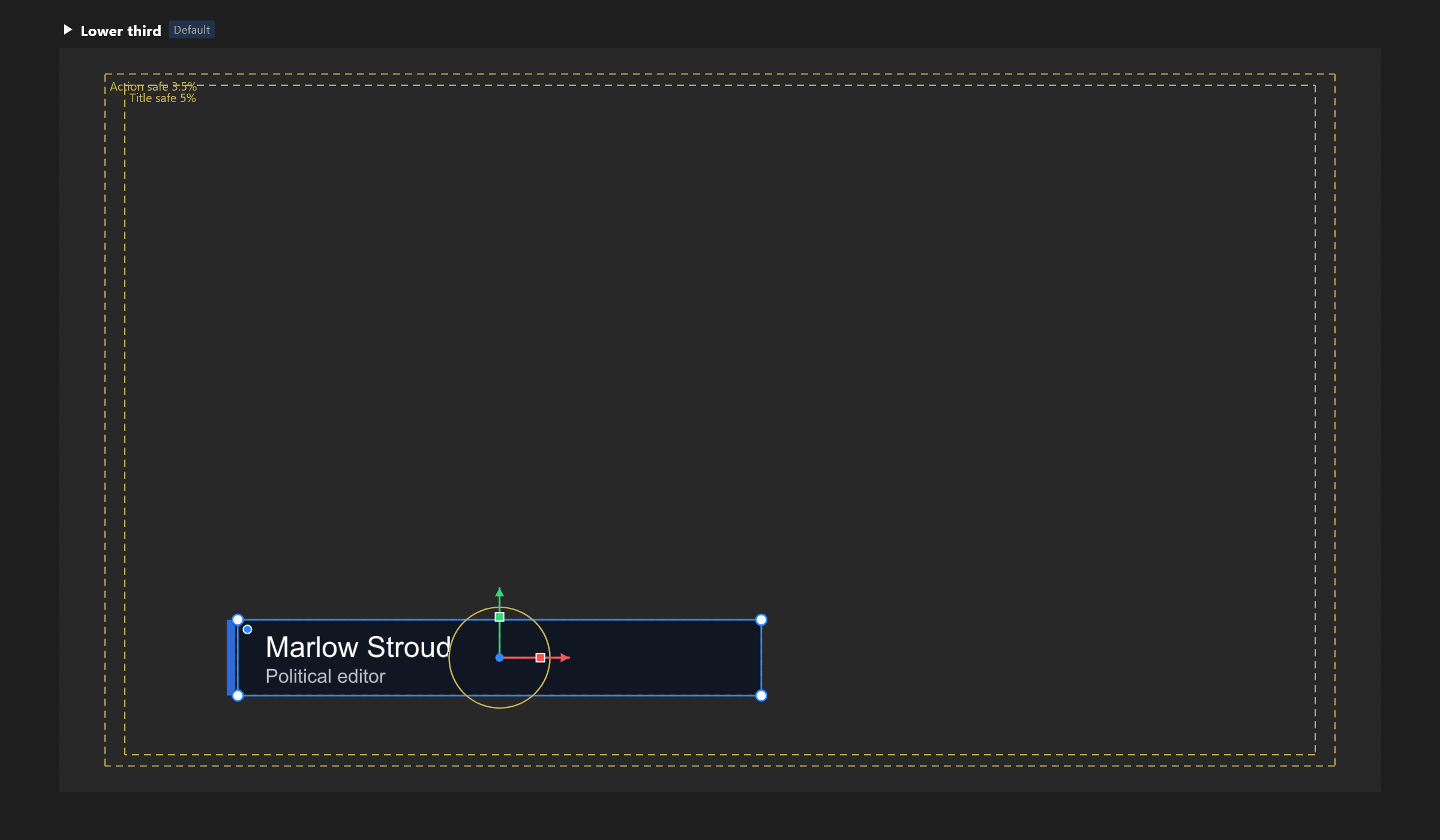
Action safe and title safe are the margins broadcasters work to: keep motion inside the outer rectangle and words inside the inner one, and nothing is lost on a screen that crops. The percentages are per document, set on the artboard.
Zoom
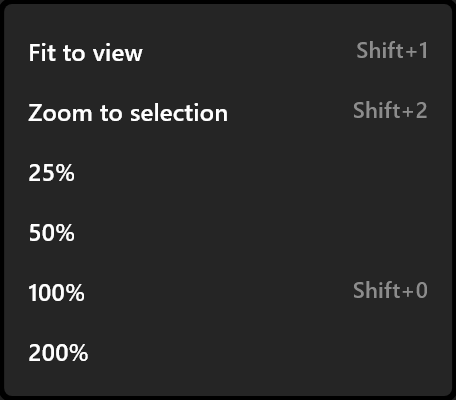
The button shows the zoom you are at. Its menu:
| Item | Keys |
|---|---|
| Fit to view | Shift+1 |
| Zoom to selection | Shift+2 |
| 25%, 50%, 200% | — |
| 100% | Shift+0 |
Ctrl+= and Ctrl+- step in and out around the middle of the view. Hold Space and drag to slide the stage.
See also
- Stage · Stage overlays
- Artboard, for the safe-area percentages