Appearance
Asset
What the inspector shows for a picture or a font in the Assets panel: what it is, what uses it, and how to swap it.
Click the asset's row in the Assets panel.
A picture
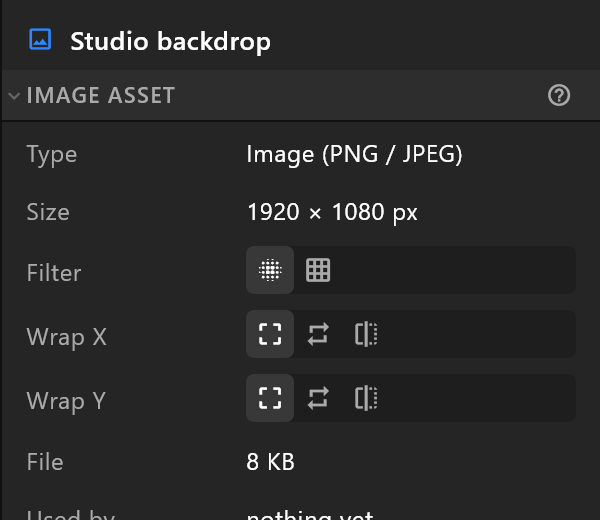
| Row | What it tells you |
|---|---|
| Name | At the top. Click it to rename |
| Type | Image (PNG / JPEG) |
| Size | Its size in pixels |
| Filter | How it is smoothed when drawn bigger or smaller: Bilinear, or Nearest (pixel art) for hard pixels |
| Wrap X, Wrap Y | What happens beyond its edges: Clamp, Repeat or Mirror. Use Repeat for a texture a script scrolls, or it smears at the edge |
| File | How much it adds to the document |
| Used by | The objects showing it, by name — or nothing yet |
| Button | What it does |
|---|---|
| Place | Adds an object showing this picture to the artboard. Dragging the asset onto the stage, or double-clicking its row, does the same |
| Replace… | Swaps the file for another. Every object using it updates |
| Remove | Takes it out of the document. Objects that showed it become empty |
Filter and Wrap apply wherever an Image object leaves them to the asset (its Filter set to the asset's own); an object can still choose its own in its Filter and Wrap rows. Changing them can be undone.
A picture draws at its own pixel size: to make it bigger or smaller, scale the object that shows it, not the asset.
Video and camera feeds
A picture file is fixed. For something that arrives at playout — a clip, a camera, another channel — use a slot instead: see Video or camera slot.
A font
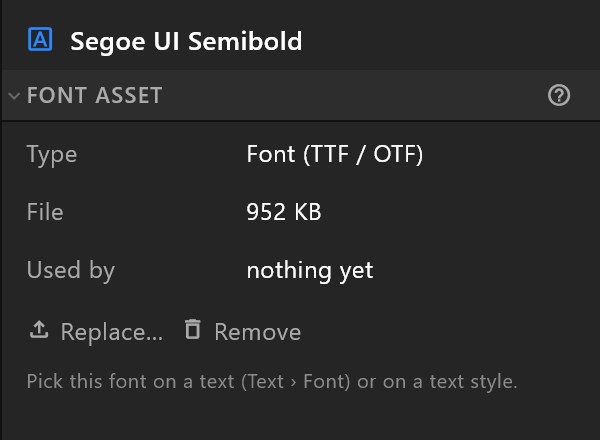
| Row | What it tells you |
|---|---|
| Type | Font (TTF / OTF) |
| File | How much it adds to the document |
| Used by | The texts set in it |
To use it, pick it in a text's Font row (see Text).
Replace… swaps the font file; every text set in it changes with it. Remove takes it out, and texts that used it fall back to Arial.
Why fonts travel with the document
A font the document carries plays the same on every machine, including the playout server, whether or not that machine has it installed. See Assets panel.
A script
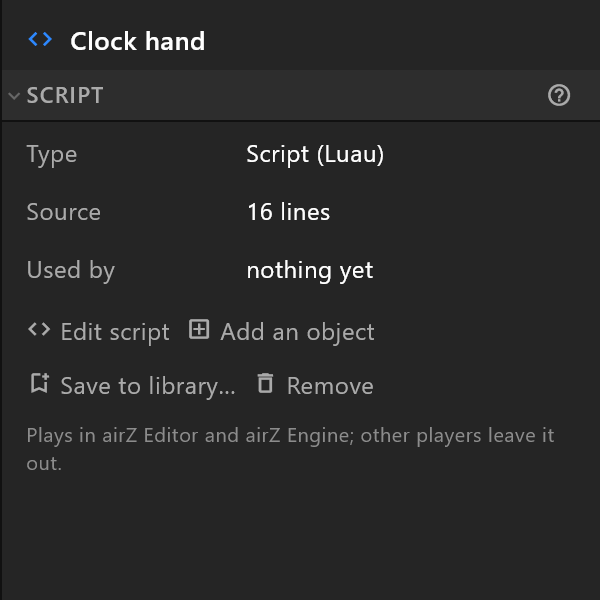
| Row | What it tells you |
|---|---|
| Type | Script (Luau), or Script, compiled — read-only for one that arrived compiled |
| Source | How long it is, in lines |
| Used by | The objects running it |
| Button | What it does |
|---|---|
| Edit script | Opens it in the script editor |
| Add an object | Adds an object that runs it, in the middle of the artboard |
| Save to library… | Keeps it in your script library, for other documents |
| Remove | Takes it out of the document |
The panel ends with where it plays: "Plays in airZ Editor and airZ Engine; other players leave it out."
A sound
A WAV, MP3 or FLAC file, played by an event whose type is Audio. The panel says what it is (format, mono or stereo, sample rate and length) and offers:
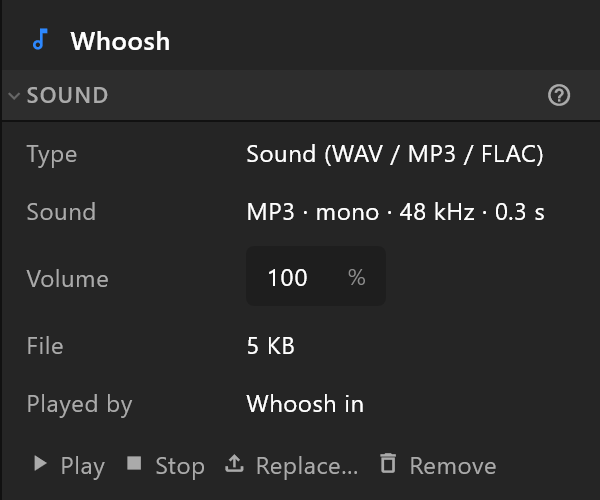
| Row | What it does |
|---|---|
| Volume | How loud it plays, in % |
| Played by | The events that play it |
| Play, Stop | Hear the sound once, from its start, at its volume |
| Replace…, Remove | Swap the file, or take the sound out of the document |
Play and Stop let you hear it once, at its volume. A long WAV gets a note that MP3 keeps the file small.
Other kinds
- 3D model — Place puts it in a 3D viewport, where its parts appear under the viewport in the hierarchy. Replace… swaps the file, and every placed copy updates.
- Anything the panel calls a Carried asset ("Kept as it came in") — things a file brought in from elsewhere carried. The editor keeps them exactly as they arrived; Remove is all it offers.
Replace… is offered for pictures, fonts, sounds and 3D models.