Appearance
Reuse as a component
Design something once — a logo bug, a name plate, a clock — and place it in as many graphics as need it. Change it once and every copy changes.
1. Make it on its own artboard
Draw a new artboard with the Artboard tool (A), or New in an artboard's inspector, and design the piece there. Give it its own timelines and Animation States if it animates by itself.
In the artboard's inspector, press Component at the top. The Hierarchy marks it component, and it is offered first wherever components are placed.
2. Place it
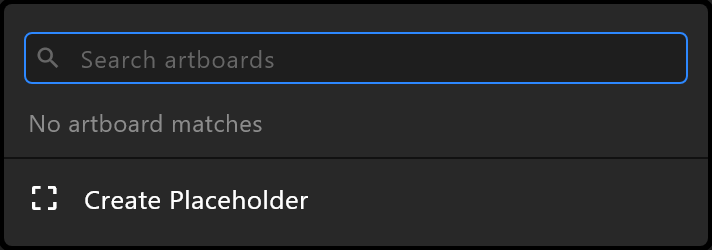
Select the artboard it should appear in. From the component tool group, choose it from the list — Search artboards finds it by name — then click on the stage where it should go. It is placed at its own size.
3. Give it its data
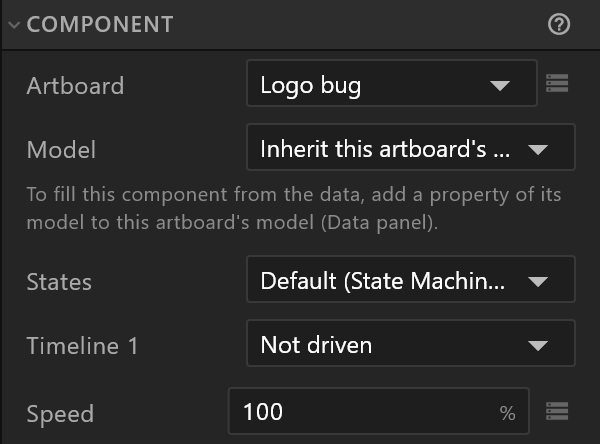
A component can show its own values, or the graphic's. In its inspector, Model decides:
| Choice | When |
|---|---|
| Inherit this artboard's data | It reads the same data as the graphic it is in |
| Own instance (stateful) | It keeps values of its own |
| A property's name | It shows one property of this graphic's data — how the control system reaches into it |
Expose does the last one for you: it adds a property of the component's model to this graphic's model and links the component to it. After that the operator fills in the component's values like any other.
4. Change it
Double-click the placed component — or Open component in its inspector — to edit the artboard it comes from. Every placed copy follows.
To make one copy different and leave the rest alone, Detach instance: that copy becomes ordinary objects, no longer linked.