Appearance
Snapping and freeze
The guides that line things up, and the mode that moves what a rotation turns around.
Snapping
Drag an object and it catches on the things around it. The guides are thin pink lines drawn only between the object and what it matched, so you can see what it lined up with, not just that it lined up.
What it catches on: every visible object on the artboard, and the artboard itself. Each offers its left edge, middle and right edge, and its top, middle and bottom. Any pairing counts — a left edge to another object's middle, a middle to a middle.
The two directions are independent, so an object can sit flush left with one thing and centred on another at the same time.
Equal spacing. Drop an object between two others and, if the gaps either side come out equal, it snaps there. The two gaps are drawn with small end ticks so you can compare them.
How close is close enough: six pixels on screen, whatever the zoom.
Where snapping applies
| Snaps | Does not snap |
|---|---|
| Moving an object by its body | Moving with the red or green arrows |
| Dragging a corner or an edge to resize | Rotating, and scaling with the squares |
| Moving several objects at once | Nudging with the arrow keys |
Turning it off
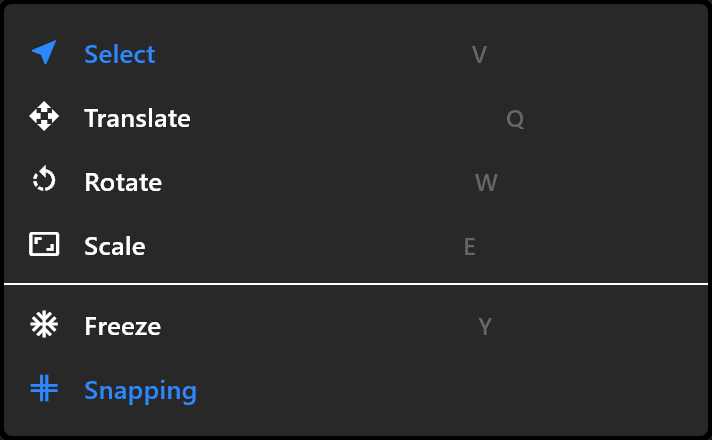
Hold Ctrl during a drag to suspend snapping just for that drag — you can press it mid-drag, when something catches that you wanted free. The magnet in the Select tool's menu turns it off for good; its tooltip then reminds you that Ctrl is the per-drag way instead.
Artboards snap too, when you drag one by its title or draw a new one: to the other artboards' edges, and to a line a comfortable gap outside them, so a row of artboards stays evenly spread.
Freeze
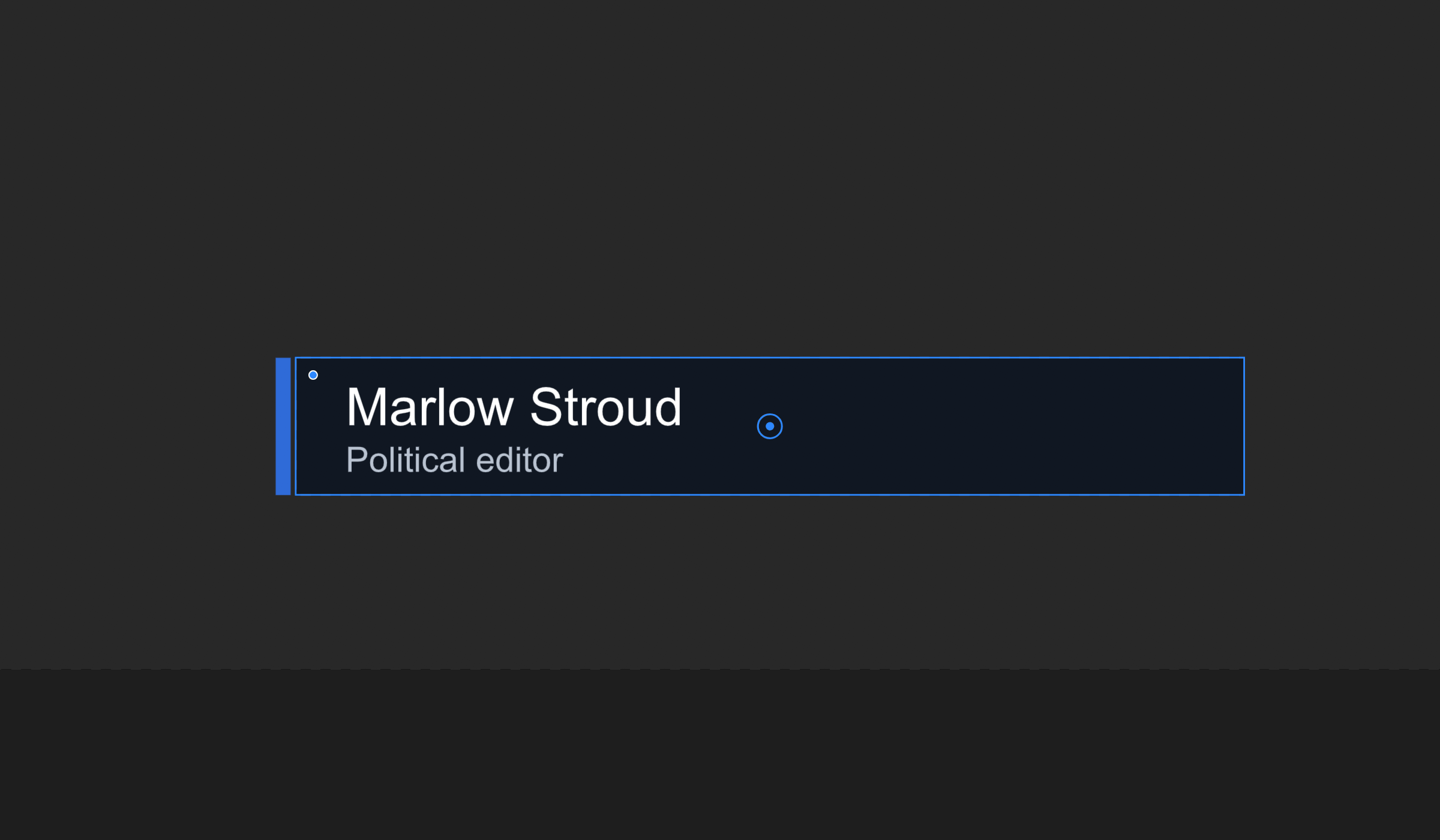
Press Y. Every handle disappears except the origin.
The origin is the point an object rotates around and scales from. Normally it sits in the middle. Drag it in Freeze mode and the origin moves while the artwork stays exactly where it is — so a name plate can hinge from its left edge, or a needle turn about its base.
On a shape, a picture or a text, moving the origin changes where in the object it sits. On a group, a layout or a component, the contents shift the other way to keep everything on screen where it was.
Press Y again to leave. The toolbar says so while you are in it: "Freeze on: drags move the origin".