Appearance
Cloud templates
The template library is online as well as in the editor: new graphics and new versions of old ones arrive without an editor update. A template you use becomes a document of your own, and goes to air like anything you made yourself.
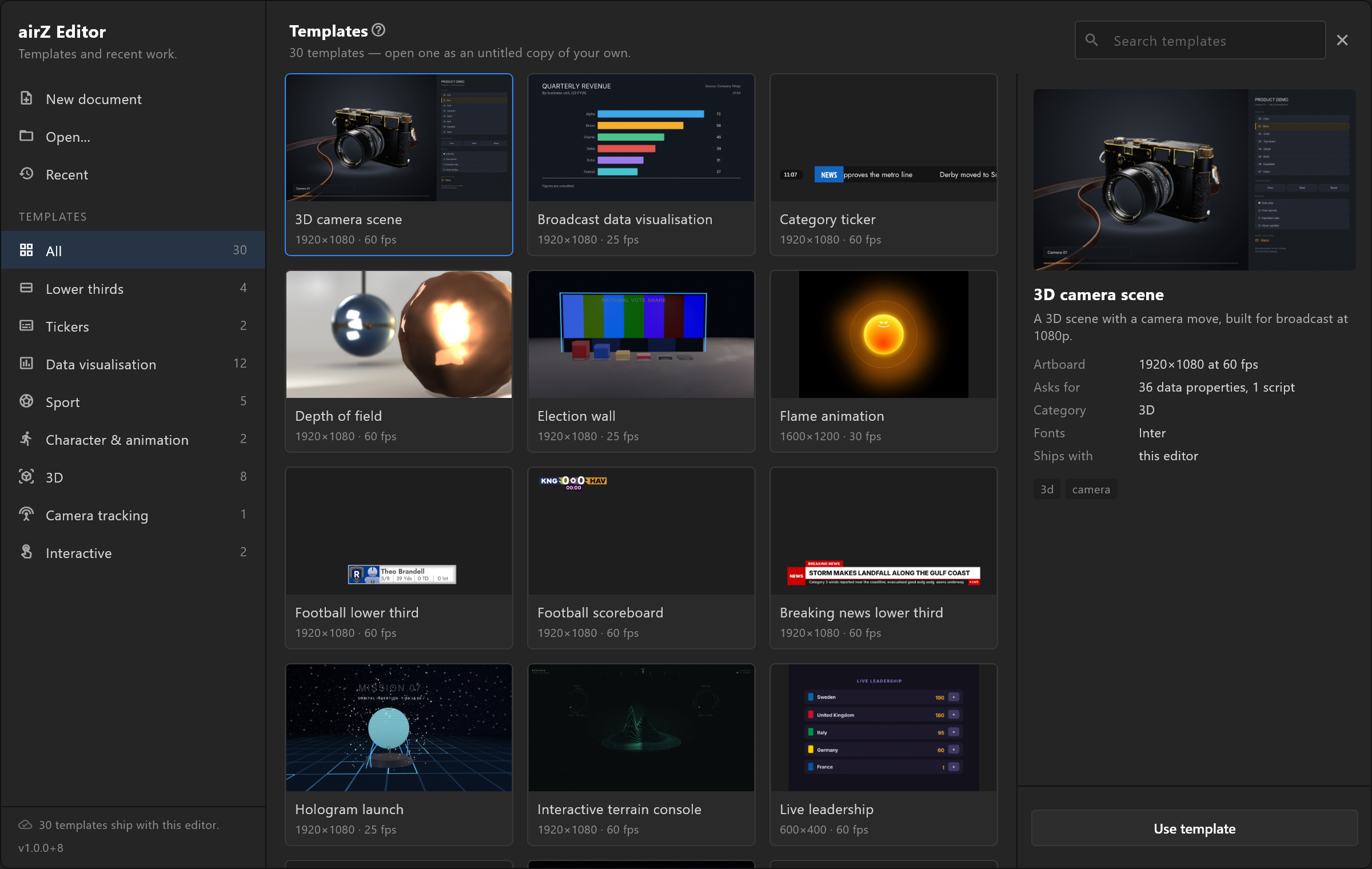
File › New from template…, or the Templates side of the Start screen. The window itself is on Template library.
Shipped and online
| Where it lives | Badge | |
|---|---|---|
| Shipped | Inside the editor. Always there, with or without a network | none |
| Online | In the online library, downloaded the first time you use it | CLOUD until then |
The library is checked each time it opens. Without a network it says "Offline: showing the templates on this computer.", and everything already downloaded still works.
New versions
A template can be improved after you downloaded it. Its card then says UPDATED, and Get version N downloads the new one.
- Documents you already made from it do not change. Use template made a copy, and the copy is yours.
- A template made with a newer editor shows NEWER EDITOR and cannot be opened until you update the editor.
- A template taken out of the library no longer shows there, even if you downloaded it. Documents you made from it are untouched.
Before a template goes to air
A template is a starting point. Treat it as your own graphic and check it the way you would check your own:
- Read what it asks for. The card lists its data properties, slots and scripts before you download it: "36 data properties, 1 script".
- Rename its data for your operators. A template's property names are the library's names. If your rundowns fill
nameandrole, and the template saystitleandsubtitle, rename them now, before the first sync. See Naming properties. - Check its fonts. The card names each typeface, and names its licence when the licence does not allow passing it on. A document carries its fonts to air, so a commercial typeface must be licensed for your playout servers as well.
- Check its take. When it opens, the editor says which trigger it waits for and fires it once, so you see the graphic rather than an empty artboard. Make sure that trigger's name fits your controller: see Triggers and events.
- Put your brand on it, then go through the handover checklist.
Your own templates
The library is published by airZ. To share your own graphics:
- with the gallery: Sync to controllers;
- with a colleague: send the document, or one artboard of it — see Versions and sharing.
Where downloads are kept
In your Windows profile, beside the editor's other settings. See Where your files live. Remove download on a card deletes that copy. The template stays in the library, ready to download again.