Appearance
Arranging the panels
Making room for the part of the document you are working on.
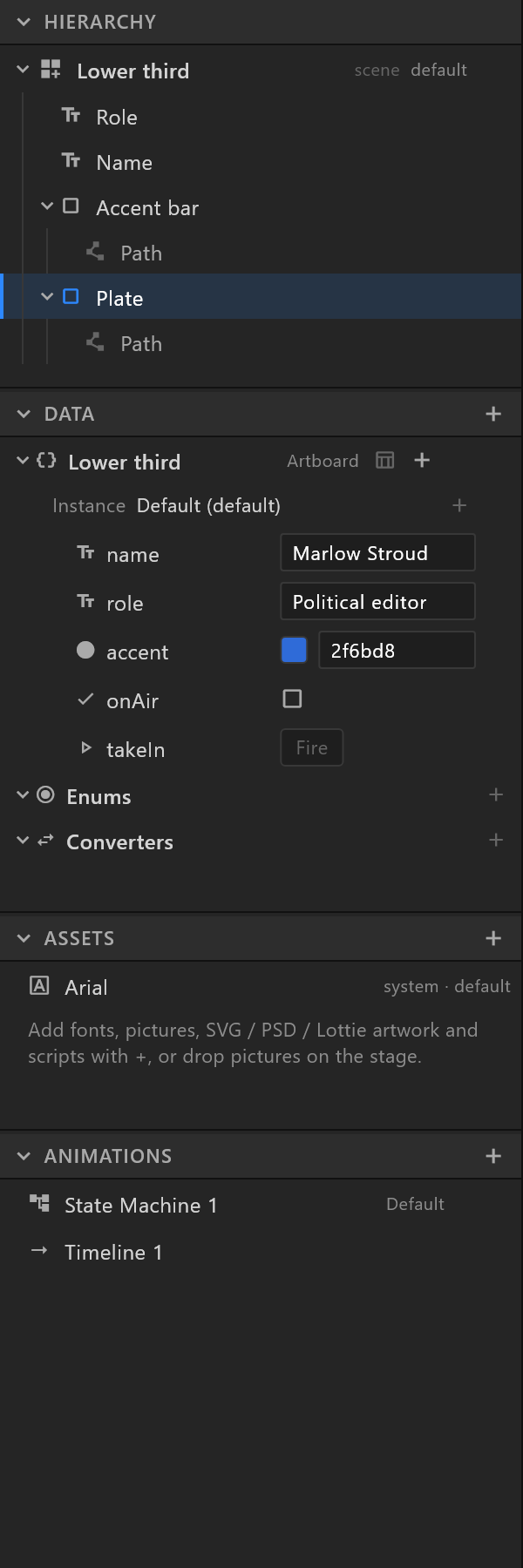
Folding
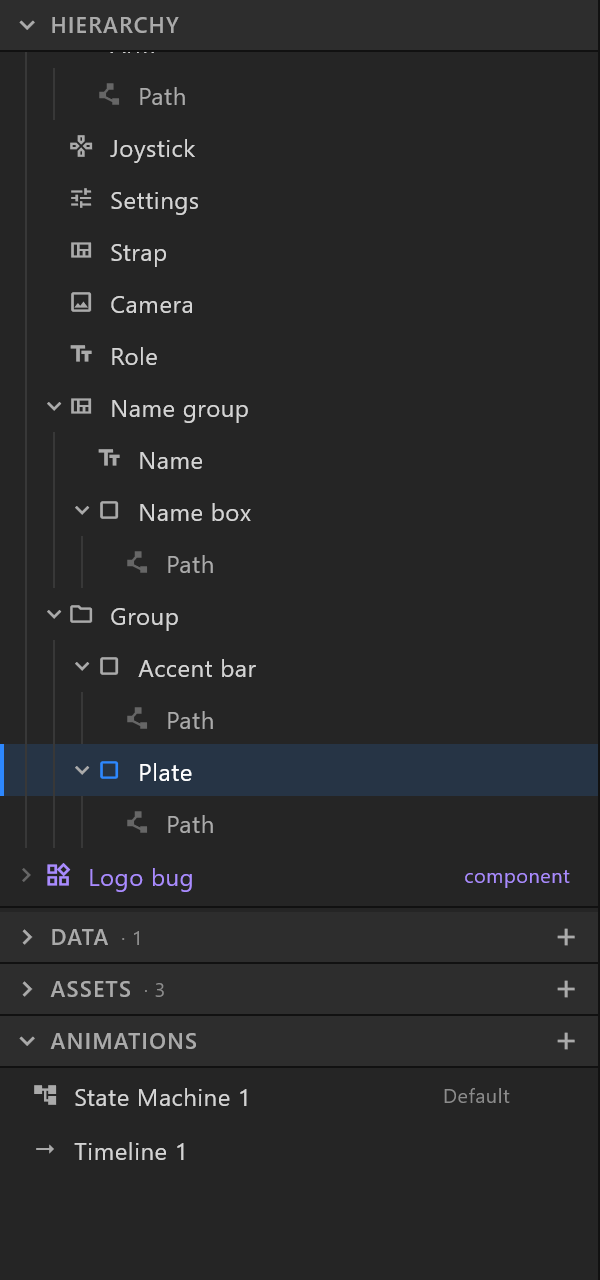
Click anywhere on a section's title strip to fold or unfold it — the whole strip, not just the word. The chevron turns to show which way it is. Every section can be folded, including all four at once.
A folded section keeps its count beside its name, so you still know what is in it: DATA · 12.
| Section | What the count is |
|---|---|
| Hierarchy | Layers at the top level of this artboard |
| Data | View models plus enums |
| Assets | Everything the document carries |
| Animations | Timelines plus Animation States on this artboard |
Resizing
Drag the line between two sections to resize the one above it. The bottom-most open section always takes whatever space is left, so there is never a gap.
Double-click a divider to hand that section back to its automatic size.
Left alone, sections size themselves: roughly a third each to Hierarchy and Data, less to Assets, and any section that needs less than its share gives the space to one that needs more. A document with three data rows does not leave Data a third of the panel tall.
What the editor remembers
| Remembered between sessions | Not remembered |
|---|---|
| Which sections are folded | Which groups in the hierarchy are folded |
| Any height you dragged | Which instance you were looking at |
| Whether Enums and Converters are folded | Table or list view in Data |
| What you typed in a find box |
The distinction is deliberate: how you like the window is worth keeping, and where you happened to be in a document is not.
Hiding the panels
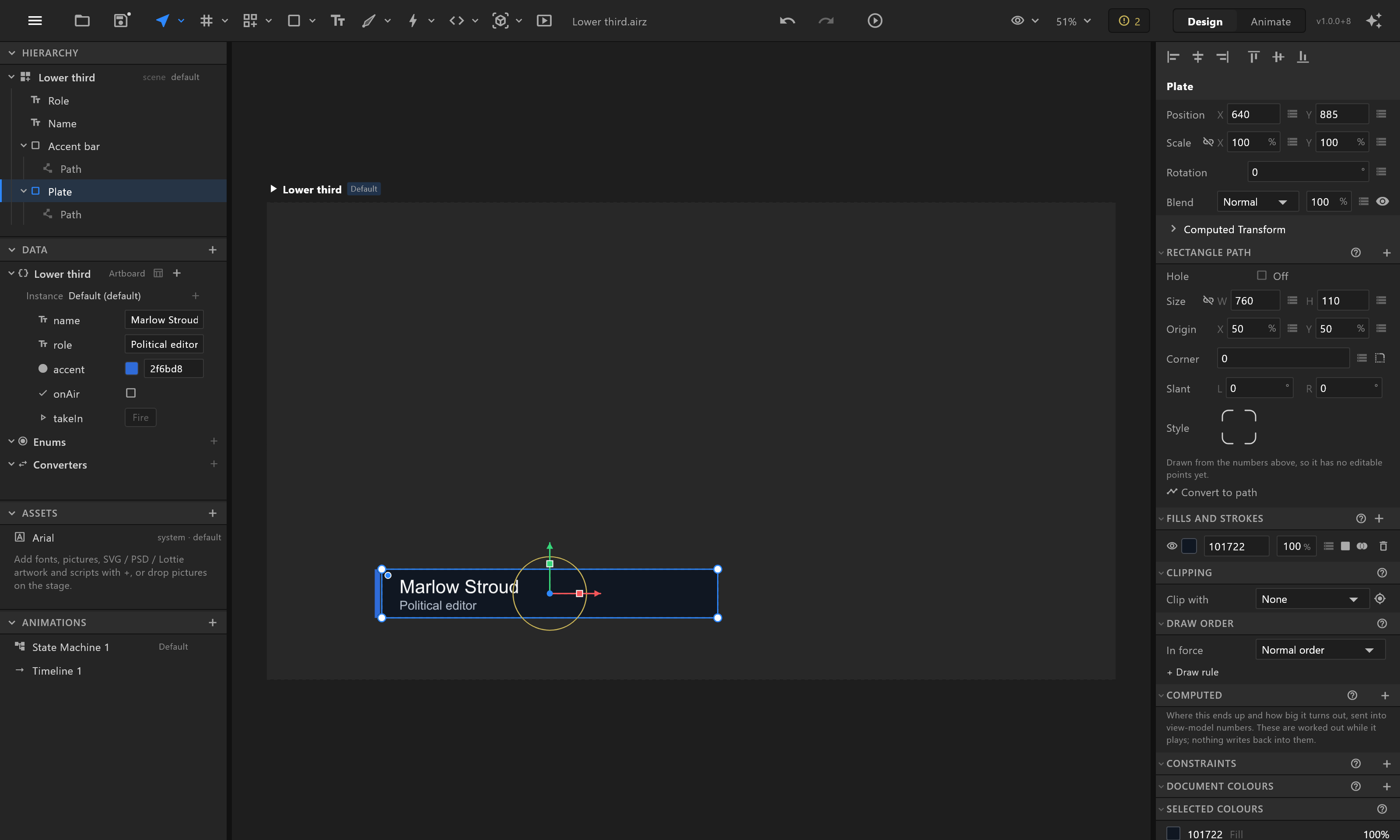
Ctrl+\ hides both sidebars and gives the stage the whole window; the same keys bring them back with their widths and folds intact. The view aids menu has the same switch, which is the way back if the key is forgotten.
The timeline along the bottom has a divider of its own: drag it to resize, double-click it to restore.