Appearance
Point and mesh editing
Pulling an outline about, and bending a picture.
Points of a path
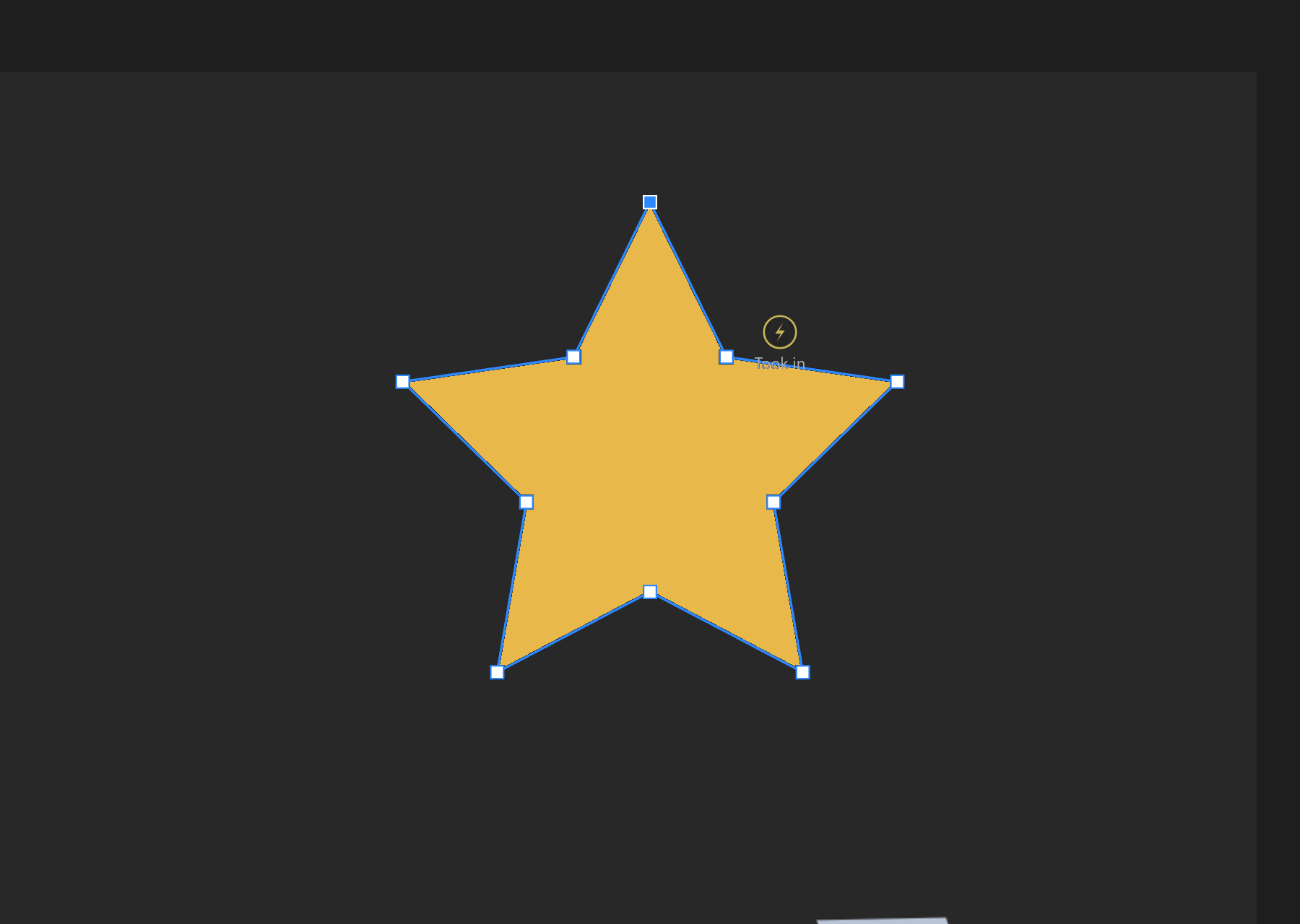
Covered on Paths and points: double-click a path to edit it, click the outline to add a point on the curve, Esc to leave.
A picture's mesh
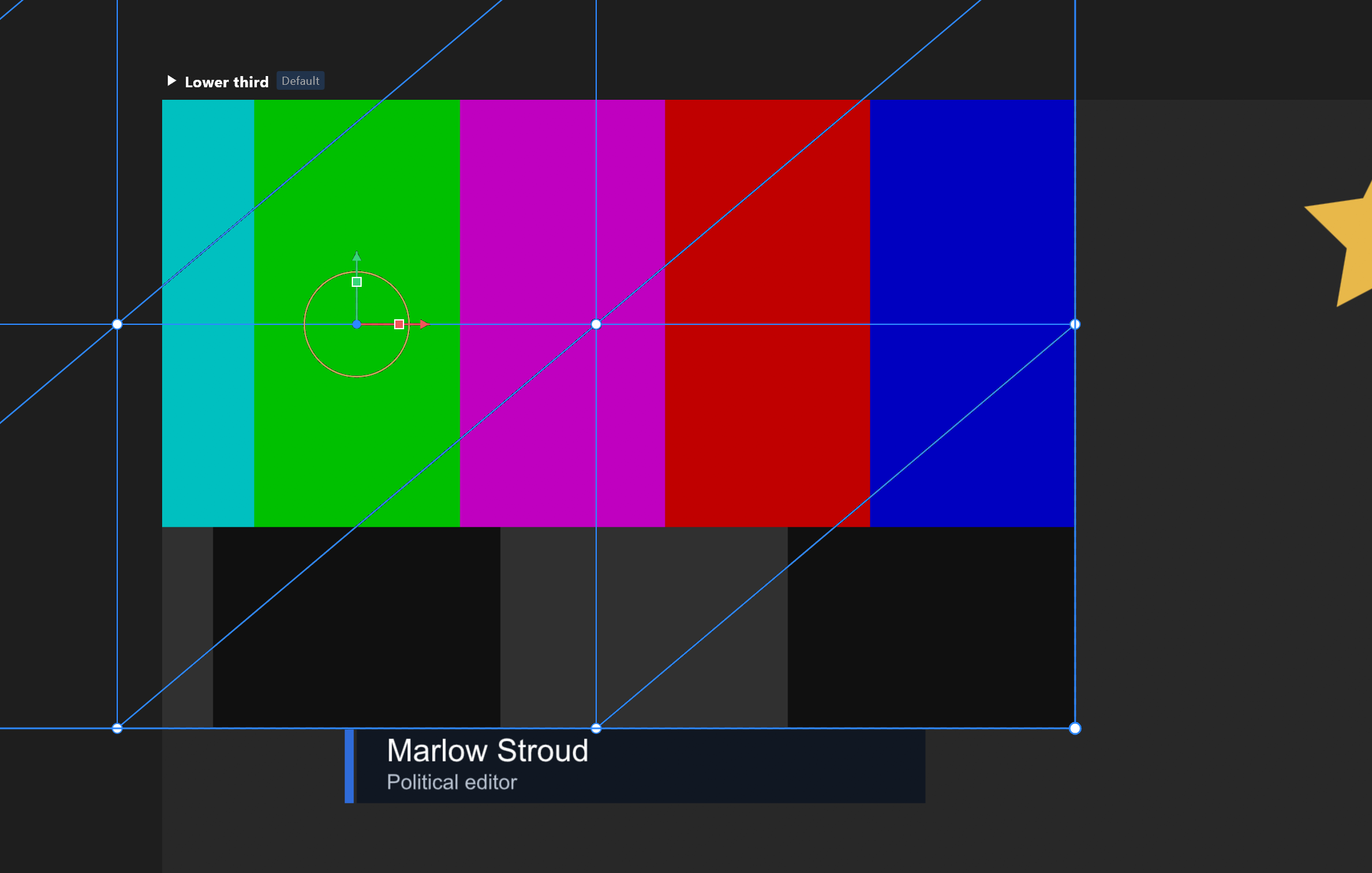
A picture is a rectangle until you give it a mesh: a net of points across it that you can move, so the picture bends. Turn it on in the picture's Deform section.
| Control | What it does |
|---|---|
| Generate | Builds the net |
| Auto trace | Finds the artwork's outline and meshes only that, so a cut-out does not carry its empty corners |
| Edit contour | Draw the outline by hand instead |
| Density X / Y | How fine the net is |
| Reset | Back to a plain grid |
Auto trace has four knobs, and the panel explains what each costs: Detail aims for about so many points, spent where the outline bends; Uniform breaks up long straight runs so the mesh follows the artwork more closely; Alpha decides what counts as artwork; Concavity how far notches are filled in; Padding how much room is left around it.
With no picture to read, it says so rather than producing nothing useful: "Auto trace needs a picture to read. Give this image an asset first."
Once there is a mesh:
- Double-click the picture to add a point.
- Drag points to bend the artwork.
- Texture mapping moves, scales and turns the picture inside the mesh — useful for lining artwork up with the shape you meshed.
Bones and weights
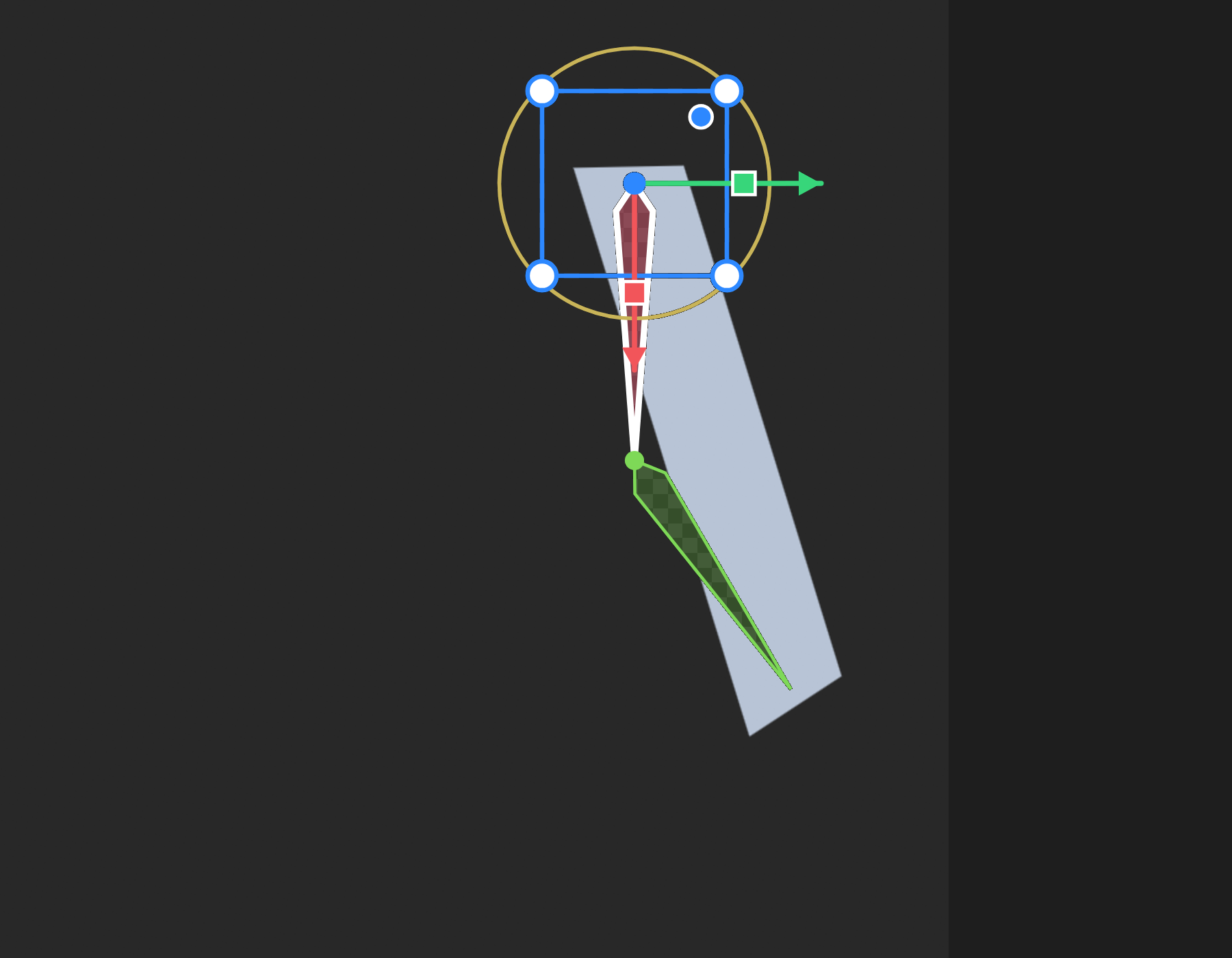
A mesh is what lets bones move a picture. Draw bones with B, select the picture and the bones together, then Bind.
| Control | What it does |
|---|---|
| Paint weights | Brush how strongly each point follows the selected bone |
| Smooth | Evens out a patchy painting |
| Auto weights | A starting point from the bones' positions |
| Influences | How many bones may hold one point |
| Weight blend | How much of a point's hold is shared. Zero gives the nearest bone everything |
While painting, the brush ring on the stage is its true reach. Ctrl+drag resizes it — right for wider, down for stronger — and the editor tells you where you landed: "Brush 48px, 60% strength." [ and ] change the size from the keyboard, with Shift for strength.
Nine-slicing instead
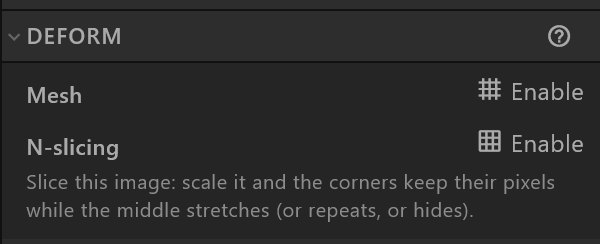
If you only need a panel to stretch without its corners going soft, you do not need a mesh: use N-slicing on the picture or the group. See Image.