Appearance
New document
The size and the frame rate your first artboard is made at.
File › New, or New document on the Start screen.
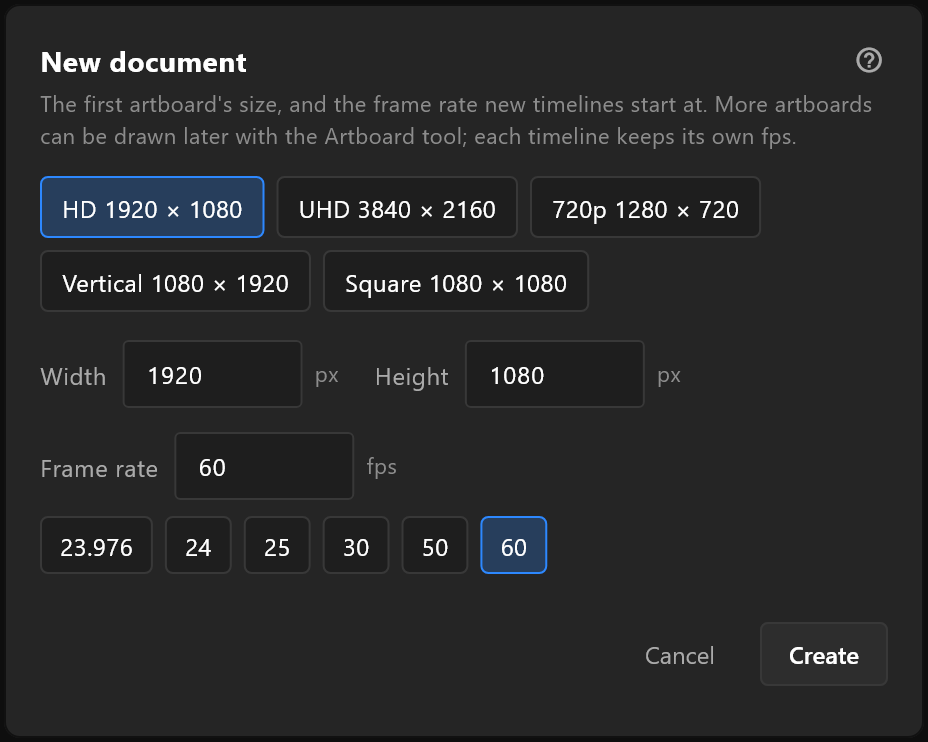
What it does
Two things, and nothing else: how big the artboard is, and how many frames a second its timelines count in. Both can be changed later — this is the starting point, not a commitment.
As you type, a small rectangle shows the shape you are making, labelled Landscape, Square or Vertical, and a line beneath reads back what will be created, for example 1920 × 1080 · 50 fps.
Use it
- Type a Width and a Height in pixels.
- Pick a Frame rate, or type one.
- Create.
Create stays unavailable until all three make a document — so an empty or nonsensical size cannot be created by accident. Cancel closes without making anything.
Options
| Control | What it does | Starts at |
|---|---|---|
| Width, Height | The artboard's size in pixels | 1920 × 1080 |
| Frame rate | How many frames a second the timelines count in | 60 |
| Rate buttons | 23.976, 24, 25, 30, 50, 60 — one click each | — |
Fractional frame rates
Pick 23.976 and the dialog says so:
Timelines key at whole frames: 23.976 is written as 24 fps. Playout plays it at its channel's own rate.
Keys sit on whole frames, so the document stores the rounded rate. What plays on air runs at the channel's rate, not at the number in this box. Choose the rate you are working to, and let the channel do the rest.
See also
- Scenes and artboards
- Start screen
- Artboard, to change the size later