Appearance
Tools
What you draw and move things with. Each button runs a tool; the small chevron beside it opens the rest of its family.
Middle of the top bar, left of the document name.

What it does
A tool group is one button and one menu. Clicking the button runs the group's main tool — the one you used last, in the groups that remember. Clicking the chevron shows everything in the family, each with its key.
The button is blue while one of its tools is the one you are using, and dark grey when nothing in it can be used right now — a document with no artboard, for example, has nothing to draw on.
Single-key shortcuts work when you are not typing in a field and not holding Ctrl or Alt.
Select, move, rotate, scale
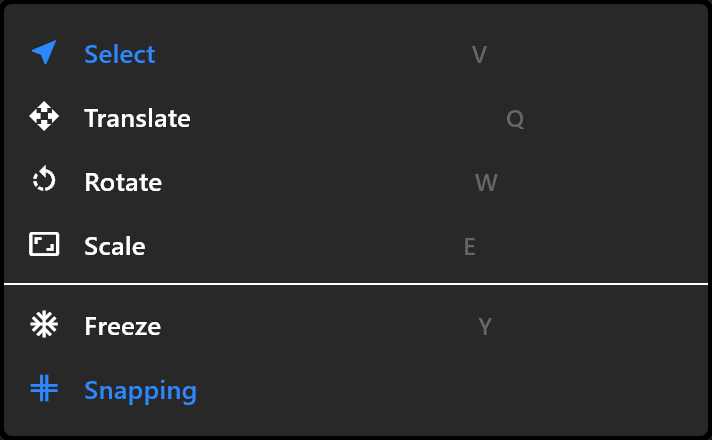
| Tool | Key | What it does |
|---|---|---|
| Select | V | Pick things, drag a box over several |
| Translate | Q | Move |
| Rotate | W | Turn |
| Scale | E | Resize |
| Freeze | Y | A switch. While it is on, dragging moves an object's origin and leaves the artwork where it is — the way to set what a rotation turns around |
| Snapping | A switch for the guides that catch edges and centres. Hold Ctrl to suspend it for a single drag instead of turning it off |
Artboards, layouts and groups
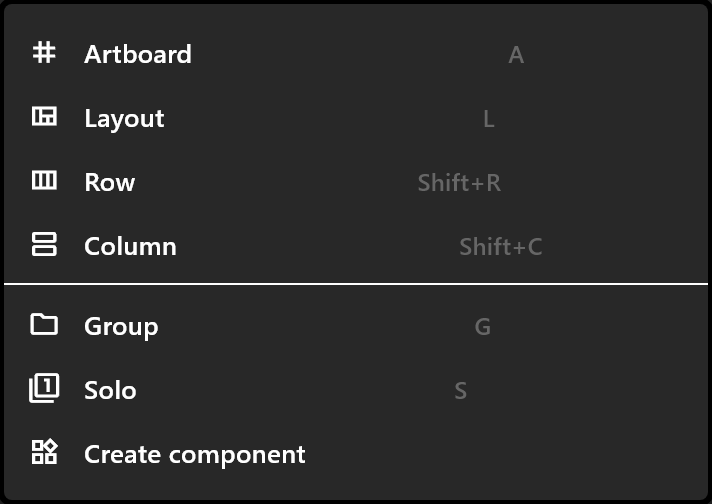
| Entry | Key | What it does |
|---|---|---|
| Artboard | A | Then drag on the stage to draw a new artboard |
| Layout | L | A box that arranges what is inside it, stacked in a column |
| Row | Shift+R | The same, arranged across |
| Column | Shift+C | The same, arranged down |
| Group | G | Puts the selection in a group |
| Solo | S | Makes the selection a solo group — one child shows at a time |
| Create component | Turns the selection into an artboard of its own, sized to it, with a timeline and Animation States. A copy of it takes the selection's place. See Reuse a design as a component |
Placing a component
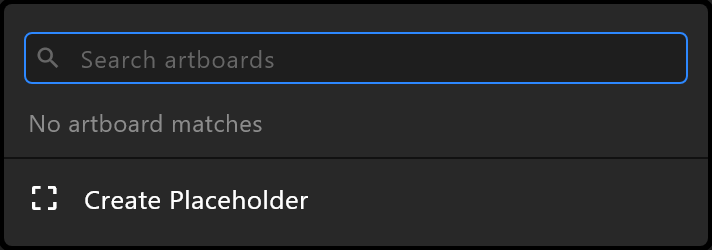
The nested-artboard button places a copy of another artboard. Its menu lists every artboard that can go inside this one, components first, with a Search artboards box at the top for documents with many.
Create Placeholder puts down an empty 400 × 300 slot instead, to be filled on air from an Artboard property — useful when the rundown decides which graphic goes in the hole. If the document has exactly one Artboard property, the placeholder is wired to it straight away.
The button is unavailable until the document has a second artboard to place.
Shapes and paths
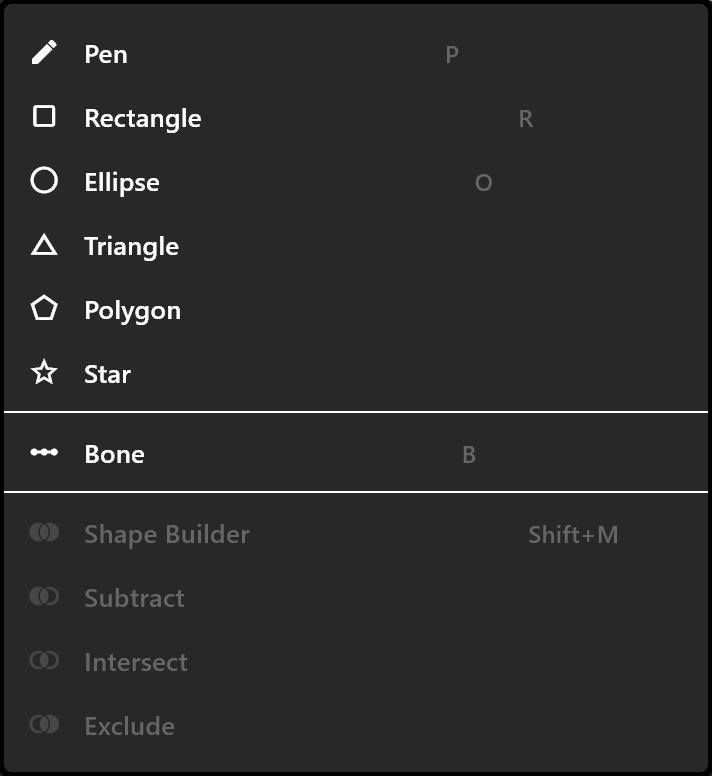
| Entry | Key |
|---|---|
| Pen | P |
| Rectangle | R |
| Ellipse | O |
| Triangle, Polygon, Star | — |
| Bone | B |
With two or more shapes selected, the rest of the menu combines them: Shape Builder (Shift+M) unions them into one path, and Subtract, Intersect and Exclude cut, keep the overlap, or keep everything but it. The result takes the bottom-most shape's fill and strokes, and it is one undo step. Curves become fine straight segments.
Text is a button of its own (T).
Bones and weights
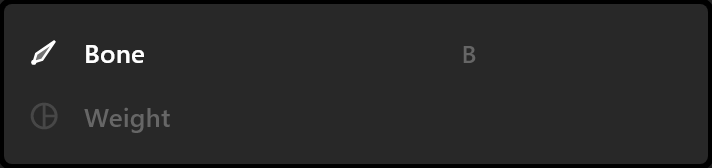
Bone (B) starts a skeleton: press to place a root bone and drag to aim it; with a bone selected, the next press chains a child from its tip.
Weight switches on painting — how strongly each point of a shape follows each bone. If the selection cannot be painted, the editor says why rather than doing nothing: "Select a path or a meshed image to paint its weights.", "<name> follows no bones yet — bind it first, then paint.", or "<name> has no bones left to paint for."
Events, joysticks and groups of properties
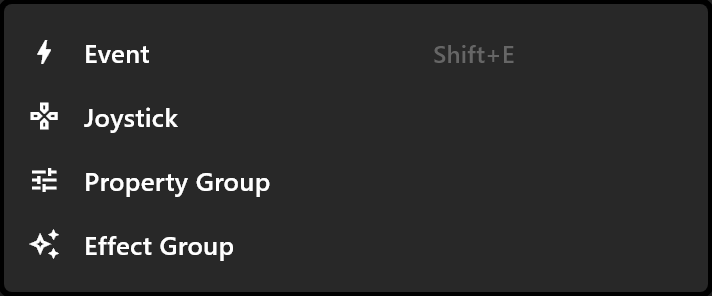
| Entry | Key | What it does |
|---|---|---|
| Event | Shift+E | Then click on the stage to place an event — something a graphic can announce while it plays |
| Joystick | A 100 × 100 control placed beside the artboard, for driving several values from one handle | |
| Property Group | A holder for custom properties on the artboard | |
| Effect Group | A shared path effect (a trim) on the artboard; the artboard is then selected, because that is where it is edited |
Scripts
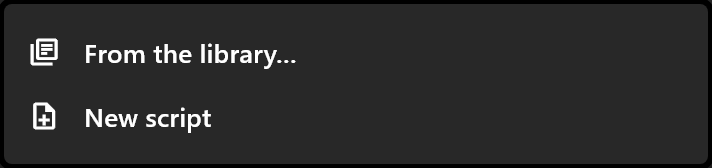
The code button adds an object drawn by a script you write. Its menu offers From the library…, New script, and then every script already in the document, so the same script can draw more than one object. A script written here shows a code icon; a script that arrived compiled, with no source to edit, shows a padlock. The group's button is blue while the document holds any script.
3D
The cube adds a 3D viewport — a window into a 3D scene, sized to the artboard, with a key light and a camera already in it. Everything else in the menu goes into the viewport you are working in: Shapes, Lights, 3D text, groups, cameras, a surface or an extrusion made from a 2D shape, a card showing another artboard, and the tracked-camera tools.
Look from switches what the stage shows: the file's own camera, or the editor's view from the front, back, sides, top or bottom; each view shows its key (1, 3, 7, with Ctrl for the opposite side, 0 for the camera). Hold Alt and drag to orbit that view, Alt with the middle button to slide it, Alt with the right button to move in and out.
3D plays in airZ Editor and airZ Engine; other players show the rest of the graphic without it. See 3D viewport and the pages after it.
Video slot
The last button arms a picture element bound to an image property — the slot a camera, a routed channel or a clip fills on air. See Live video slots.
To place an ordinary picture instead, drag it from Assets onto the stage.