Appearance
Left sidebar
Everything your document contains: its objects, its data, the files it carries, and its animations.
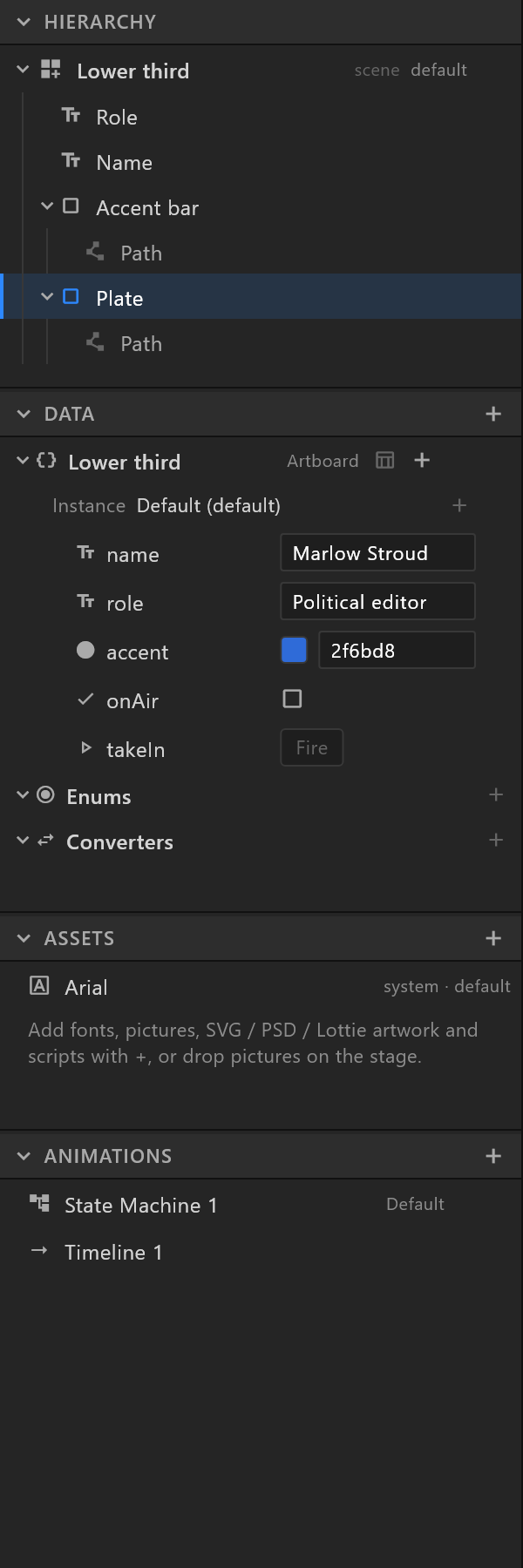
The sidebar runs down the left of the window, in four sections. Each one folds and resizes, and the editor remembers how you left them.
What it does
The four sections answer four different questions about the same document.
| Section | What it holds |
|---|---|
| Hierarchy | Every object on the artboard, in the order it draws. Your artboards are here too, one row each. |
| Data | The values a graphic is driven by: view models, their properties, and the instances that hold real values. |
| Assets | The fonts, pictures, artwork and scripts the document carries with it. |
| Animations | The timelines and Animation States this artboard plays. |
A document always has all four, even when three are empty. A new document starts with one artboard, a timeline and Animation States, so Hierarchy and Animations have something in them from the first moment.
Use it
Find an object when the list is long. Press Ctrl+F. A search box appears at the top of Hierarchy — on a busy artboard, thirty layers or more, it is there already. Type any part of a name; Esc clears it.
Give a section more room. Drag the line between two sections. Fold one you are not using by clicking its title; the others take the space. Both are remembered for the next document you open.
Hide the sidebar for a moment. Ctrl+\ hides the side panels and gives the whole window to the stage. The same keys bring them back.
Sections
Hierarchy
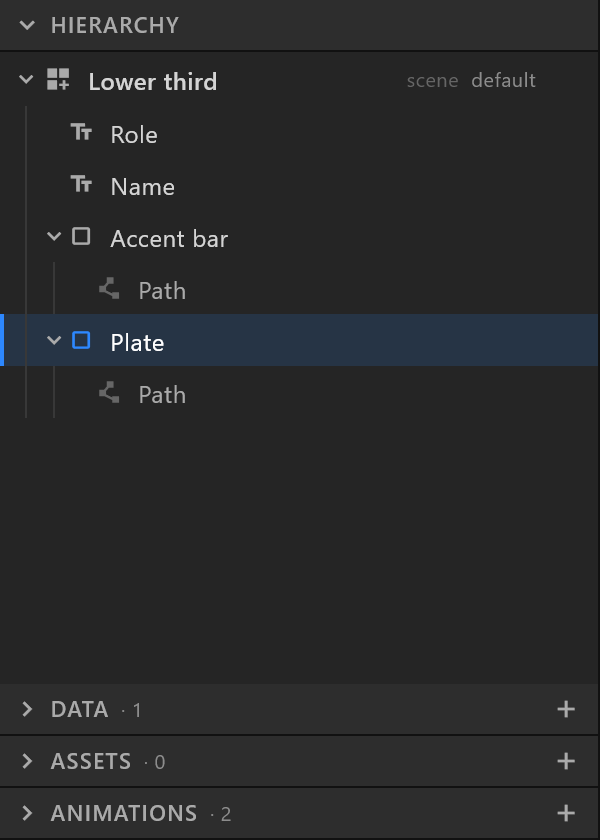
Rows for artboards, objects, events and scripts. The order is the order the artboard draws: the top row is nearest the viewer.
- Select by clicking a row.
Shift+clicktakes everything between it and the row you last clicked;Ctrl+clickadds or removes one. - Rename by double-clicking the name, or
F2. - Reorder and reparent by dragging. A line shows where the object will land, and a name follows the pointer.
- Right-click a row for what you can do to it: cut, copy, duplicate, group, wrap in a layout, hide, change its draw order, delete, and more. Those are described on the Hierarchy page.
Data
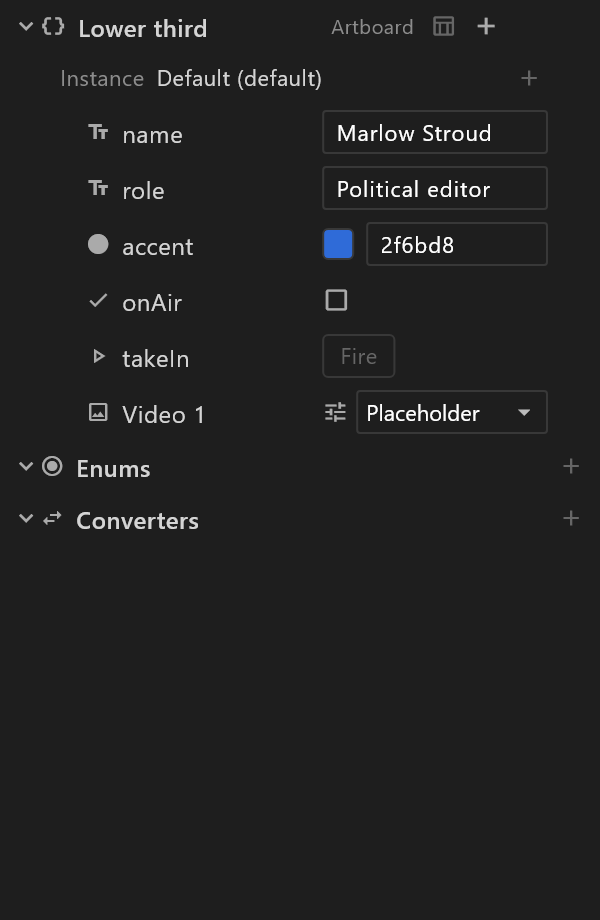
View models, and what is in them. Use + to add a view model, an enum or a converter. A view model's properties appear beneath it, each with the value the graphic starts with. See the Data panel.
Assets
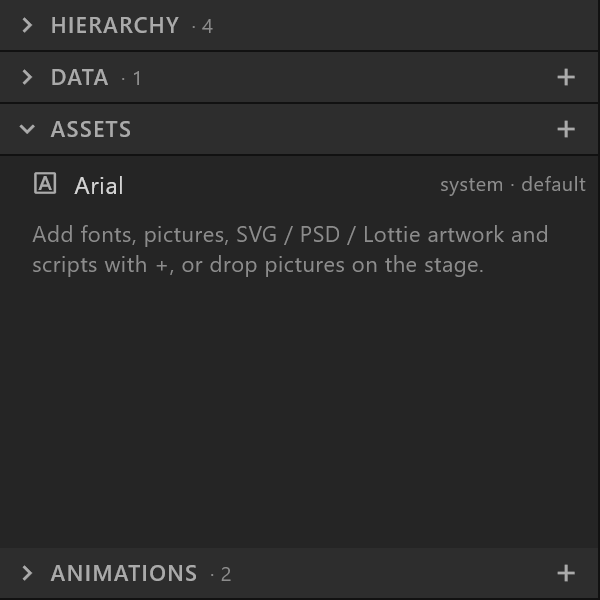
Everything the document carries with it, so it opens complete on another machine. Use + to bring in a font, a picture, artwork or a script. Rows can be grouped into folders, and renaming a folder renames the group. See the Assets panel.
Animations
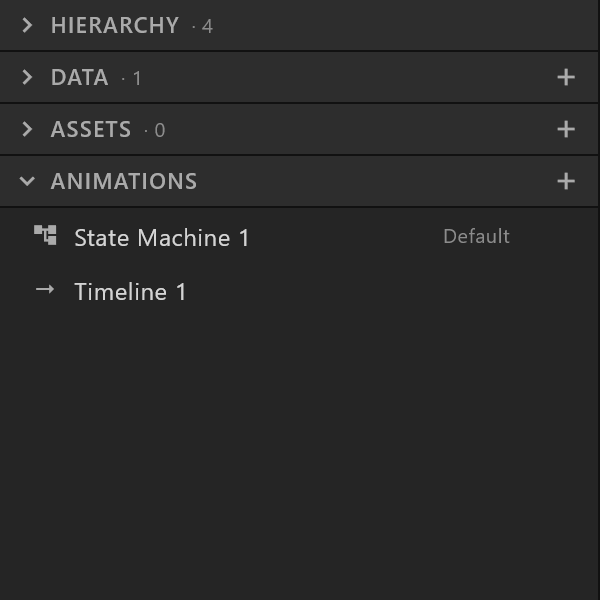
The timelines and Animation States of the artboard you are on. Use + to add either. One of them is the default — the one a player runs when it opens the graphic — and it is marked. See the Animations panel.
Shortcuts
| Keys | What it does |
|---|---|
Ctrl+F | Find an object by name in Hierarchy |
Esc | Clear the search |
F2 | Rename what is selected |
Ctrl+\ | Hide or show the side panels |
Every shortcut here can be changed: File › Keyboard shortcuts….
See also
- Hierarchy, Data panel, Assets panel, Animations panel
- Objects and the hierarchy, for what the order means
- Arranging the panels