Appearance
Objects and the hierarchy
Everything on an artboard is an object, and every object sits somewhere in a tree. Where it sits decides what it moves with and what it is drawn in front of.
Kinds of object
| Object | What it is |
|---|---|
| Shape | A rectangle, ellipse, triangle, polygon or star, drawn from numbers you can change |
| Path | A shape made of points you place and move — drawn with the pen, or a shape converted |
| Text | Words, in a font the document carries |
| Picture | An image from the document's assets — or a video slot a feed fills at playout |
| Group | A container: move, turn or hide several objects as one |
| Layout | A container that arranges what is inside it: a row, a column, a grid |
| Component | Another artboard, placed inside this one |
| Artboard list | One row per item of a list in your data |
| Scripted object | Something a script draws |
| Bone | Bends the artwork bound to it |
| Event, joystick, property group | Objects that draw nothing, and make the graphic react |
Each has its own inspector page.
The tree
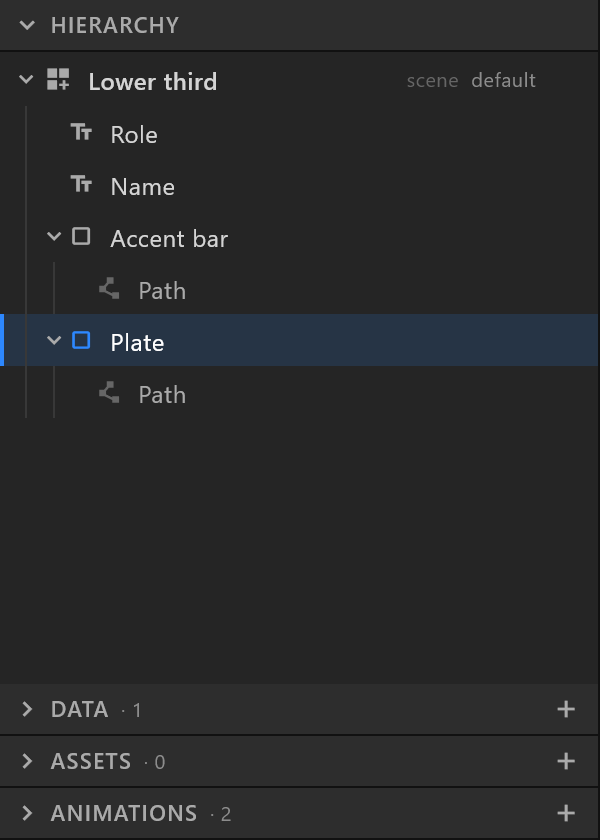
The Hierarchy shows the artboard's objects as a tree. An object inside another is its child:
- A child moves with its parent. Move a group and everything in it goes too; its children keep their places inside it. See Transform and origin.
- A child is hidden with its parent, and faded with it.
- A child of a layout is placed by the layout, not by its own position. See Layouts.
Drag a row onto another to put it inside; drag it between rows to take it out. Grouping (Ctrl+G) puts the selection inside a new group in one step.
Front and back
Higher in the list is further in front. The first child of a group is drawn over the ones below it, and a new object arrives on top. Change the order by dragging, or with Bring to front, Bring forward, Send backward and Send to back on the right-click menu.
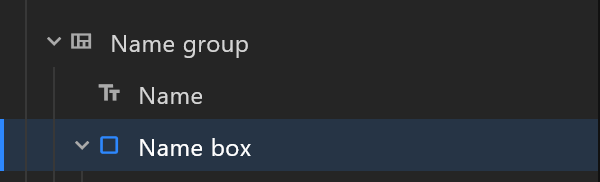
A shape can also change its drawing order on its own as it animates — the Draw Order section of its inspector. See Shape.
Names
Every object has a name, shown in the hierarchy and at the top of the inspector. Name objects for the people who will open the document — "Plate", "Name", "Role" — not "Rectangle 3". A control system works with the names in your data, not with object names, but the next designer to open the document reads these.