Appearance
Listeners and inputs
Making a graphic react to a click, a key, or something a component reports.
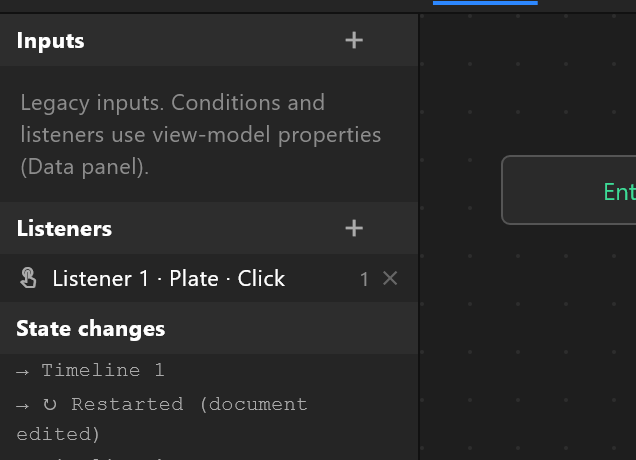
The left column of the Animation States graph, and the Listeners tree under the Animation States in the Animations list.
What a listener is
A listener watches one layer for one kind of event, and runs actions when it happens. A button is a listener on a shape, listening for a click, setting a property.
Making one
+ offers the listener already carrying the action you most likely want:
| Choice | The action it starts with |
|---|---|
| View Model Change | Sets a view-model property |
| Align Target | Moves a layer to the pointer |
| Report Event | Reports an event to the player |
| Blank | No action — useful as a shield, see below |
| Input Change | Sets a legacy input |
Folder groups listeners in the tree. Folders are for your convenience and change nothing in the graphic.
Setting one up
| Row | What it does |
|---|---|
| Target | The layer whose events it receives. Pick from the list, or use the crosshair and click the layer on the stage. Hovering the field highlights the layer |
| Listen to | Pointer enter, exit, down, up, move, drag, drag start and end, Click, Event, View Model Change, Keyboard, Gamepad |
| Opaque target | A pointer hit stops here: layers behind it are not reached |
| Actions | What happens |
Keyboard listeners add a Key, Modifiers (Shift, Ctrl, Alt, Meta) and a Phase — down, up, repeat, or all three.
Event listeners pick which event of the targeted component to wait for. If the target is neither a component nor the artboard, the panel says so: "Target a component (its events) or 'This artboard' (its own events)."
Only listener targets take part in hit testing
A layer no listener points at is invisible to the pointer. That is why a Blank listener exists: put one on a shape covering a region, tick Opaque target, and it becomes a shield that stops clicks reaching what is behind it — without doing anything itself.
Actions
| Action | What it does |
|---|---|
| View Model Change | Sets a property, or fires a trigger. The value can come from another property, through a converter |
| Align Target | Moves a layer to the pointer. Preserve offset moves it by the pointer's movement instead of snapping it under the pointer — a drag rather than a jump |
| Report Event | Reports an event to whoever is playing the graphic |
| Component Input Change | Sets an input of the component's own Animation States |
A boolean action cycles true → false → toggle as you click it, so a switch is one action rather than two listeners.
Testing it
With the Animation States open, the stage sends pointer events to the graphic, playing or stopped, exactly as playout will. Press play and click your button.
The state changes log records what happened, so a listener that appears to do nothing can be checked rather than guessed at.
Inputs (older documents)
Inputs are the earlier way of driving Animation States: a named boolean, number or trigger belonging to them. They still work, still export and still play, and conditions and listeners can use them.
For new work, use view-model properties instead. They are visible to the control system, they can be bound to artwork, and they are not limited to one set of Animation States. The panel says as much: "Legacy Animation States inputs. …"
Each input row can be changed live while the Animation States run — a checkbox, a number field, or Fire for a trigger — which makes them a quick way to test a graph.