Appearance
Stage
Where the graphic is. Everything you draw, move and look at happens here.
What it does
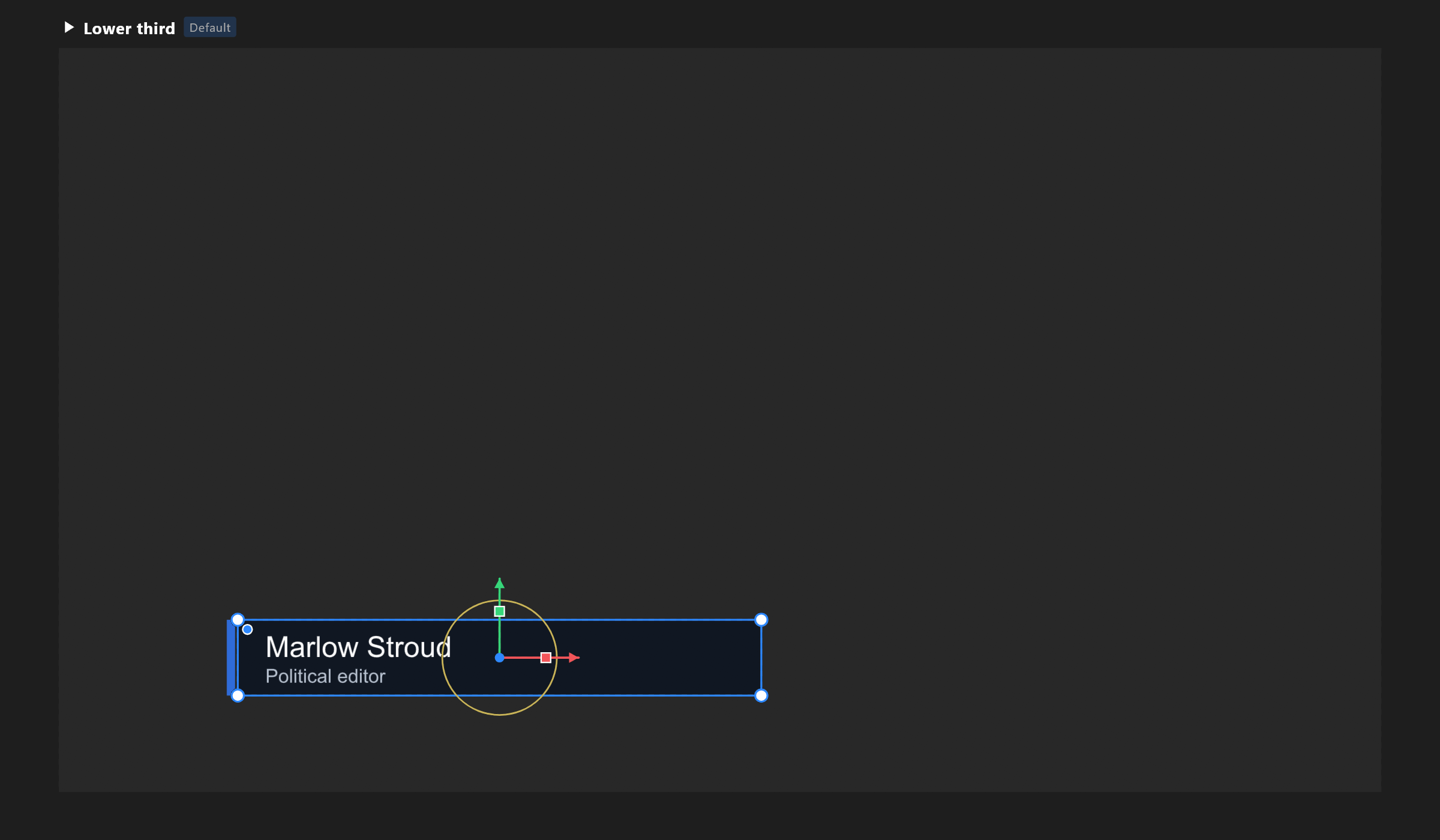
The middle of the window holds every artboard in the document, side by side in a space you can pan and zoom around. The one you are working on is drawn live; the others are drawn as pictures you can click into.
Selecting
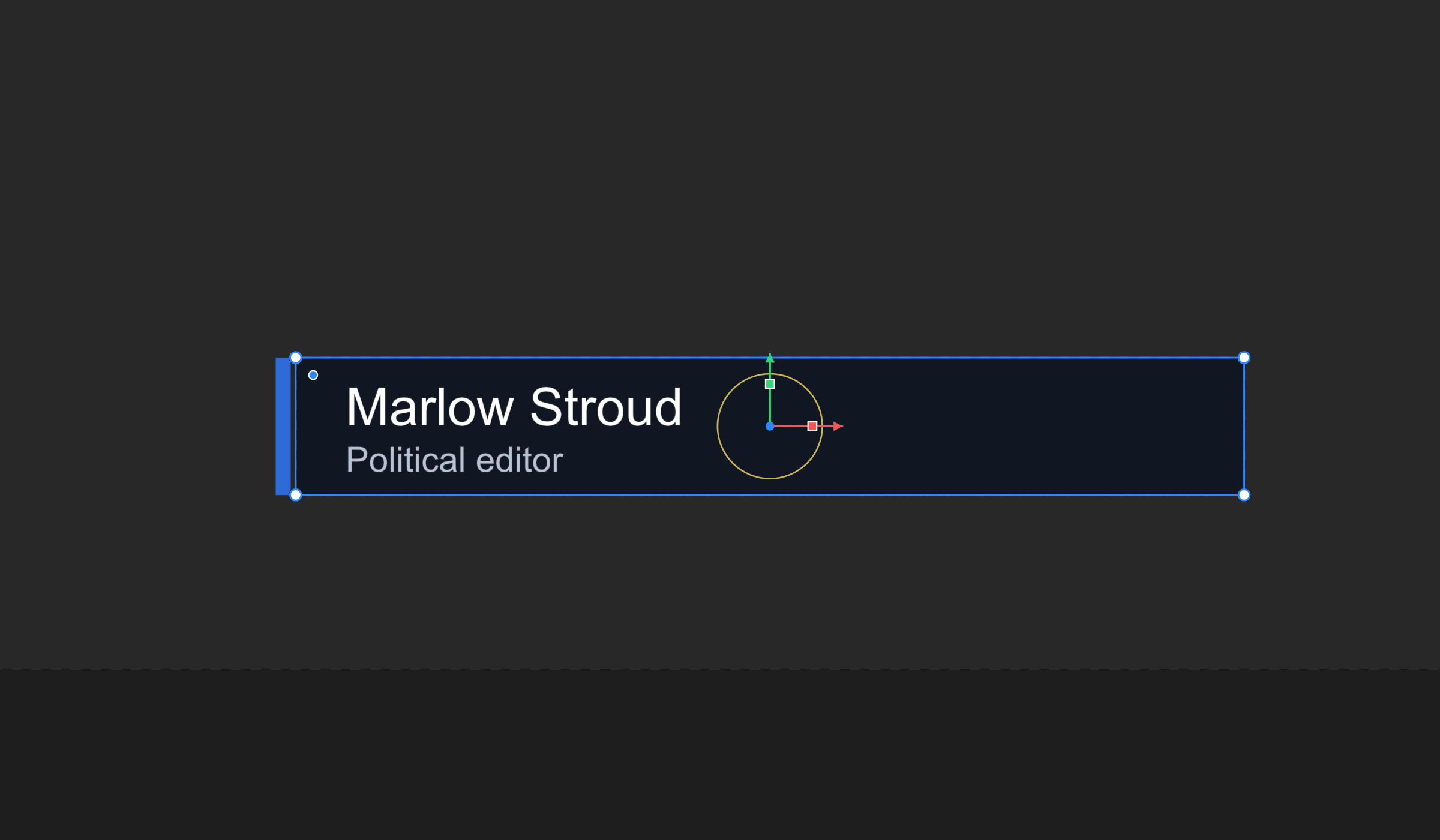
Click an object to select it. The click takes the top-most thing under the pointer, and it goes straight to the shape — you do not have to click into a group first. Select a group from the hierarchy.
| What you do | What happens |
|---|---|
| Click empty space inside an artboard | Selects the artboard |
| Click empty space outside every artboard | Selects nothing |
| Click an artboard you are not working on | Starts working on it |
Shift+click or Ctrl+click an object | Adds it to the selection, or takes it out |
| Drag on empty space | A box: everything it touches is selected. Hold Shift or Ctrl to add to what is already selected |
Ctrl+A | Everything on the artboard |
Past the artboard's edge works too. Whatever reaches outside the artboard can be clicked and dragged there: an object hanging off it, a path's points and handles, the transform handles and the origin. A drag box can start outside it, and the drawing tools draw there. Hovering works there too: a 3D object's move, rotate and scale arrows, a light's handles and the pointer light up as they do inside the artboard. Whether what lies outside is shown is the artboard's Clip contents: see Artboard.
Double-click goes one level in: into a component, into text for editing, into a path's points. On a picture with a mesh it adds a mesh point.
Esc steps back out, one level at a time: it stops a playing graphic, then cancels a pen path, then a pick, then leaves isolate, weight painting or point editing, then ends a chain of bones, and finally clears the selection.
Moving around
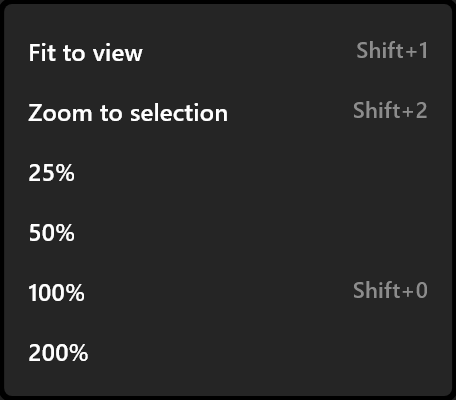
| Gesture | What it does |
|---|---|
Hold Space and drag | Pans. The pointer becomes a hand |
| Middle-button drag | Pans, with no key held |
| Wheel | Zooms around the pointer, between 10% and 1000% |
Shift+1 | Fits every artboard in the window |
Shift+2 | Frames what is selected. Does nothing when nothing is selected |
Shift+0, Ctrl+=, Ctrl+- | 100%, in, out |
Tapping Space without dragging plays and pauses the timeline in Animate mode.
Drawing
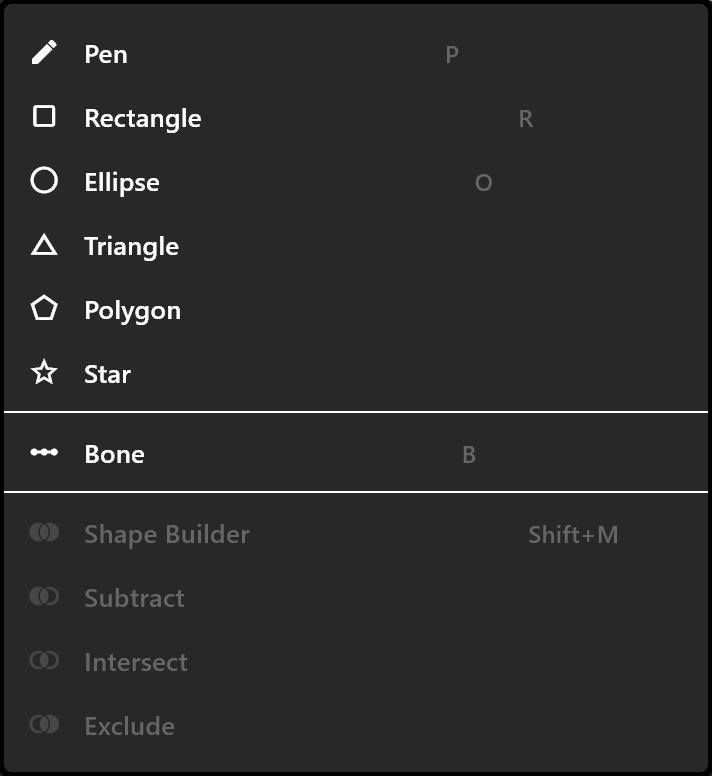
Pick a tool, then drag on the stage. The shape is the rectangle you drag, and its middle is where the object sits. After you draw, the tool goes back to Select, so the next drag moves what you just made instead of drawing another.
| Tool | What a drag does | What a click alone does |
|---|---|---|
| Rectangle, ellipse, triangle, polygon, star | Draws it in the dragged box | Nothing — the click selects instead |
| Artboard | Draws a new artboard anywhere, snapping to the others, with its size shown | Nothing |
| Layout | Draws a layout box. Dropped inside another layout, it joins that layout's flow | Nothing |
| Text | Places the word Text at 48 pt | The same |
| Video slot | Places a 640 × 360 slot, with a property to drive it | The same |
| Component | Places it at the artboard's own size | The same |
| Event | Places an event icon — it may sit outside the artboard | The same |
| Bone | Places a bone and aims it as you drag | Places one at its default length |
A shape smaller than a few units is not created, so a stray click never leaves a speck behind. An artboard must be at least 16 × 16.
The right-click menu
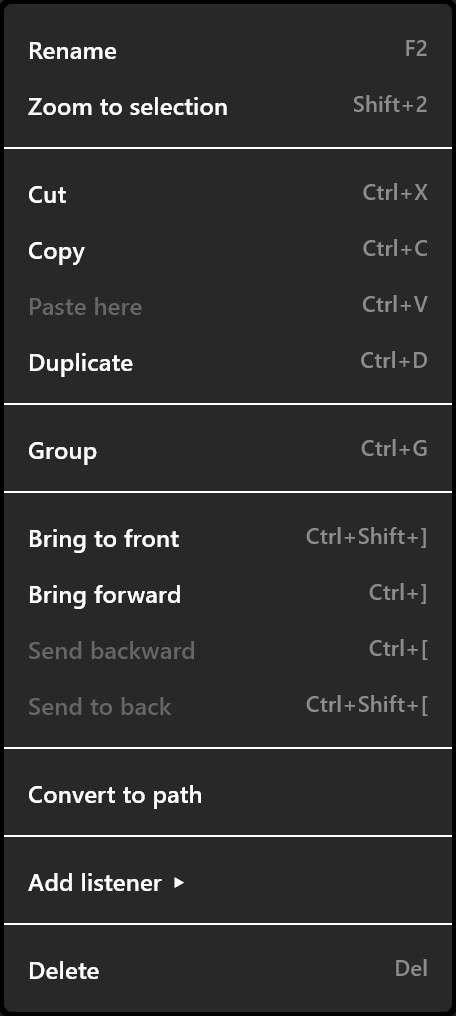
On an object: Rename, Zoom to selection, Cut, Copy, Paste here, Duplicate, Group, Ungroup, the four draw-order commands, Convert to path, Add listener, Delete. Items that would do nothing are greyed — a layer already at the front cannot be brought forward.
On empty space: Paste here, Select all, Fit to view.
Paste here puts what you copied at the pointer, not back where it came from.
What else you see
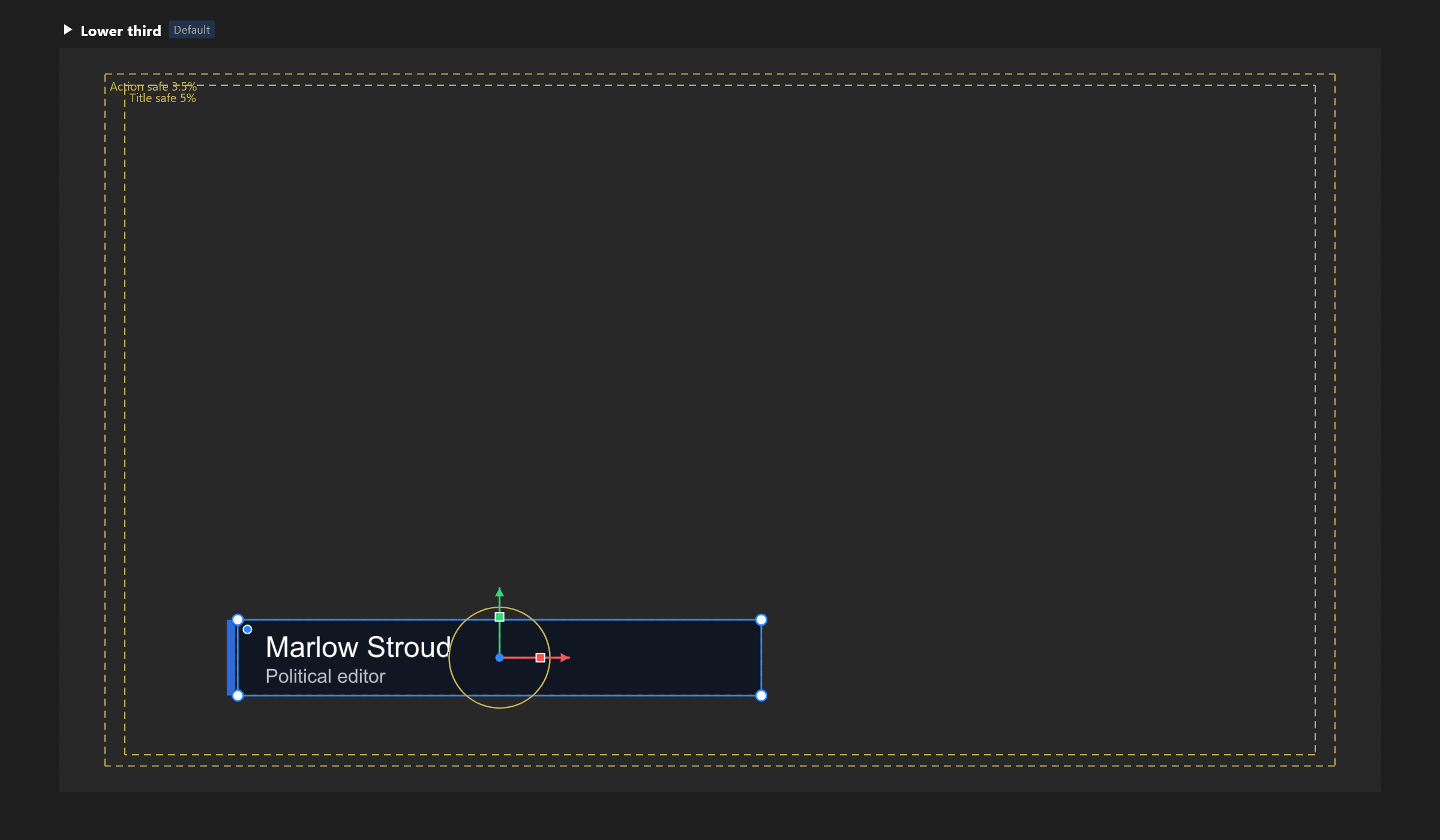
The stage draws more than your artwork, and each of these means something:
| What you see | What it is |
|---|---|
| A checkerboard | Transparency |
| A name above an artboard | Its title. Badges say Default (the one a player opens) and Component |
| Gold dashed frames | Safe areas, labelled with their percentages |
| A blue frame with a tag in the corner | Animate mode. It names the timeline or the Animation States you are on |
| Faded copies of the artwork | Onion skin: the frames around this one |
| A gold bolt | An event |
| A blue banner near the top | A pick: "click a target on the stage or in Layers · Esc cancels" |
| A chip beside the pointer while dragging | What the drag is doing: x 120 y 84, 240 × 96, 37°, r 12 |
| Dashed blue lines | A constraint's target, or a layout's padding |
| A cube in the corner of a 3D viewport | Which way you are looking. Click a face, or drag it to orbit |
An empty document says Create an artboard to get started, with a width, a height and a button.