Appearance
Preflight
What would export happily and then misbehave on air.
A small chip in the top bar, left of the Design and Animate switch.

What it does
The editor checks the document continuously and keeps a count. The chip is the count; clicking it opens the report in the right sidebar.
| The chip | What it means |
|---|---|
| A tick and the word Preflight, in grey | Nothing to fix |
| A number, in amber | That many findings, none of them serious |
| A number, in red | At least one serious finding |
"Serious" means the graphic is likely to go to air wrong: a binding pointing at a property that no longer exists, a picture with no image and nothing bound to it, a listener whose target was deleted. The amber ones are things worth knowing — an empty artboard, a work area with no length, a duplicate event name, a text with no font embedded. Every message is on Preflight findings.
Use it
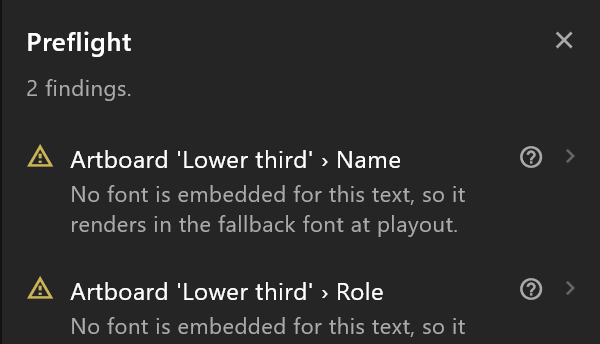
Click the chip. Each finding says where it is and what is wrong; clicking one takes you to it — its artboard first, then the object, timeline or Animation States it belongs to. The report stays open while you work through them.
Check it before you export, and before you hand a graphic over. A finding costs a minute now and an hour in a gallery.
What it does not do
It does not stop you exporting. There are good reasons to ship a graphic with warnings on it, and only you know them.
See also
- Preflight report, the panel itself
- Preflight findings, every message and what to do about it
- Prepare a scene for air