Appearance
Animate with Animation States
Turning a set of timelines into a graphic that runs itself: comes in, holds, loops, goes out — when the data says so.
Read Animation States first for the idea. This page is the recipe.
Before you start
Make one timeline per thing the graphic does: In, a looping Hold if it has one, Out. Name them — the Animation States show those names.
1. Open the Animation States
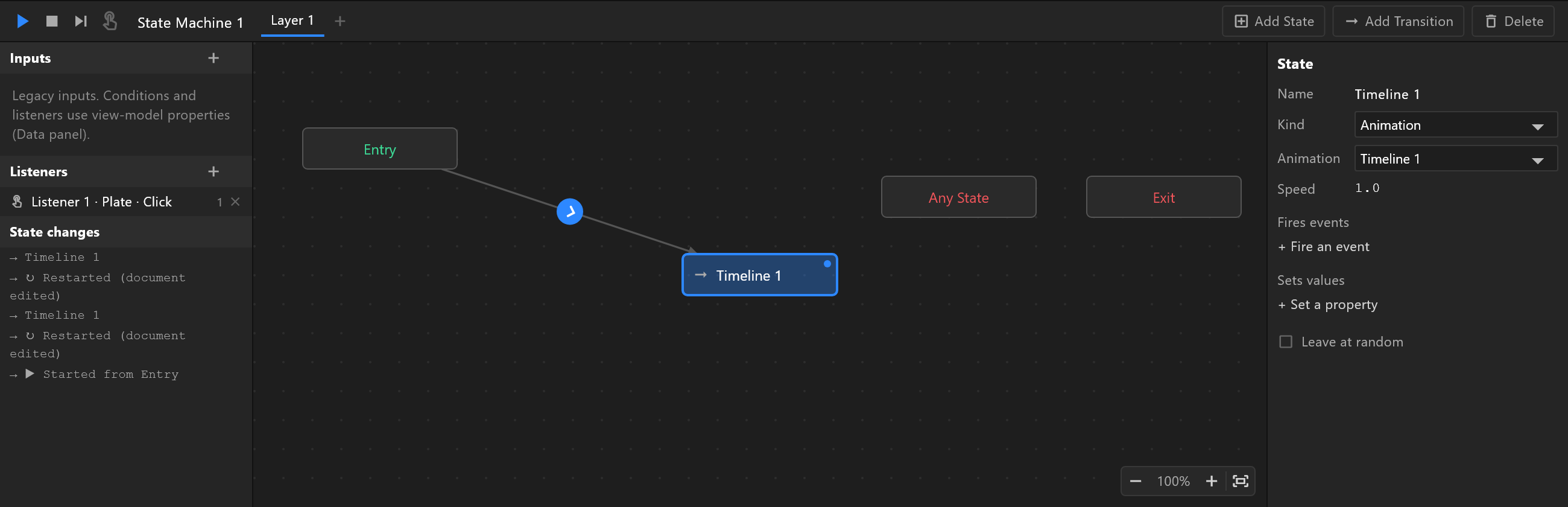
Every new document has State Machine 1 (new Animation States keep that kind of name), marked Default, in the Animations panel. Click it: the graph takes the bottom of the window, with Entry, Any State and Exit already there.
2. One state per timeline
Drag each timeline from the Animations panel onto the graph. Where you drop it is where its state sits.
3. Wire them
Hover a state and a blue dot follows your pointer round its edge. Press on the edge and drag onto another state to wire a transition. Wire Entry to the first state; then each state to the next.
4. Say when each one moves
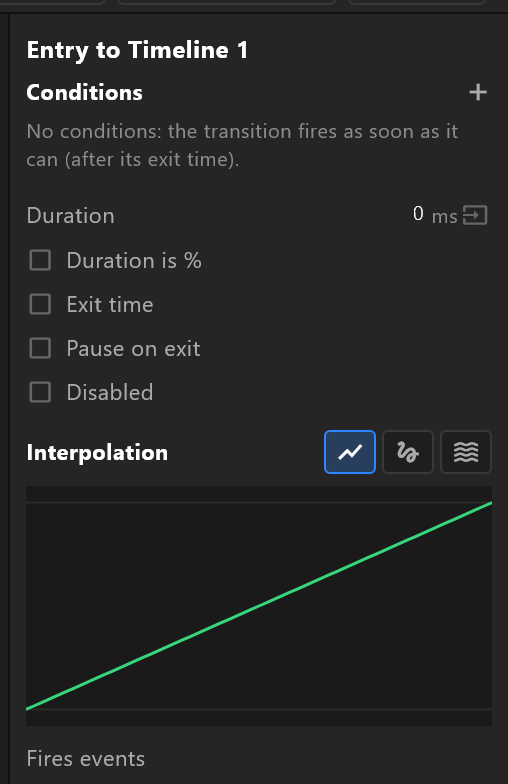
Click a transition's disc to select it, then set when it fires:
| You want | Do this |
|---|---|
| "When the operator presses take" | + under Conditions, choose a trigger — the row reads fired |
| "While this switch is on" | A boolean condition, is true |
| "When the number passes a value" | A number condition, score > 100 |
| "When the animation has finished" | No condition, and Exit time set to the end |
A switch keeps firing
A condition such as onAir is true holds every frame it is true, so it fires again as soon as the Animation States are back in the state it leaves from. For "once, when I say so", use a trigger.
5. A hold that loops
For a Hold that loops while the graphic is on screen: set the Hold timeline to Loop in its transport, wire In → Hold with no condition and an exit time at the end of In, and Hold → Out on the out trigger.
6. Test it
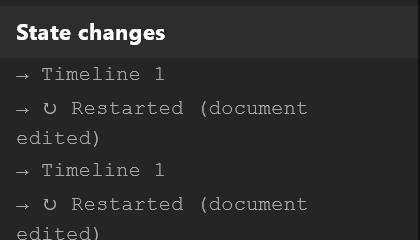
Press play above the graph. Fire triggers and change values in the Data panel (in Animate mode), and watch the current state glow in the graph. The State changes log on the left lists each state as it is entered — the quickest way to see why a transition did or did not fire.
See also
- Lower third — a complete example
- States · Transitions and conditions
- Listeners and inputs, for graphics that react to clicks