Appearance
Interpolation
How a value gets from one key to the next — the difference between motion that feels designed and motion that feels mechanical.
The panel at the right of the timeline, whenever a key is selected.
The one rule to know first
An easing governs the segment after its key. Select the key at the start of a move and shape it; the last key of a row has nothing after it yet, and the panel says so rather than letting you shape a curve that does nothing:
Last key of Scale X — an easing governs the segment after its key, so this one shows until another key follows it.
With a key selected it names the span it is in charge of, for example Governs Scale X · 12F → 30F.
The four kinds
| Kind | What it does | Use it for |
|---|---|---|
| Hold | Nothing changes until the next key, then it jumps | Switching states, cutting between values |
| Linear | A straight ramp, the same speed throughout | Machines, counters, anything mechanical |
| Cubic | An ease with two handles you can shape | Almost everything |
| Elastic | Overshoots and settles | Entrances with weight |
Presets, and the one worth knowing about
The chips apply a ready-made cubic: Linear, Ease, In, Out, In-Out, Strong in, Strong out, Strong in-out, Back, and Elastic.
Back overshoots slightly before settling. It is the difference between a lower third that arrives and one that lands, and it is the preset most worth trying on an entrance.
In, out, or both? A graphic coming on screen usually wants Out (fast first, settling at the end). A graphic leaving wants In (creeping away, then gone). Something moving between two places on screen wants In-Out.
The curve
The box under the presets draws the easing. For a cubic, the two blue handles can be dragged: sideways for timing, up and down for how far it overshoots. The four numbers beneath are the handle positions, if you prefer to match another tool's numbers.
Elastic
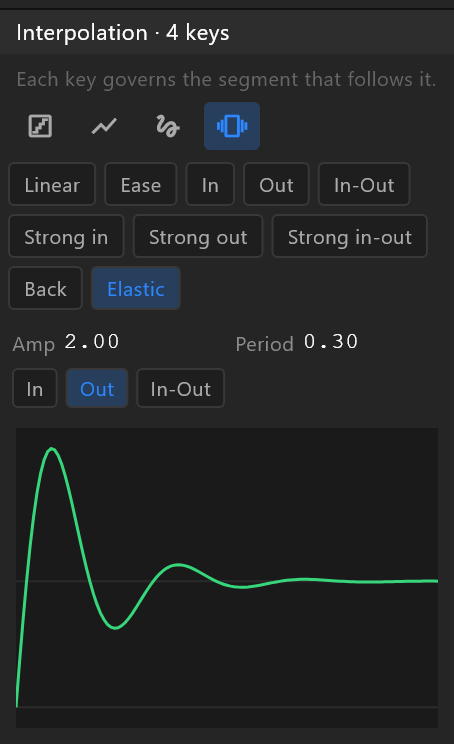
Amplitude is how far it overshoots; period is how quickly the wobble repeats. In, Out and In-Out say which end wobbles.
All three change the drawing as you set them, and the curve you see is the one that plays — so an elastic can be judged in the box before playing it.
Doing it to several keys at once
Select the keys, then use anything: the four buttons, a preset chip, the right-click menu's Interpolation, or F9 (ease in-out), Shift+F9 (in), Ctrl+Shift+F9 (out). They all write to every selected key — which is how a whole animation gets consistent easing in one go.
See also
- Tracks and keys · Graph editor
- Transitions and conditions, which have easing of their own