Appearance
Hierarchy
Every object on the artboard, in the order it draws, and the place to rearrange them.
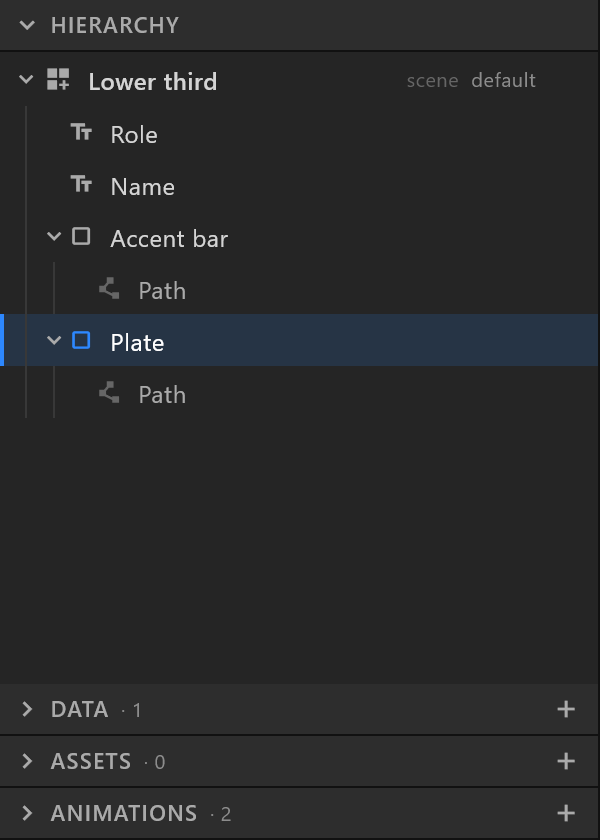
Left sidebar, top section.
What it does
One row per object, indented by what it sits inside. The top row draws nearest the viewer, and everything below it is further back. Moving a row up the list brings that object forward.
Your artboards are rows too, at the outer level. The one you are working on shows its contents; the others fold open as a read-only list you can click into.
Use it
Select. Click a row.
| What you do | What you get |
|---|---|
Shift+click | Everything from the row you last clicked to this one, in the order the tree shows |
Ctrl+click | Adds this row, or takes it out again |
Ctrl+Shift+click | Adds a whole run to what is already selected |
The row with a blue bar at its left edge is the primary one: the inspector and the stage handles belong to it, and a Shift+click run ends there.
A row whose group is already in the run — the path under a shape, the layers of an open group — comes along with its group rather than being selected twice over.
Move with the keyboard. With a layer selected: ↓ and ↑ step through the rows, → opens a folded group, ← folds it, or goes to the parent when there is nothing to fold.
Rename. Double-click the name, or press F2. Enter commits, Esc cancels.
Find. Press Ctrl+F, or use the box that appears once the artboard has thirty layers or more. It matches any part of a name, including the names of 3D objects inside a viewport. While you search, the list shows each match with the groups above it opened to reach it, those ancestors dimmed so the matches read first. The field counts the matches, Enter selects the first, Esc clears. Nothing matching reads "No layer on this artboard has that in its name."
Reorder and reparent. Drag a row. What you see tells you what will happen:
| The indicator | Where it lands |
|---|---|
| A blue line across the top of a row | Above it, and in front of it |
| A blue line across the bottom | Below it, and behind it |
| A blue box filling the row | Inside it. Only groups and layouts offer this, in the middle of the row — their top and bottom edges still mean above and below |
| The artboard row lights up | To the front of the artboard's list |
| Empty space below the list lights up | To the back of the list |
Dragging a selection of several moves all of them; the ghost under the pointer says how many. An object keeps its place on screen when it changes parent. A group cannot be dropped inside itself, and dropping into a folded group opens it.
What a row shows
The icon says what kind of object it is: a shape, a path, text, a picture, a group, a layout, a component, a 3D viewport, a bone, a joystick.
| What you see | What it means |
|---|---|
| Dark grey name | The object is hidden |
| Grey name on an indented row | A path inside a shape |
mask_<name>_<what it masks> | The object is being used as a mask. Its real name is unchanged — typing over this strips the prefix back off |
| scene / component on an artboard row | What that artboard is for. Click the word to change it |
| default on an artboard row | The artboard a player opens |
| A bolt icon | An event |
A code icon, with : <script> after the name | An object a script draws |
| A card icon under a 3D viewport, before Sky | One of the 3D layer's reflection cards. Click it to open it in the inspector; Delete removes it. See Sky and reflection cards |
| A filled rectangle among a 3D viewport's objects | A Softbox: a light whose panel is seen. A plain area light has the outline icon |
A text with a background box shows as three rows: <text> group, holding the text and <text> box. The box is listed under the text because it sits behind it.
Hiding, and looking at one thing

Three things sit close together and do different jobs. The difference matters, because one of them changes your document and two do not.
| What you do | What happens | Saved in the document? |
|---|---|---|
| Click the eye | Hides or shows that object | Yes. It exports, and it undoes |
Alt+click the eye | Hides every sibling and leaves this one. Alt+click again brings them back | Yes, one undo step |
| Click the isolate ring | Shows only this object, what it is inside and what is inside it. Everything else goes from the stage. The ring stays lit until you click it again | No. A way of looking, nothing more |
Turning isolate on says so: "Showing <name> on its own. Click the isolate ring again to bring the rest back."
The right-click menu
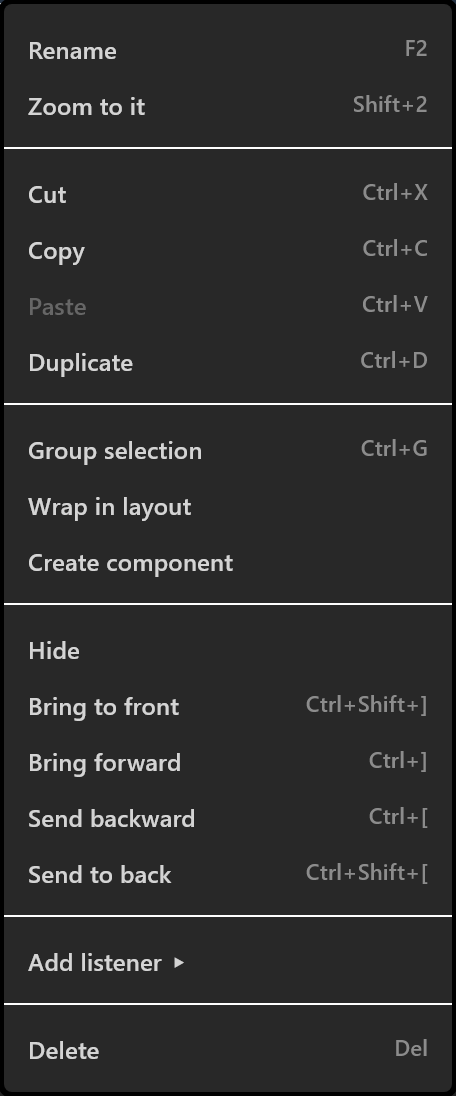
Right-clicking a row that is not selected selects it first.
| Item | What it does |
|---|---|
| Edit script | Opens that object's script. Only on a scripted object |
Rename F2, Zoom to it Shift+2 | |
Cut Ctrl+X, Copy Ctrl+C, Paste Ctrl+V, Duplicate Ctrl+D | Duplicate copies the object with its timeline keys, so the copy animates like the original |
Group selection Ctrl+G, Ungroup Ctrl+Shift+G | |
| Wrap in layout, Unwrap layout | Wraps the selection in a layout sized to it, children keeping their place; or dissolves one |
| Add artboard list | Inside a layout: a list that draws one artboard per item of a bound list |
| Create component | Turns the selection into a new artboard, sized to it, with a timeline and Animation States; a copy of it takes the selection's place here |
| Detach instance | On a component: replaces it with copies of its contents. The component artboard stays |
| Hide / Show | |
Bring to front Ctrl+Shift+], Bring forward Ctrl+], Send backward Ctrl+[, Send to back Ctrl+Shift+[ | Greyed out when the object is already there |
| Add rectangle / ellipse / polygon / star / pen path | On a shape: another path in the same shape |
| Make a shape of its own / Make a path of the parent shape | Splits a path out, or folds it in — this is how a hole in a shape is made |
| Add listener | Makes this object something a click or a hover can act on |
Delete Del |
Artboard rows

- Click an artboard to work on it. Click it again to select the artboard itself, which opens its own inspector.
- The chevron on an artboard you are not working on folds open a read-only list of what it holds; clicking one of those rows switches to that artboard and selects the object.
- scene / component — click the word to change what the artboard is for. A component is offered first when you place one artboard inside another. The exported file is the same either way.
- + adds another artboard beside this one.
When it is empty
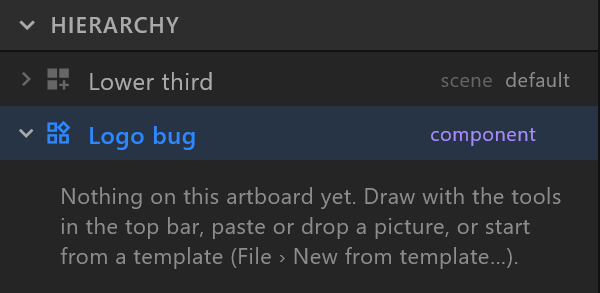
"Nothing on this artboard yet. Draw with the tools in the top bar, paste or drop a picture, or start from a template (File › New from template…)."