Appearance
Lower third
A name strap an operator can put on and take off air, whose plate fits any name, in a colour the control system can change.
Your first scene builds the look. This guide makes it ready for air: a plate that grows with the name, an "in" and an "out", and the triggers the operator presses.
1. The words, in a plate that fits them
- Place the name with the Text tool (
T), and the role below it. - Select the name and press Background box in the inspector's Text section. The name goes into a group that hugs it, with a box behind it — and the box is selected.
- Style the box like any rectangle: a fill, corners, and Ends for slanted ends if the look wants them.
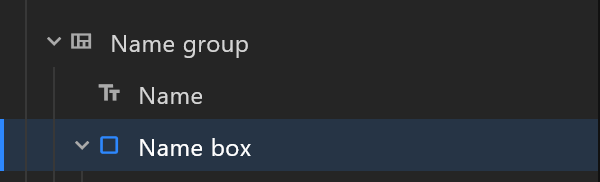
Type a long name into the text: the box grows with it. That is what will happen on air. See Text › Background box.
2. The data the operator fills in
In the Data panel, select the artboard's view model and add:
| Property | Type (key) | What it is for |
|---|---|---|
name | String (S) | The name |
role | String (S) | The role |
accent | Colour (C) | The colour of the accent bar |
takeIn | Trigger (T) | The operator's take |
takeOut | Trigger (T) | Taking it off air |
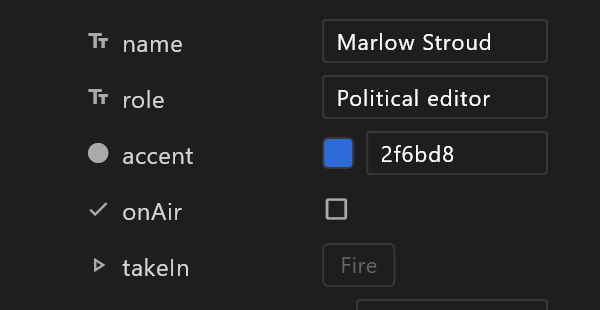
Bind the texts to name and role with the data glyph on their text row, and the accent bar's fill to accent with the glyph on its fill row.
3. In, and out
In the Animations panel, + › Timeline three times, and name them Off, In and Out.
- Off — one key at frame 0 with everything where it is before the graphic comes on: the plate off the left edge, the text faded out.
- In — from the Off positions at frame 0 to the finished strap at about half a second. Give the plate's first key the Back ease so it lands.
- Out — the reverse.
Keep Off and Out ending in the same place, so the graphic can go out and come back in again.
4. The rules: Animation States
Open State Machine 1 in the Animations panel (it is there in every new document, marked Default). Then:
- Drag Off, In and Out from the Animations panel onto the graph. Each becomes a state.
- Wire Entry to Off: press on Entry's edge and drag onto Off.
- Wire Off to In. Click the disc on the new line, and in its panel press + under Conditions and choose takeIn — the row reads
fired. - Wire In to Out, with the condition takeOut
fired. - Wire Out to In, with takeIn, so the strap can come back.
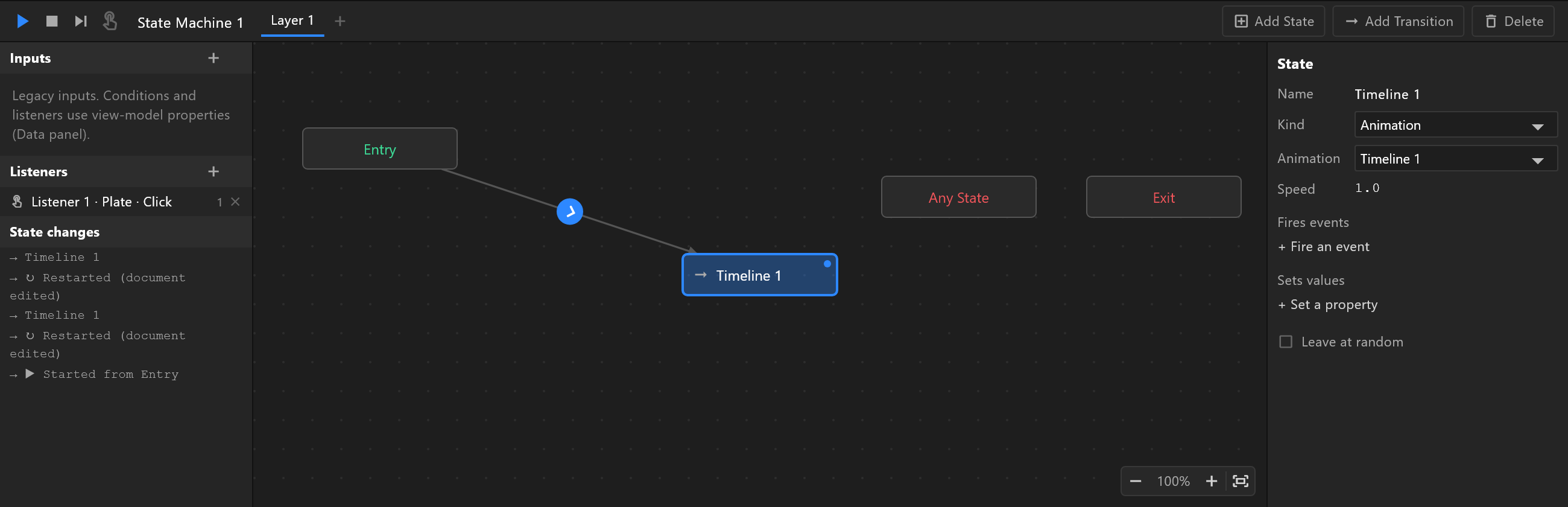
Triggers fire once, so each take moves the strap once — the reason to use them here rather than a true/false switch. See Transitions and conditions.
5. Try it as the operator will
With the Animation States open, press play above the graph. Then, in the Data panel — in Animate mode — press Fire on takeIn: the strap comes on. Type a different name into name; press Fire on takeOut. The state changes log lists each state as it goes.
6. Send it
Check preflight, save, and send it with File › Sync to controllers… — see Prepare a scene for air.