Appearance
Script library
Ready-made scripts — charts, gauges, counters — and the ones you have saved, to add to any document.
Open it from the scripts tool group (From the library…), from the + on the script editor's tabs, from a scripted object's library button, or from the Assets panel's + (Script from the library…).
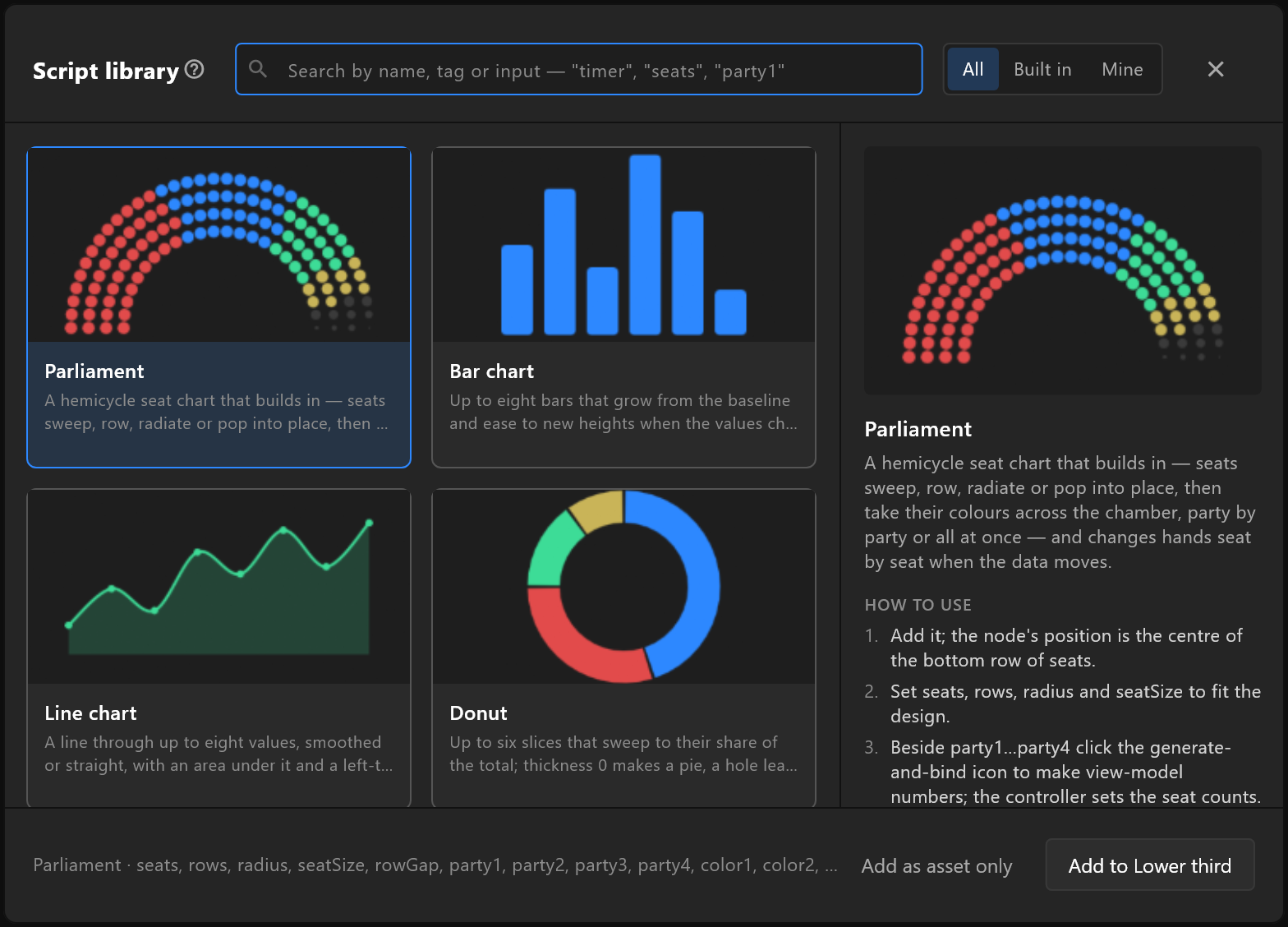
Finding one
- Search by name, tag or input — "timer", "seats", "party1".
- All, Built in or Mine narrows the shelf to the scripts that come with the editor, or the ones you saved. Yours carry a small mine badge.
Each card shows what the script draws, its name and a line on what it does.
Picking one
Click a card and the panel on the right shows it larger, with:
- What it does, in full.
- HOW TO USE — numbered steps: where to put it, which inputs to set, what to bind. A script without steps shows ABOUT instead: the comment at the top of its source.
- INPUTS — each value it reads, with its type and the value it starts at (or NO INPUTS).
- Its tags.
The bar along the bottom names the script and its inputs, and has the buttons:
| Button | What it does |
|---|---|
| Add to artboard | Adds the script to the document and an object on this artboard that runs it. Double-clicking a card does the same |
| Add as asset only | Adds the script to the document without placing it, for when you will place it yourself |
| Remove from library | For your own scripts only. It asks first: "The saved copy goes; scenes that already use it keep theirs." |
Before you pick anything, the bar says "Pick a script. Double-click adds it to the artboard."
Saving your own
Save to library… — on a script's row in Assets, on a scripted object, or in the script editor — keeps a script on your shelf for every document.
| Field | What it is for |
|---|---|
| Name | What the card is called |
| What it does, in a line | The card's description |
| How to use it, one step per line | Becomes the numbered HOW TO USE steps |
| Tags, separated by commas | Words a search will find it by |
The card's picture is the stage as it is when you save, so set the stage up to show the script at its best first. The window lists the script's inputs. If a script of that name is already on your shelf, it says so and the button reads Replace.
Your shelf is kept on this computer, in your Windows profile, and is there in every document you open.