Appearance
Keyboard shortcuts
Every action and the key that runs it — and changing those keys to the ones your hands already know.
File › Keyboard shortcuts…, or F1.
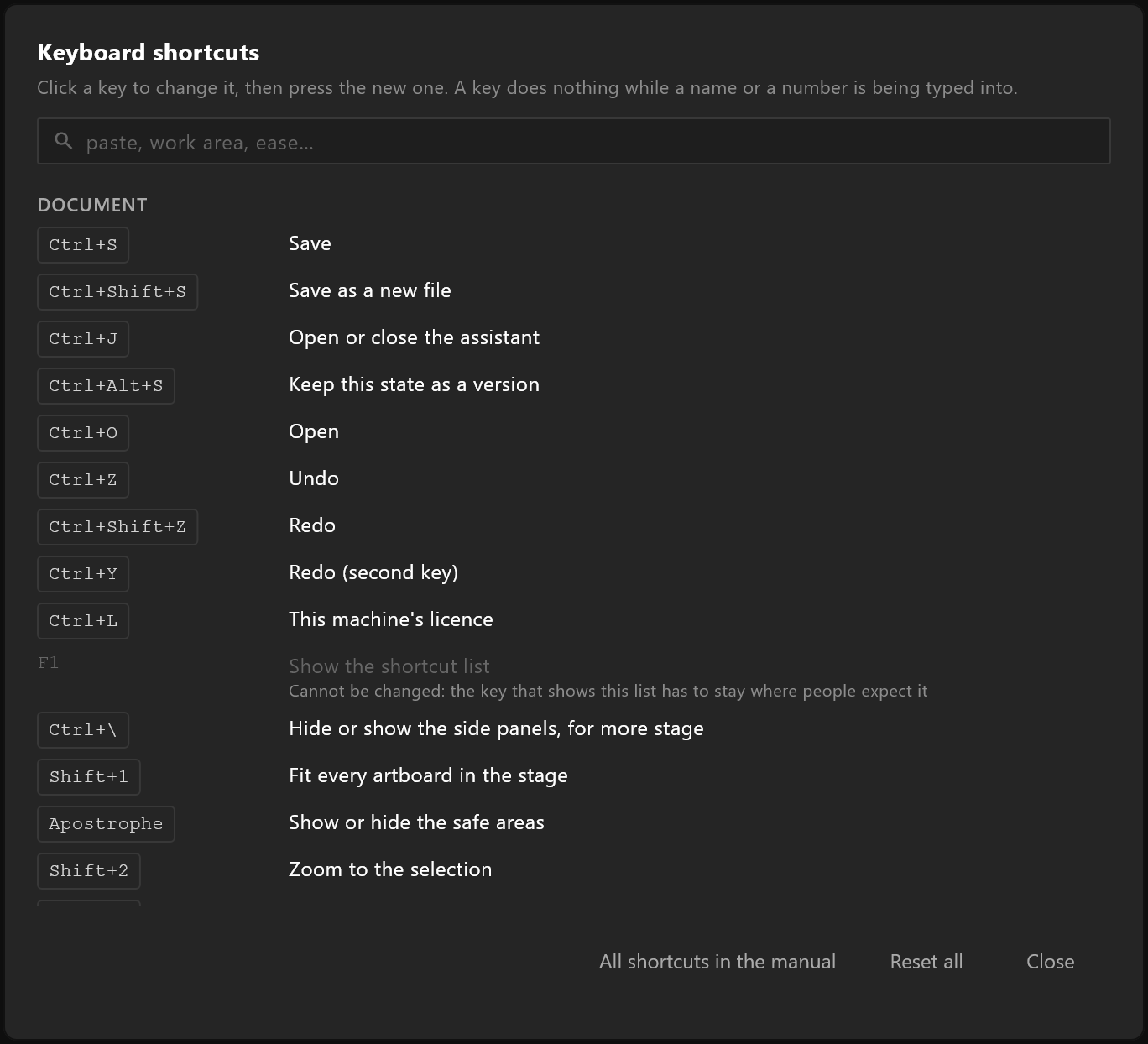
What it does
Every action in the editor, grouped: documents, objects, tools, rigging, points, artboards, the timeline, keys and data. Each row is an action, what it does, and its key.
Search to narrow the list. Nothing matching says "Nothing matches that." All shortcuts in the manual, at the foot of the window, opens the list of keys in your browser.
Changing a key
Click the key beside an action, then press the new one. Press it again to confirm, and it is yours.
A few keys cannot be changed, and say why rather than ignoring you: F1 opens this list, Esc cancels what you are doing, and Enter finishes a path.
Back to the default puts one action back. Reset all puts every action back.
Where the keys show up
The keys you set are shown everywhere the editor mentions one: menu rows, tooltips, the hints in empty panels. Rebind Duplicate and every mention of it follows. Nothing in the editor tells you Ctrl+D when you have made it something else.
Two conventions worth knowing
Single letters are tools and property types. V, Q, W, E are the transform tools; R, O, P, T, B draw. In the Data panel, with a view model selected, single letters add properties instead. They do nothing while you are typing in a field, and nothing while Ctrl or Alt is held.
The full list is in the manual too, if you would rather read it than open the dialog: Keyboard shortcuts reference.