Appearance
Converter
A converter changes a value on its way from the data to what it drives: rounds a score, turns 0.734 into "73%", counts up smoothly instead of jumping. This is where you set its steps.
Select a converter in the Data panel, or choose Edit its steps… from a binding's menu. Both open the same converter here.
What it does
A converter is a short list of steps. The value goes into step 1, and what comes out goes into step 2, and so on down the list. The last step's result is what the binding shows.
One converter can serve many bindings. Change it here and every binding using it changes. Used by says how many there are, or no binding yet.
Use it
- Click + beside STEPS and choose a step.
- Set its rows.
- Add more steps if the value needs more than one change. The arrows on a step's title move it up or down; × removes it.
With no steps, the value passes through unchanged, and the panel says so.
Delete converter removes it. Bindings that used it keep working and show the value as it comes.
The steps
| Step | What it does | Its rows |
|---|---|---|
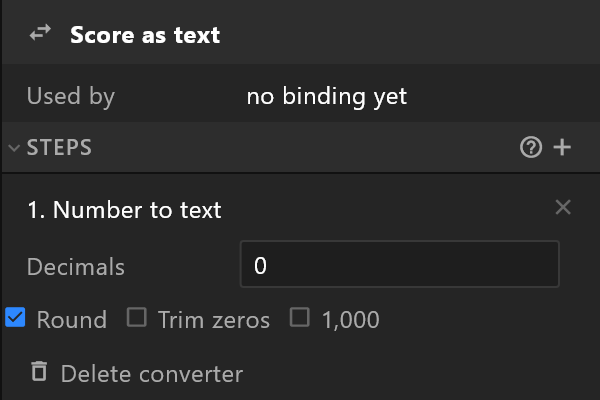
| Number to text | Writes a number as text | Decimals; Round to that many decimals; Trim zeros (2.50 becomes 2.5); 1,000 groups thousands: 12,500 rather than 12500 |
| Map a range | Stretches one range onto another: 0–1 in becomes 0–100 out | Min in, Max in, Min out, Max out; Clamp low and Clamp high stop it going past the ends |
| Round | Rounds a number | Decimals |
| Calculate | One sum on the value | Operation (add, subtract, multiply, divide and more); With a Constant Value, or another number property |
| Pad text | Makes text a fixed length: 7 becomes 07 | Length, Pad with (the character), Pad the end instead of the start |
| Trim text | Removes spaces | Trim: Start, End or All |
| Remove trailing zeros | 3.40 becomes 3.4 | — |
| Text to number | Reads a number out of text | — |
| Not (negate boolean) | Turns true into false and false into true | — |
| Fire trigger on change | Fires a trigger whenever the value changes | — |
| List length | How many items a list has | — |
| Ease changes (smooth counter) | A new value arrives gradually instead of jumping: a score that counts up | Duration, in seconds; Easing: Hold, Linear, Cubic or Elastic |
| Degrees to radians | Turns degrees into radians (× π/180). A rotation bound to a number gets it by itself | Its operation and value, shown for reading only |
| Normalize (percent to 0–1) | Turns a percentage into 0–1 (× 0.01): 50 becomes 0.5 | Its operation and value, shown for reading only |
| Number to list | Makes that many list items | Item view model: what each item is |
| Formula | Any calculation, written out | See below |
A score that counts up
Bind the score's text through two steps: Ease changes (smooth counter) with a Duration of 1, then Number to text with Decimals 0. When the control system sends a new score, the number rolls to it instead of jumping.
Formula
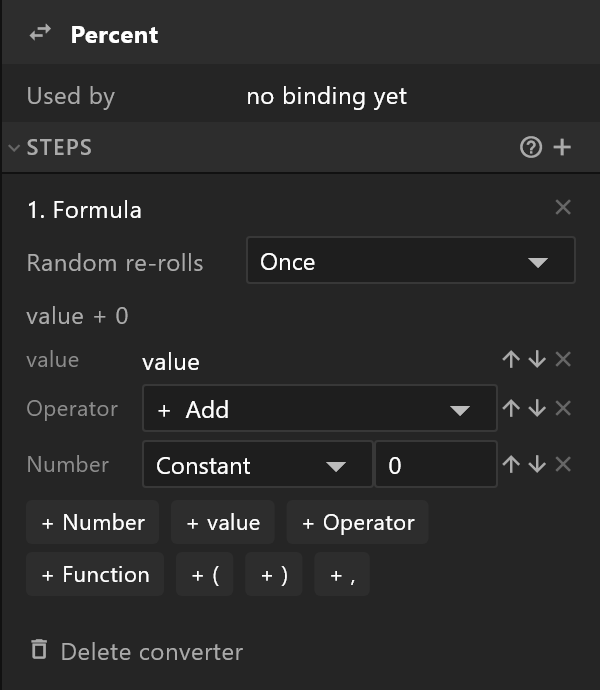
A formula is built from pieces, called tokens, laid out in a row. The line at the top of the step shows the whole formula as it reads, for example value × 100.
The buttons under it add a token at the end:
| Button | Adds |
|---|---|
| + value | value: whatever arrives at this step |
| + Number | A number, or another property's value — its row then reads Property |
| + Operator | +, -, ×, ÷, mod, ^ and the like |
| + Function | A function: min(, max(, round(, sqrt(, random( and more |
| + ( and + ) | Brackets, to group |
| + , | A comma, between a function's values |
Each token has its own row, with arrows to move it and × to remove it.
Random re-rolls matters only when the formula uses random(: Once, Every frame, or When the source changes.