Appearance
Artboard
What the inspector shows when the artboard itself is selected: its size, its background, what it is for, and the data it plays with.
Click the artboard's name above it on the stage, or its row in the Hierarchy. If it is not the artboard you are working on, the first click switches to it and a second click selects it.
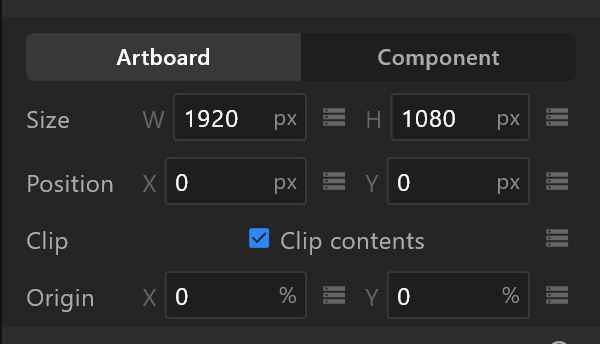
Name, and what it is for
The name is at the top: click it, type, press Enter.
Under it, two buttons say what the artboard is for:
| Button | What it means |
|---|---|
| Artboard | A scene of its own: players and the playout server open it |
| Component | Meant to be placed inside other artboards. It is offered first when you add a nested artboard |
The Hierarchy shows the same choice as scene or component on the artboard's row. See Scenes and artboards.
Size and place
| Row | What it does |
|---|---|
| Size | Width and height, in pixels. For a full-screen graphic this is the output resolution: 1920 × 1080 for HD |
| Position | Where the artboard sits among the others on the stage. It changes nothing on air |
| Clip | Clip contents: anything outside the artboard is cut off. Off, it shows past the edges |
| Origin | Where the artboard's own zero point is, as a percentage of its size: 0, 0 is the top-left corner, 50, 50 the middle |
Size, position and origin have key diamonds: an artboard can be animated like anything on it. Clip can be bound to a view-model property.
Background and outline
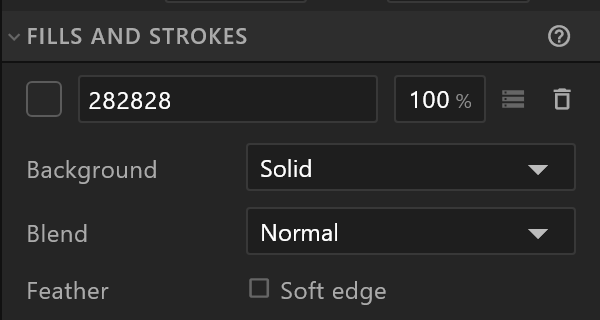
Fills and Strokes starts with the artboard's fill: its background. Click the swatch to change the colour; the bin removes it.
Background chooses what the fill is: Solid, Linear gradient or Radial gradient. A gradient adds Start and End points and its colour stops, as a shape's gradient does, and they can be animated. Blend and Feather (a soft edge) work as they do on a shape.
+ Stroke outlines the artboard along its edges, and another press adds a second outline over the first.
A transparent background for air
A graphic keyed over video usually wants no background at all. Remove the fill with its bin, or set its opacity to 0, and whatever is behind the graphic on air shows through.
Shared effects
A shared effect is a trim that several strokes can follow at once — a set of lines that draw on together. + Effect adds one, with Trim start, Trim end, Trim offset and a Trim mode (Sequential: one stroke after another; Synchronized: all at once). The row says how many strokes are linked to it. Link a stroke from its own row in Fills and strokes.
Laying out what is on it
An artboard can arrange its contents the way a layout does: the same rows appear here. Leave them alone and objects stay where you put them.
Artboards
| Row | What it does |
|---|---|
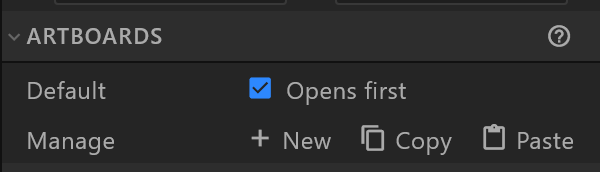
| Default — Opens first | This is the artboard players and playout open first. One artboard in the document has it |
| New | Adds another artboard |
| Copy | Copies this artboard with everything it needs — its view model, its fonts and anything it nests — so it can be pasted into another document |
| Paste | Pastes an artboard copied from this document or another one. If it cannot, the editor says why |
| Delete | Removes this artboard. Not offered when it is the only one |
Ctrl+C and Ctrl+V do the same as Copy and Paste while the artboard is selected.
Data
| Row | What it does |
|---|---|
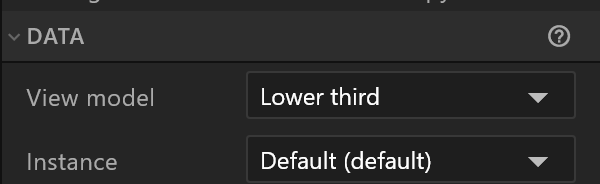
| View model | The view model this artboard's bindings read from |
| Instance | Which set of values it shows while you design. On air, the control system sends its own |
Safe areas
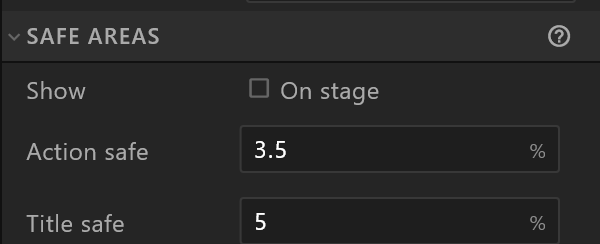
The broadcast safe areas, drawn over the stage as guides. They are never part of the graphic.
| Row | What it does | Default |
|---|---|---|
| Show — On stage | Draws them | Off |
| Action safe | Inset from each edge, as a percentage | 3.5% |
| Title safe | Inset for text and anything that must be read | 5% |
The defaults are the usual 16:9 practice. A house style can move them; they belong to the document, so everyone who opens it sees the same guides. The View aids menu turns them on and off too.
Also on this panel
- Custom properties, when the artboard has any.
- Document colours — the colours used in this document, one click from any swatch. See the inspector.