Appearance
Event
An event is a named moment the graphic announces — "took in", "goal" — for other parts of the graphic to react to.
Select an event by its bolt icon on the stage or its row in the Hierarchy. To make one, choose Event (Shift+E) from the bolt tool group and click on the stage where its icon should sit.
What it does
An event does nothing by itself. It is reported — at a moment on a timeline, when a state is entered, or by a listener — and whatever is waiting for it reacts:
- A listener set to Listen to: Event runs its actions. This is how a component tells the artboard it sits in that something happened inside it.
- A player that shows the graphic on a web page can react to it, and an Open URL event opens its link there.
Its rows
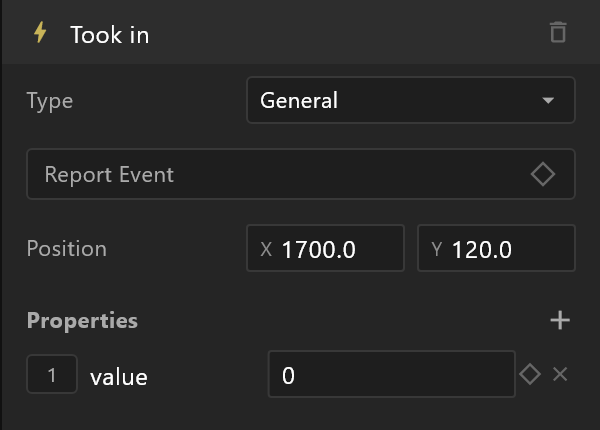
| Row | What it does |
|---|---|
| Name | At the top. The bin beside it deletes the event, with its keys and the listener actions that report it |
| Type | General, Open URL, or Audio |
| Sound | For Audio only: the sound it plays, or Import a sound…. A warning triangle shows while none is chosen: "No sound chosen: the event fires and plays nothing." |
| URL and Target | For Open URL only: the link, and where a web player opens it — Blank (new tab), Parent, Self or Top |
| Report Event | In Animate mode, its diamond keys the event to fire at the playhead. Click it again on a keyed frame to remove the key |
| Position | Where its bolt icon sits on the stage. It is never drawn in the graphic |
Playing a sound
Set the event's Type to Audio and pick a sound in its Sound row.
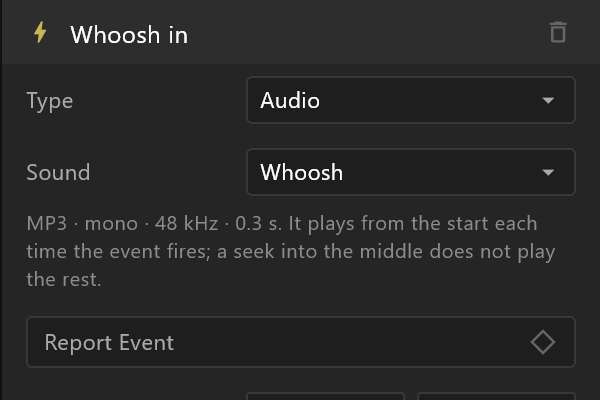 The event plays the sound each time it fires: key it on a timeline with Report Event, or fire it from a state, a transition or a listener (see Firing it).
Where you see it.
- Timeline: the event's row reads "its name · sound", or "· no sound" when none is chosen. Each key draws a bar as long as the sound, with its name. A sound that runs past the end of the timeline turns its bar orange and says by how much, for example "Whoosh · runs 4 f past the end".
- Stage: the event shows a note icon, with a warning triangle when it has no sound.
- Hierarchy: the event has a note icon, and a warning glyph when it has no sound.
A sound always plays from its start. Seeking the timeline into the middle of a sound does not play the rest of it. The stage plays the sound while the scene plays, and airZ Engine plays it on air. Each sound's volume is set on its asset: see Asset › A sound.
Properties
Values sent along with the event every time it is reported — a score, a team's name, a colour. + adds one; the badge on its left says its type: Number, String, Boolean, Color or Trigger. A trigger has no value: it "fires with the event".
Each value has a key diamond, so it can change over a timeline. × removes it.
Firing it
- From a timeline: open the timeline, move the playhead, and click the diamond on Report Event.
- When a state is entered: in a state's inspector, under Fires events. See States.
- From a listener: add a Report Event action. See Listener.