Appearance
Timeline settings
How long a timeline is, how fast it runs, and how the timeline shows it to you.
Click the time readout at the left of the transport — the 00:00:15 with an arrow beside it. The panel opens under it; click the readout again, or anywhere else, to close it.
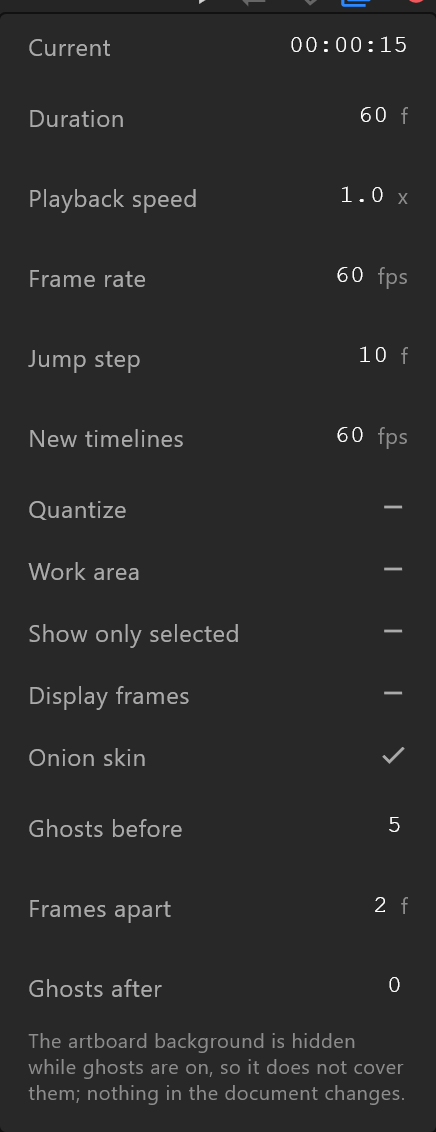
What it does
Some rows belong to the timeline and are saved with the document: they change how the graphic plays, on air as in the editor. The others are how you work — they change only what you see, and are the same whichever timeline is open.
| Belongs to the timeline | How you work |
|---|---|
| Duration, Playback speed, Frame rate, Quantize, Work area | Jump step, Show only selected, Display frames, Onion skin and its ghosts |
New timelines belongs to the document: see below.
Length and speed
| Row | What it does |
|---|---|
| Current | Where the playhead is. For reading only — move the playhead on the timeline |
| Duration | How long the timeline is, in frames (f). At 60 fps, 60 is one second. Making it shorter pulls the work area in with it |
| Playback speed | How fast it plays: 2 is twice as fast, 0.5 half. Saved with the timeline, so it plays at this speed on air too |
| Frame rate | This timeline's frames per second |
Changing the frame rate changes the length
Keys sit on frame numbers. Take a 60-frame timeline at 60 fps down to 30 fps and every key stays on its frame — so the animation now takes two seconds instead of one. Choose the rate first, when the timeline is new.
Quantize
With Quantize on, the timeline plays in whole frames: each change holds for a frame and then jumps to the next, instead of moving smoothly between them. Use it for a deliberate stepped, frame-by-frame look, at the timeline's own frame rate. It plays that way on air.
Work area
Tick Work area and two more rows appear, Work start and Work end, in frames. The timeline then plays only that stretch, and loops within it. It starts as the whole timeline.
The work area page shows how to set it by dragging on the timeline instead.
How the timeline shows things
| Row | What it does |
|---|---|
| Jump step | How far Shift+← and Shift+→ move the playhead, in frames. ← and → always move one |
| New timelines | The frame rate a new timeline starts at. Chosen when the document was made; changing it here changes no timeline that exists already |
| Show only selected | The timeline lists only the objects selected on the stage |
| Display frames | The readout counts frames (15f) instead of time (00:00:15) |
Onion skin
Tick Onion skin to see faded copies of the frames around this one — where a movement comes from and where it goes. Three rows appear under it:
| Row | What it sets |
|---|---|
| Ghosts before | How many earlier frames to show |
| Frames apart | How many frames between one ghost and the next |
| Ghosts after | How many later frames to show |
These are the same three numbers as the ghost button's hover panel in the transport: change them in either place and both follow.
While ghosts are on, the artboard's background is hidden so it does not cover them. The panel says so, and nothing in the document changes.