Appearance
Tracks and keys
Choosing keys, moving them, and changing what they hold.
Selecting
| What you do | What you get |
|---|---|
| Click a key | That one. It turns white; the one with a ring is the primary |
Ctrl, Shift or Cmd and click | Adds to the selection |
| Drag on empty track | A box. Every key inside it, on the rows it crosses |
| Click a channel's name with the right button | Every key on that row, and its menu |
| Click an object's name | Every key that object has |
Ctrl+A | Every key on the timeline |
Clicking empty track without dragging clears the selection and moves the playhead there.
Moving
Drag a key. If it was already selected, the whole selection moves with it. Keys land on whole frames.
They snap to the playhead and to keys that are not moving, within a short distance on screen; a faint line shows what they caught on. Hold Ctrl to turn that off for the drag.
Alt and drag an end key of a selection to retime it: the other end stays put and everything in between spreads or squeezes. Drag past the far end and the selection reverses.
Changing a value
A box appears beside the selected key of a row.
| Selection | What the box does |
|---|---|
| One key | Shows its value. Drag to change it, Shift for fine, double-click to type |
| Several on one row | Reads 0 and works as an offset: a drag nudges them all together and keeps their spread |
| A text key | A box to type into |
| A colour key | A swatch. It can set one key, or all the selected colour keys at once |
The key menu
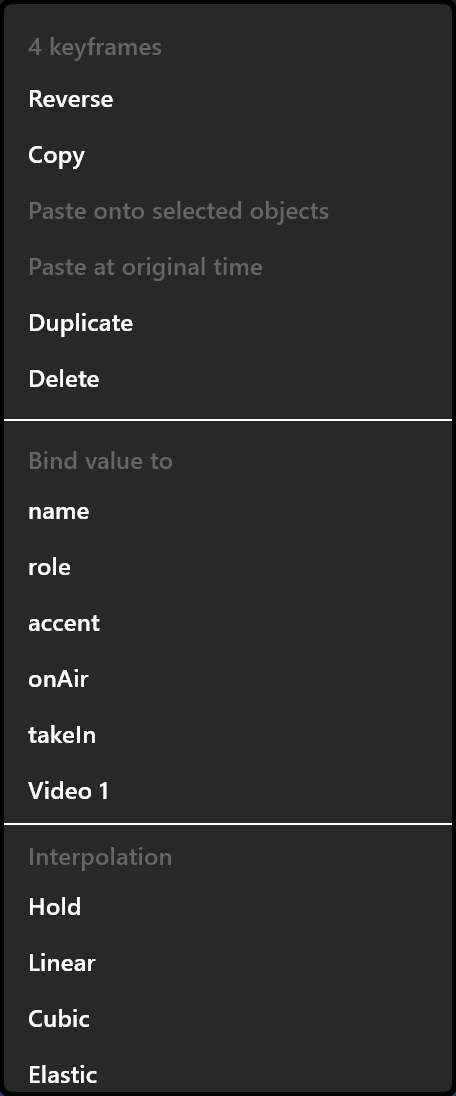
Right-click any selected key.
| Item | What it does |
|---|---|
| Reverse | Mirrors the selection in its own span: first becomes last. Unavailable when every key sits on one frame, and it says so |
| Copy, Paste onto selected objects, Paste at original time | Paste lands at the playhead, or back on the frames it came from — useful when copying between objects that must stay in step |
| Duplicate | A copy at the playhead |
| Delete | Removes them. A row with no keys left disappears |
| Bind value to | The key's value follows a view-model property while it plays, with the authored value as the fallback |
| Unbind value | Back to the authored value |
| Interpolation | Hold, linear, cubic or elastic for every selected key |
Which properties appear
A row appears when a property gets its first key, and disappears when its last key goes. Rows are grouped by the part of the object they belong to — Position, Scale, Rotation, Fill, Size, Text — and a channel row shows its current value beside its name, so the track list doubles as a readout while you scrub.
Show only selected, in the settings, hides every object except the ones selected on the stage, which is how a busy timeline becomes readable again.
Shortcuts
| Keys | What it does |
|---|---|
Ctrl+C, Ctrl+V, Ctrl+Shift+V | Copy, paste at the playhead, paste at the original frames |
Ctrl+D | Duplicate |
Delete | Remove |
F9, Shift+F9, Ctrl+Shift+F9 | Ease in-out, ease in, ease out |
Ctrl+A | Every key |