Appearance
Inspector
Everything about what you have selected. The panel changes completely with the selection, but the parts around the edges never move.
Right sidebar.
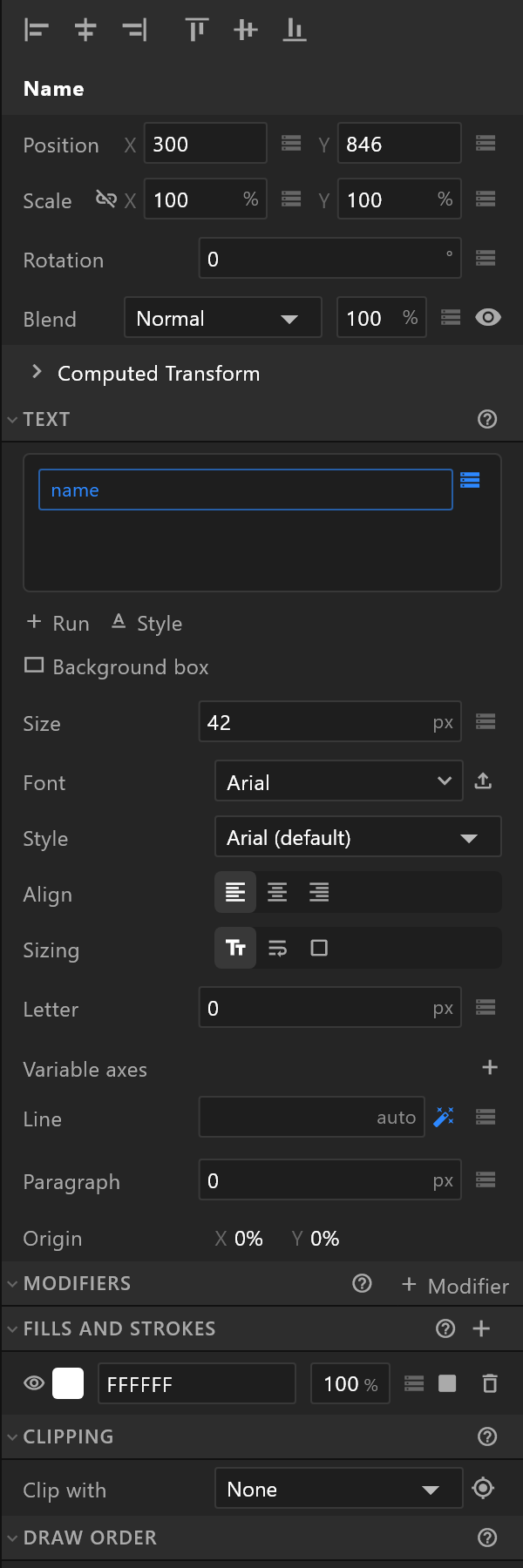
What never changes
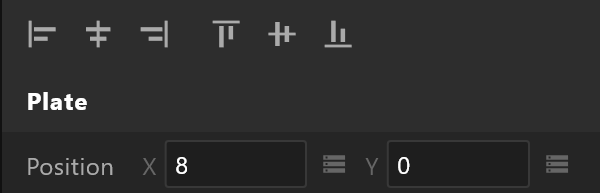
The alignment bar, along the top. With one object selected it aligns to the artboard; with several, to the box around them. Space evenly across and Space evenly down appear once three or more are selected: the two outer objects stay, and every gap between the rest is made equal.
The name, under it. Type to rename. With several selected it reads 3 selected instead.
Document colours, at the bottom — the document's palette.
| Control | What it does |
|---|---|
| + | Adds the selection's colour to the palette |
| A swatch | Paints the selection with it. An object with no fill is left alone |
| The pencil | Changes that colour everywhere it is used in the document, in one undo step |
| × | Takes the swatch out of the palette, and changes no artwork |
When nothing is selected: "Click a layer on the stage or in the hierarchy to see and change its properties."
Sections fold, and stay folded
Click a section heading to fold it. Folds are remembered by heading across every inspector, so if you fold Fills and Strokes on one shape it stays folded on the next. Alt+click a heading leaves that one open and folds the rest; Alt+click it again brings them all back.
Number fields
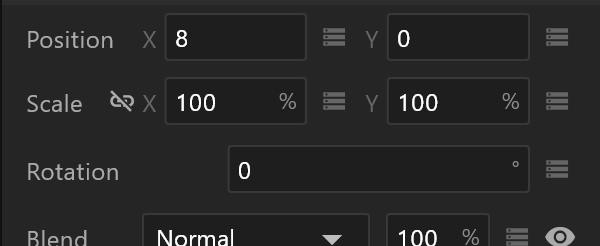
Every number field scrubs: drag left and right to change it, double-click to type. Hold Shift while dragging for fine steps. Fields with a limit stop at it.
With several objects selected, a field shows a number only when they all agree; otherwise it reads Mixed, and typing sets all of them.
At its narrowest, below about 240 pixels, a few rows fold onto two lines rather than cut anything off: Blend and its menu on one line, then Opacity with its field, diamonds and eye on the next. A number field too narrow for its unit shows the number alone. Drag the panel wider and they return to one line.
The diamond, and the data glyph
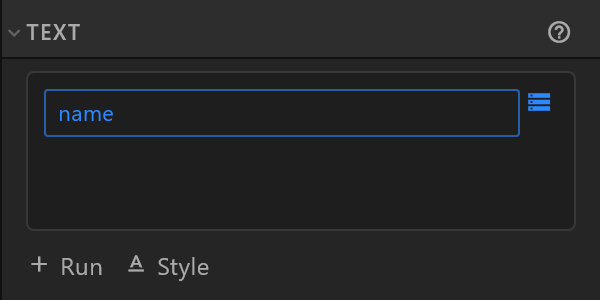
Two small controls sit at the right of a row, and they do different things.
The diamond is a keyframe, and it appears in Animate mode on rows that can be animated.
| Look | Meaning |
|---|---|
| Filled blue | There is a key here, on the playhead. Clicking removes it |
| Blue outline | The property is animated, but has no key at this instant. Clicking adds one |
| Grey outline | Never animated. Clicking starts |
With Animation States open rather than a timeline, the diamond stays where it is, empty: keys live on a timeline, not on Animation States. Clicking it opens the timeline and keys the property there — "Open the timeline <name> and key this there" — so the row never simply refuses.
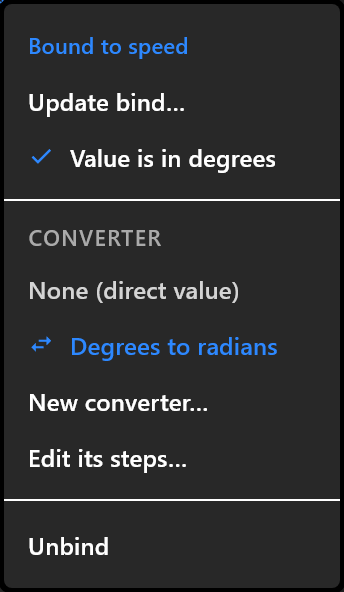
The data glyph binds the row to a property, and it is there in both modes. Grey means unbound, blue means bound. Click it — or right-click the row — for the list of properties it can take, the converter to run the value through, and Unbind.
A bound row stops being typed into. The control is replaced by a blue read-only box showing where the value comes from, because a value arriving from the data would overwrite whatever you typed. The box tells you a little more when a converter is in the way: score ↦ 0…100 for a range map, score (round), score (text), speed (degrees), and on a colour accent · 2F6BD8, the hex being what the data is giving it right now.
A rotation takes its number in degrees. Bind a number or a list's index to a Rotation — an object's, a point's handle, a text modifier's, an image's mapping — and 90 turns it a quarter, as the inspector would. The box reads speed (degrees). For data that is already in radians, open the bind menu and untick Value is in degrees. The item is there while the binding has no other converter. Bindings that came in with a file keep what they had.
If the file came from elsewhere and names a path this editor cannot describe, the row says so and keeps it exactly as it was: "Bound as the file authored it, to a path this document cannot name. It is kept exactly as it came and written back unchanged."
Which inspector you get
| Selection | Page |
|---|---|
| A shape or a path | Shape, Paths and points |
| Text | Text |
| A picture or a video slot | Image |
| A layout | Layout |
| A group | Group |
| A bone | Bones and weights |
| A component | Component |
| An artboard | Artboard |
| An asset | Asset |
| A listener, an event, a converter | Listener, Event, Converter |