Appearance
Camera tracking
A 3D graphic that stays locked to the studio as a real camera pans, tilts and zooms: the camera's head reports where it points, and the graphic's camera follows. For augmented reality and virtual sets.
The studio side — the tracking head, the network, the playout server — is set up once by engineering. The designer's side is one menu item and a scene built around it.
Adding a tracked camera
3D › Tracked camera (FreeD) adds, in one undo step:
- a camera named Tracked camera, which becomes the one that plays;
- number properties in the artboard's data, which the playout server fills from the camera head and its lens every frame;
- the bindings that turn those numbers into the camera's position, turn and field of view.
| Property | What it holds |
|---|---|
trackPan, trackTilt, trackRoll | Where the head points, in degrees |
trackX, trackY, trackZ | Where the camera is, in millimetres: across, forward, up |
trackFov | The zoom, as a field of view in degrees |
trackCamera | Which camera head the graphic follows (1 unless you change it) |
trackK1, trackK2, trackCx, trackCy | How the studio lens bends the picture, from airZ Engine's lens file: see Lens distortion |
trackFocusDist | The distance in focus, in millimetres |
trackOnAir, trackPreview | 1 while this camera is on air, or on preview, at the vision mixer (its tally); 0 otherwise |
lookSource | An image slot for a clean feed of this camera, so the graphics can follow its look: see Matching the camera's look |
Bind a graphic to trackOnAir or trackPreview to react to the tally: show an element only while this camera is live, or a border while it is on the preview monitor. airZ Engine sets them from the vision mixer.
Leave their names as they are: the playout server finds them by name. The control system can switch a graphic to another head by sending a new trackCamera.
The bindings follow the real camera the right way round: panning it right turns the picture right, and rolling it clockwise tilts the picture the way the lens sees it. In the Data panel they use three converters the menu item adds: mm to m, mm to m, forward to −z and FreeD pan and roll, reversed, since FreeD reports a pan right and a clockwise roll the other way round. The camera turns pan first, then tilt, then roll: its rotation order reads ZXY in the inspector. Leave them as they are, or the picture turns the wrong way.
Matching the camera's look
When the camera's shader changes its exposure, white balance or black level, the graphics on that camera change the same way, so they keep sitting in the picture. airZ Engine measures the camera's picture, and the graphic follows.
- Connect the camera. At playout, connect
lookSourceto a clean feed of that camera, one without graphics in it, such as a switcher AUX output. It is filled like any live video slot, for exampleinput://2. - Line up before the show. Once the shader has set the cameras up, check the graphics on preview. The look reference is set on airZ Engine when the shot is set up; from then on the graphics follow the camera's exposure, white balance and black level.
- During the show the shader rides the cameras and the graphics follow, with no one touching them. Pans and people walking through the shot do not move the look; a real change in the camera does.
- Set the reference again only when the lighting is redesigned, or a camera's look is changed on purpose.
Until a reference is set, the graphics show the look they were designed with. Look match needs airZ Engine 1.0.3 or later.
Trying it in the editor
You can try look match on the stage before the show, with a camera or a clip. Select the tracked camera; its TRACKING section has the controls.
- Press Show the camera behind the 3D. A full-frame picture goes behind the 3D, in one undo step.
- In Camera picture, choose one of this computer's DeckLink inputs, or A clip…. The camera's picture fills the stage behind the 3D.
- When the shot looks right, press Mark as normal.
From then on the 3D follows the camera's exposure and white balance, live, as airZ Engine does on air: open the iris or change the shutter, and the 3D brightens or darkens with the picture. The section says what it is following, such as "Following the camera: 1 stop brighter, same colour.", with the exact numbers when you hover over it. Stop following puts the 3D back as designed. The document itself never changes.
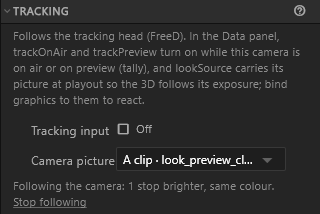
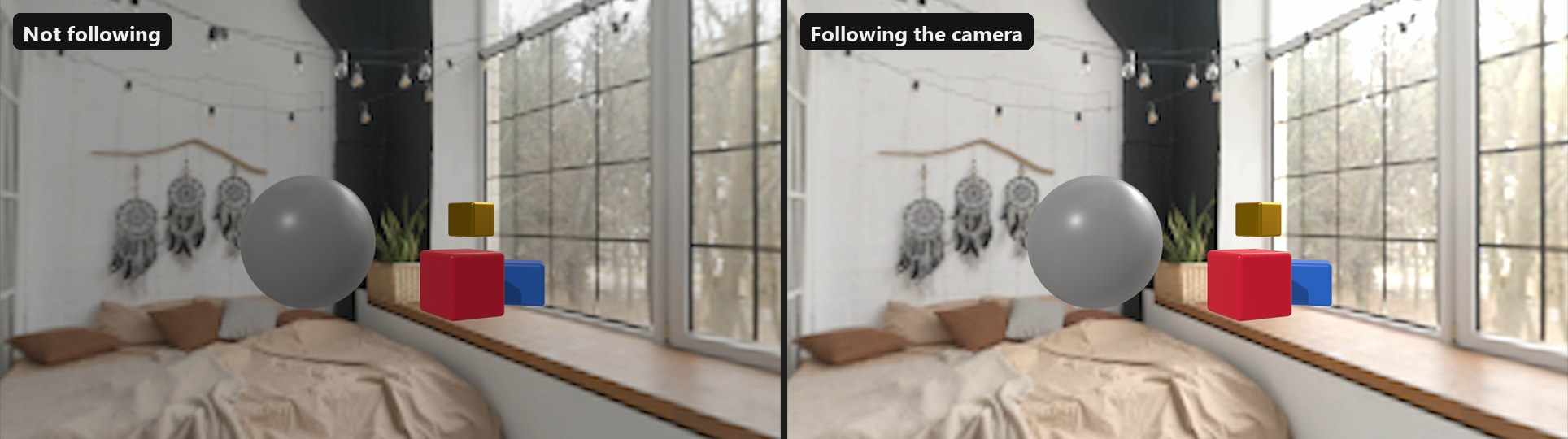
When nothing shows yet, the section says why: no camera picked, the camera still opening, no picture on that input, or another program, such as airZ Engine on the same computer, using that input. A DeckLink input cannot be used by the editor and airZ Engine on one computer at the same time.
In the editor, look match reads a camera that holds its shot, not one that pans, and follows at most two stops either way. It does not read a black lift. If the picture is clipped or black, the 3D keeps its last reading.
Building the scene
Build the set in the real studio's measurements: 1 pixel is 1 millimetre, the floor at 0, the origin where the studio's tracking origin is. Place objects where they should appear in the room; the tracked camera shows them from where the real camera stands.
Keep the viewport's background transparent, so the camera's picture shows around the graphics.
Trying it without a studio
To start from something ready, open the FreeD tracking room template from the Start screen, under Camera tracking or 3D: a grid floor and labelled objects all around a tracked camera, to see which way each move takes the picture. Move it with the simulator below or with Tracking input; on air, airZ Engine moves the same camera. The zoom from the tracking head is not applied: its lens stays at 50°.
3D › Tracking simulator moves the tracked camera as a head would.
| Part | What it does |
|---|---|
| Run / Stop | Starts the simulated head. Drive preview moves the stage's camera |
| Rig | Sliders for rail, distance, height, pan, tilt, roll, zoom, speed and noise |
| Moves | Truck left and right, Push in, Pull out, Crane up and down, Zoom in and wide, Home |
| Aim at the set, Pan sweep ±20° | Keep the camera on the set; swing it back and forth |
| Output | Send FreeD to a playout server — its host, port and camera number — to test the whole chain |
Following a real camera in the preview
A tracked camera can follow a real tracking feed in the preview, the same way airZ Engine moves it on air: a studio camera head, or a phone tracking app, anything that sends FreeD. The document is not changed.
Select the tracked camera. Its TRACKING section, below CAMERA, holds everything for tracking: a note on the camera's data values, Tracking input, and look match.
- Tick Tracking input. It says Listening, and the details open below it.
- In the sender, type one of the addresses under Send FreeD to this PC (the copy button beside each copies it), and the Port, 40001 to start with. airZ Engine keeps 40000, so both can run on one machine. Changing the port while listening restarts it on the new one.
While the feed moves the camera, the details say so, for example "Receiving FreeD from 192.168.1.23, camera 1, 31 packets/s.", and Latest pose shows pan, tilt and roll, and x, y and z in millimetres. Zoom and focus from the sender are not applied yet: the field of view stays as the document sets it. Untick Tracking input to stop listening.
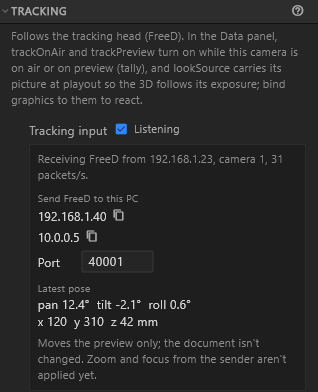
Listening carries on while you work on other things. The top bar then shows a chip with a dot, the tracking icon and the port: the dot is green while the feed moves the camera, amber while nothing does. Its tooltip says what is happening; click it to select the tracked camera and open its TRACKING section.

When nothing moves, the details say why:
| It says | What to do |
|---|---|
| Nothing received on port 40001 | Check the sender uses one of this PC's addresses. If it is sending, Windows Firewall may be blocking airZ Editor: the installer's rule, airZ Editor tracking input, lets it in on private and domain networks, so check that the network is not set to Public |
| Receiving camera 2; this document's tracked camera is 1 | Use camera 2 follows that head; one undo step takes it back |
| Port in use by another program | Type another Port and send to that one |
| The preview is not running | Start the preview |

Lens calibration
3D › Lens calibration makes the lens table the playout server uses to turn a zoom position into a field of view.
- Zoom the lens to a few positions. At each, capture the count the head sends with the field of view you measure or read off the barrel — or type the focal length and sensor height and Calculate.
- Add at least two points; more make a truer table.
- Save JSON… and put the file in the playout server's template folder.
Like Tracking input, it listens for the camera head on port 40001 to start with.
Delay tuning
The tracking data arrives before the camera's picture. 3D › Delay tuning finds how many frames to hold it back: put the server's output beside the editor, run the step move, and raise Frames until the graphics land with the picture. Copy config lines gives engineering the setting to make it permanent.