Appearance
Shape
A rectangle, an ellipse, a triangle, a polygon, a star or a drawn path, and everything you can do to one.
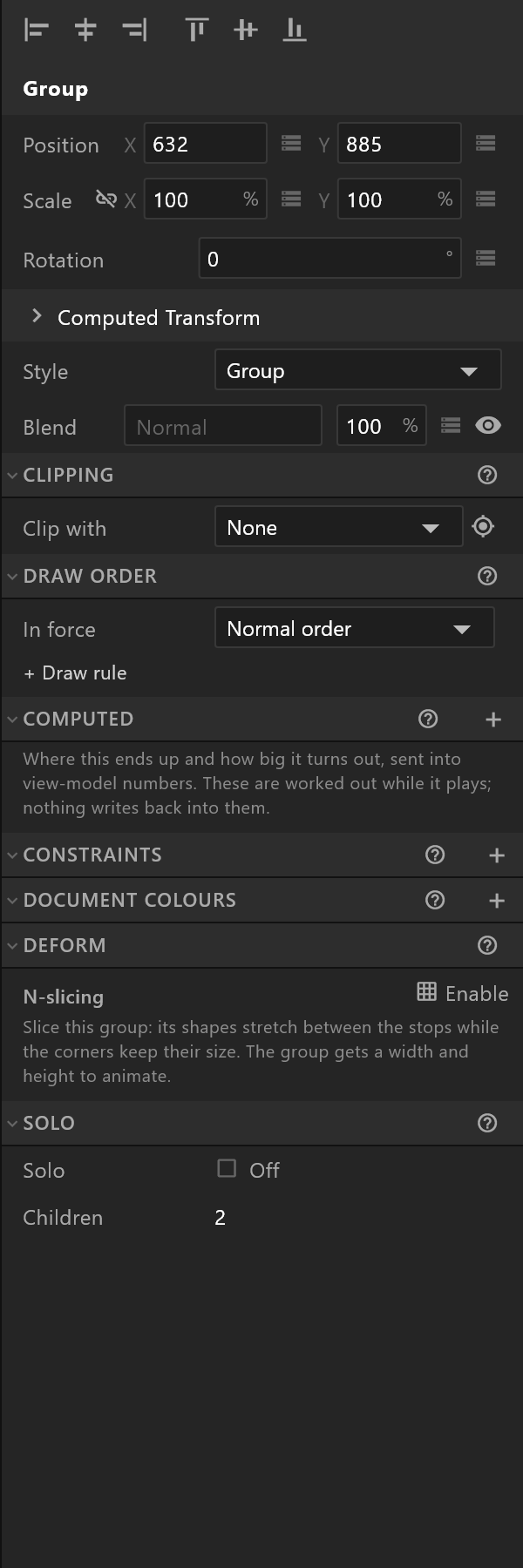
Where it sits
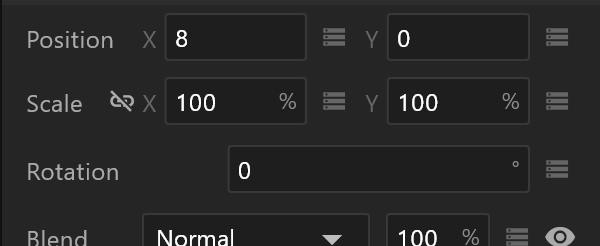
| Rows | What they are for |
|---|---|
| Position, Scale, Rotation | Where it is, how big, how turned. Scale is a percentage; rotation is degrees |
| Blend and opacity | How it mixes with what is behind, and how solid it is. The eye hides it |
| Computed Transform | Read-only: where it ends up on the artboard, and in its parent |
Keeping proportions. The link beside the Scale label — and beside Size in the path section — locks the two numbers together. While it is blue, changing one changes the other by the same factor. It stays on while the editor is open, whatever you select.
Inside a layout, two more rows appear: Laid out, which decides whether the layout places it or it sits at its own position, and — in a grid — which column and row it occupies.
The path section
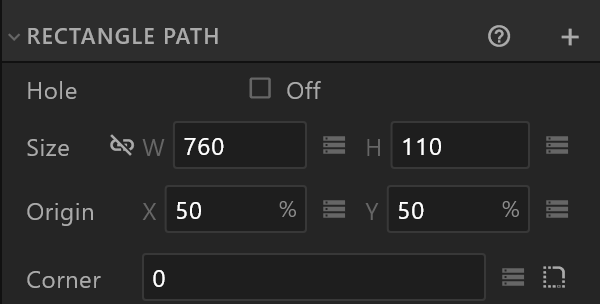
The heading names the kind: Rectangle Path, Ellipse Path, Star Path. A shape can hold more than one path, and then the heading counts them: Rectangle Path (1 of 3). The + adds another.
| Row | What it does |
|---|---|
Size W, H | The path's own size, before scale |
Origin X, Y | Where the middle is, as a percentage. What rotation turns around and scale grows from |
| Corner | Rounds the corners. Rectangles, polygons and stars |
| Points | How many, on a polygon or a star |
| Inner | How deep a star's points cut, as a percentage |
| Hole | Cuts this path out of the shape's fill rather than filling it |
Rounding each corner on its own

A rectangle's Corner row ends in a small corner button. Grey, one number rounds all four. Click it and the row becomes Corners, with Top L / R and Bottom L / R — four radii, each animated and bound separately. Switching it on changes nothing until you edit a corner; switching it off rounds all four with the top-left value.
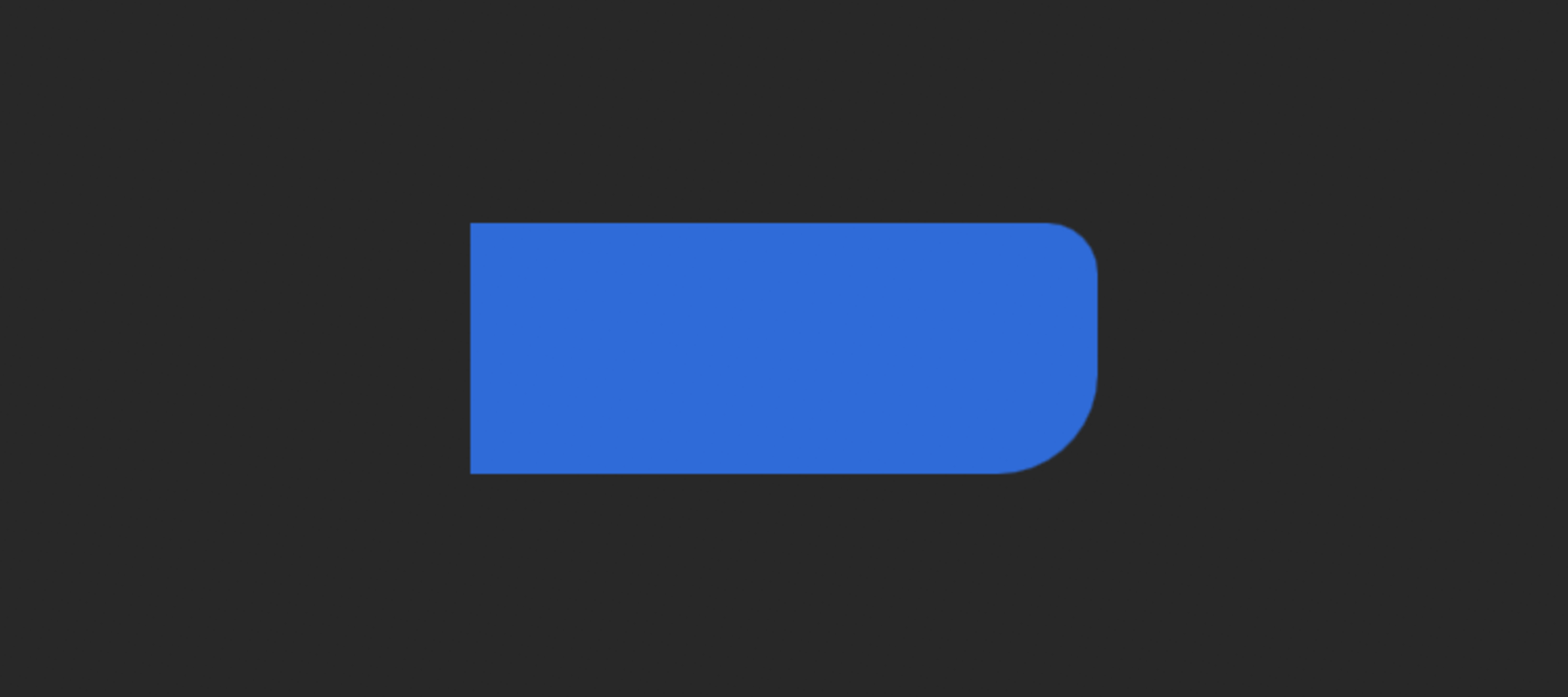
Polygons and stars have one radius, so they have no button.
Leaning edges and cut corners
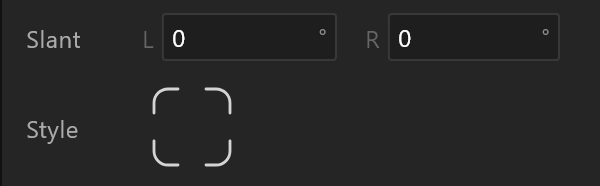
Slant L / R, in degrees, leans each side edge on its own — the bar shapes a lot of broadcast design is made of. The lean cuts into the shape, so a 400-wide bar is still 400 wide at its widest; set one side to 0 for a tab with one flat end.
Style is a 2 × 2 pad laid out like the rectangle. Each cell shows its corner as a rounded arc or a straight cut; click to switch. A cut uses the corner's radius as the length of the cut.
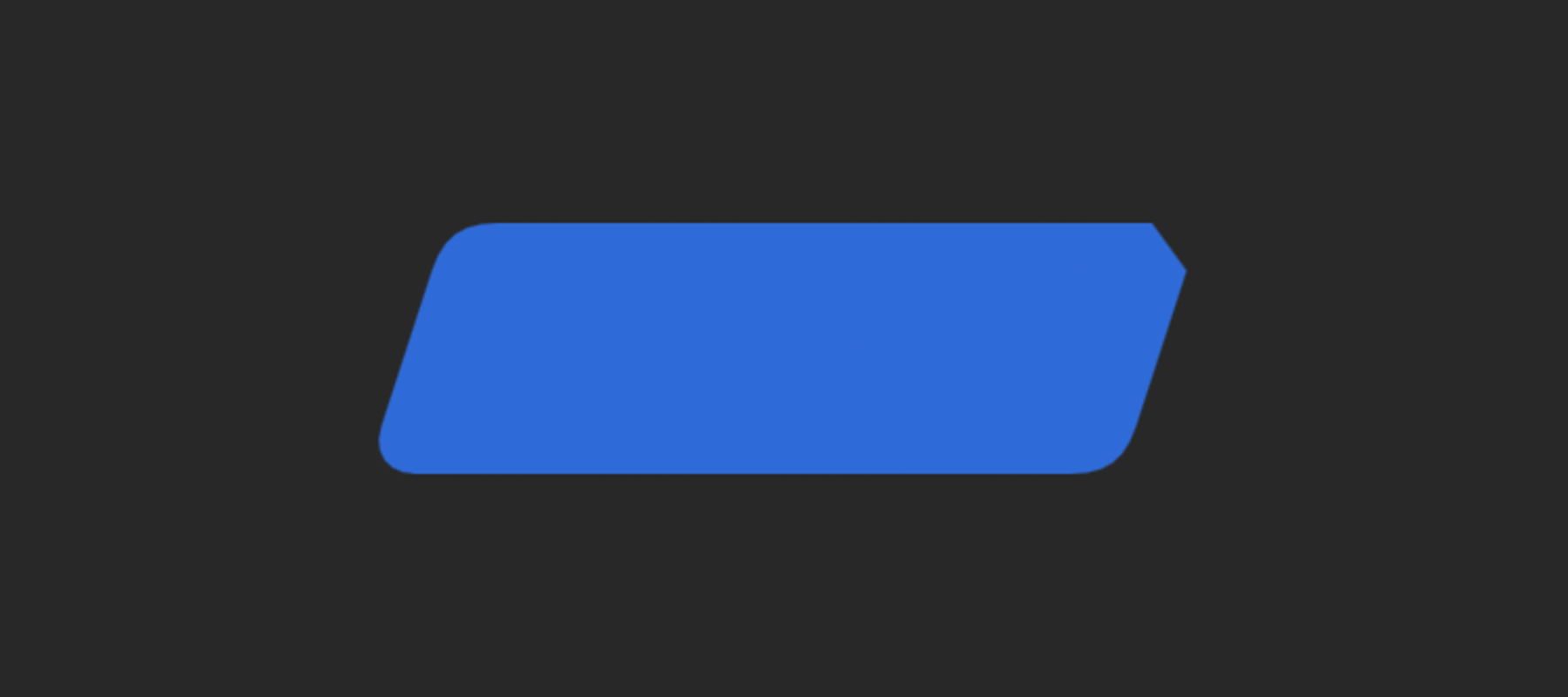
Worth knowing before you build with it
A leaning edge or a cut corner is drawn from points, so this shape's size and corners cannot be keyed or bound yet. Its position, rotation and scale can.
The key and data controls disappear from those rows while it is that shape, so you can see the limit rather than discover it.
A parametric shape has no points
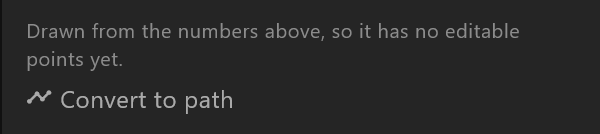
A rectangle is drawn from its numbers, not from points you can drag. The panel says so — "Drawn from the numbers above, so it has no editable points yet." — and offers Convert to path, which turns it into points you can pull and key. Its size and corner numbers stop driving it from then on, and if they had keys the panel warns you which ones stop working.
Drawn paths are different: see Paths and points.
A text's background box
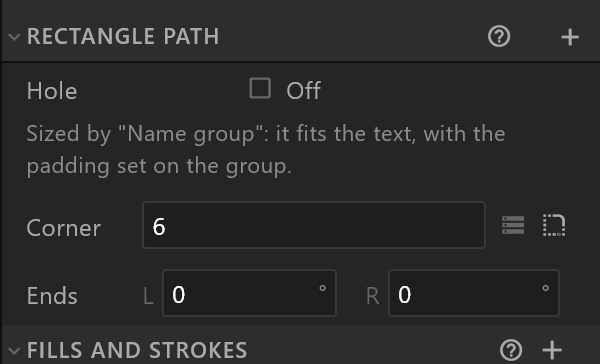
The box a text's Background box adds is a rectangle, and this page applies to it, with one difference: its size belongs to the text. In place of Size and Origin the path section says "Sized by "<group>": it fits the text, with the padding set on the group." It has Ends L / R instead of Slant and Style, and no Convert to path — any of those would stop it growing with the text.
Fills and strokes
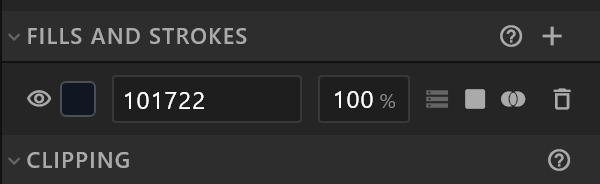
+ Add Paint adds a Fill, a Stroke, a picture (Image…), a material look or a shader background. Strokes are listed front-first with their thickness; fills below them. Each paint has an eye that keeps its colour while hidden, a colour, and a menu for its blend, feather and trim.
See Fills and strokes.
Clipping
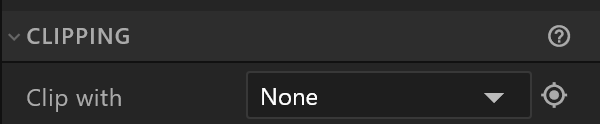
Clip with picks another shape, group or layout to cut this one to. Add more than one and only what all of them show is drawn — the panel says so: "Clips intersect: this shows only what every clip above would show."
A clip source with nothing in it hides everything, and the panel says that too, in red: "This clip source holds no shapes, so it clips everything away. Put a shape inside it, or pick another source."
Draw order
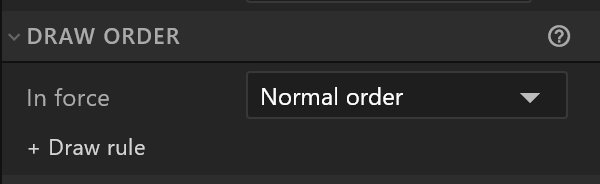
Normally a shape draws where it sits in the hierarchy. A draw rule overrides that: In front of or Behind another layer, whatever the tree says. Useful when one thing has to cross in front of another mid-animation. The row can be keyed.
Computed
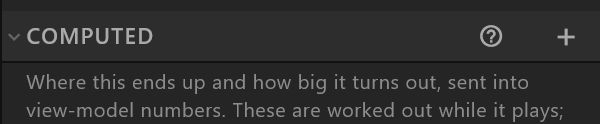
Sends a value the editor works out — where this ends up, how wide it turned out, how long its path is — into a view-model number, so a control system or a script can read it. These are read-only: the value is worked out as the graphic plays, and nothing writes back into them.
Constraints, Follow and Fit to
Constraints tie this shape to another: translation, rotation, scale, transform, distance, follow path, scroll, and IK on bones. Each has a target, a strength, and its own rows.
A Scroll constraint makes content scroll inside its box: a long list, a page of results. Its Scroll to row takes a number from the data — bind it with its diamond to, say, the index of the chosen item — and the content scrolls that item into place. Until it is bound it reads "Bind a number to scroll to that item". Direction, Snap, Interactive (a pointer can drag it) and its physics set how it moves.
Follow sits a shape beside another with a gap — right, below, left or above — and stores where that puts it.
Fit to sizes a shape to another's bounds plus padding. It is set once, not continuously: text arriving on air does not resize it, and a layout is what you want if it should.
See also
- Paths and points · Fills and strokes · Layout
- Inspector, for the diamond and the data glyph