Appearance
Nested artboard
A component placed on an artboard: another artboard drawn inside this one. Here you choose which, what data it shows, and how it plays.
Place one from the component tool group in the top bar, then select it on the stage or in the Hierarchy. Any artboard can be placed, except this one and any that already contains it. Artboards marked Component are offered first.
The top of the panel — the name, Position, Scale, Rotation — is the same as for any object.
Component
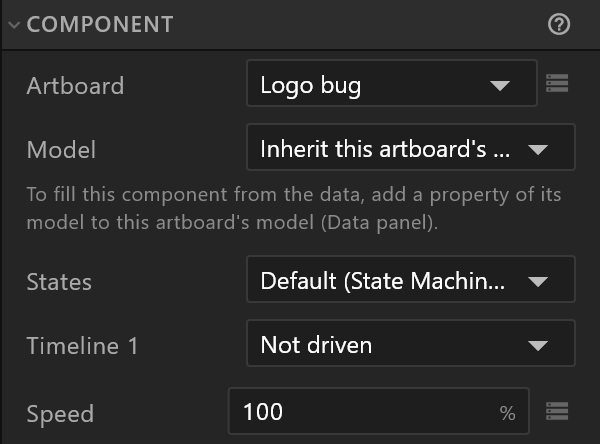
| Row | What it does |
|---|---|
| Artboard | Which artboard it shows. Its diamond binds it to an artboard property, so the control system can choose the component on air — then the artboard chosen here is only what you see while designing, and the panel says so |
| Model | What data it shows. See below |
| States | Which of its Animation States run: Default, one by name, or None (animations and data only) |
| One row per timeline | Not driven, Play (speed, playing) — adds Speed and Playing — or Position by time, which adds Time: you set, or key, how far through it is. Either way Mix blends it over what its Animation States do |
| Speed | How fast the whole component plays, as a percentage |
| Playback | Paused holds it still. Quantize plays it in whole frames, at the Frames / s it adds |
| Size | Its size, for reading |
| Edit | Open component edits its artboard — double-clicking it on the stage does the same. Detach instance replaces it with a copy of what it contains, no longer linked |
Inside a layout, Fit and Align X / Y say how it sits in the space the layout gives it, and size rows appear at the top of the section.
Which data it shows
| Model | What it means |
|---|---|
| Inherit this artboard's data | It reads the same data as the artboard it sits in |
| Own instance (stateful) | It keeps values of its own, apart from everything else |
| A property's name | It shows one property of this artboard's data — the usual choice when the control system should fill it in |
| None (no model) | Its artboard has no view model |
Exposed properties
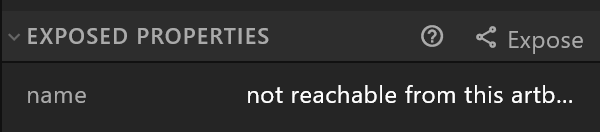
The properties of the component's own data, and whether this artboard can reach them. Expose adds a property of the component's view model to this artboard's view model and links the component to it — after that, the control system can fill in the component's values like any other, and you can bind or key them here.
Component inputs
For a component whose Animation States use inputs, + Drive an input sets one from here. × stops driving it.