Appearance
Hub window
Your organisation's templates on its Graphics Hub: browse them, see each one's history, and open a revision to edit. The chip in the top bar shows which Hub, who you are, and who else has your template open.
Press the Hub chip in the top bar. It only shows once this computer trusts a Hub; see Graphics Hubs.
The Hub chip
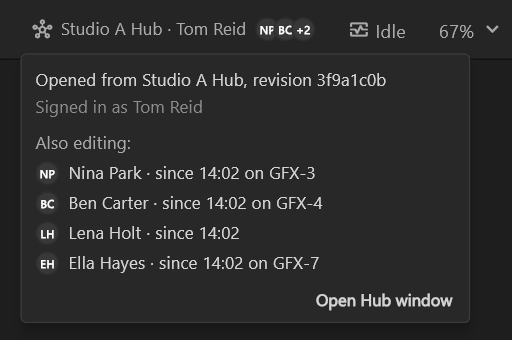
The chip sits in the top bar, to the right of preview. It names the current Hub and then says one of:
| It says | What it means |
|---|---|
| Your name, for example Studio A Hub · Tom Reid | You are signed in |
| Sign in | You are not signed in on this computer. Pressing it opens the sign-in |
| Backup only | Only the Hub's backup machine answers |
| Offline | The Hub does not answer |
| checking… | The editor is asking |
Pressing the chip opens the Hub window. While you are not signed in, or the Hub does not answer, it opens Graphics Hubs instead. When the top bar is short of room, the chip shortens before the document name does; hover it for the whole of it.
Who else is editing
While a template opened from the Hub is open, the chip shows the initials of anyone else who has the same template open, up to three. With more than three, it shows two and a count, such as +2. Pressing the chip then shows:
- where the document came from: "Opened from Studio A Hub, revision 3f9a1c0b";
- who you are signed in as;
- Also editing: each other person, since when, and on which computer;
- Open Hub window.
The first time someone else opens the template while you have it open, a line at the foot of the stage says so once, for example "Nina Park opened Lower third too", with Dismiss.

The window
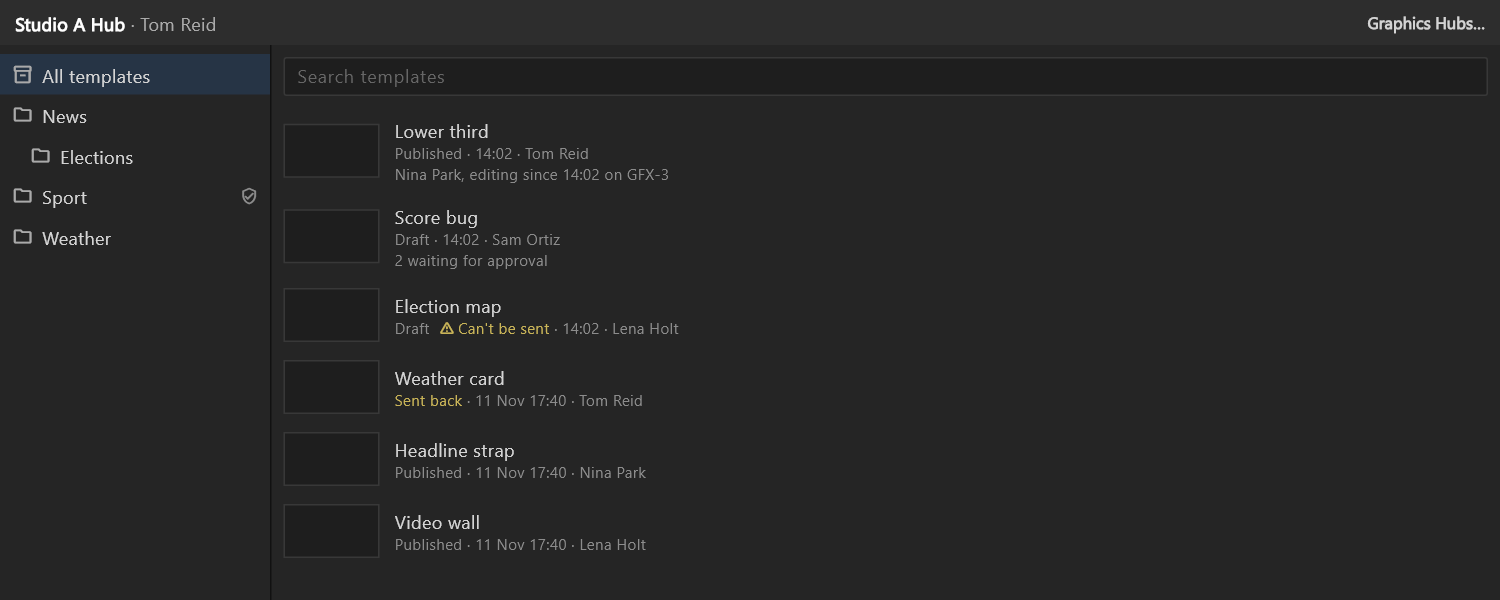
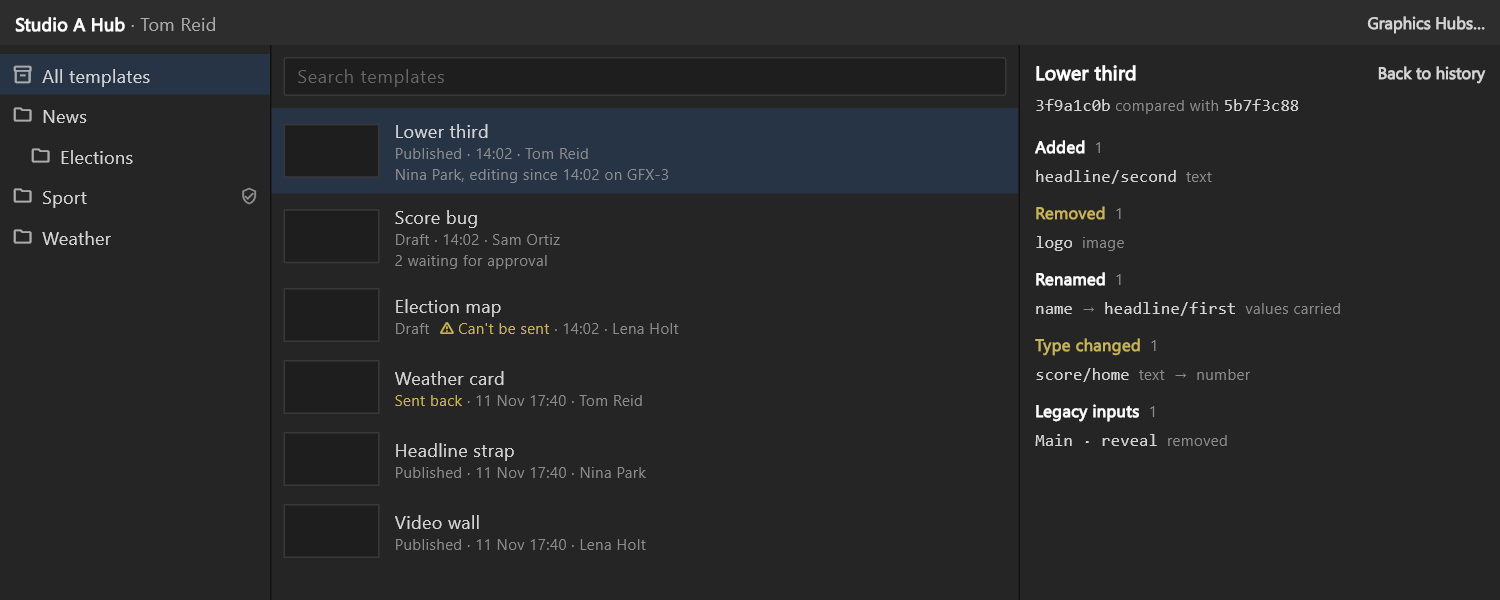
The window's top line names the Hub and who you are signed in as. With more than one trusted Hub, click the Hub's name to switch to another (Switch Hub). Graphics Hubs… at the right opens Graphics Hubs.
On the left are the Hub's folders, under All templates. A shield beside a folder (Needs approval) means its templates need approval before they are published.
The search box searches the folder you are in: "Search templates" in All templates, "Search in News" in a folder called News.
Templates
Each template has a row: a thumbnail, its name and a line about its current revision.
- The state: Published, Draft, Sent back (amber: a reviewer returned it) or Withdrawn.
- When, and who published it: for example
Published · 14:02 · Tom Reid. - "2 waiting for approval" when revisions wait for a reviewer.
- Who else is editing it: "Nina Park, editing since 14:02 on GFX-3".
Point at a template to play its preview in place of the thumbnail.

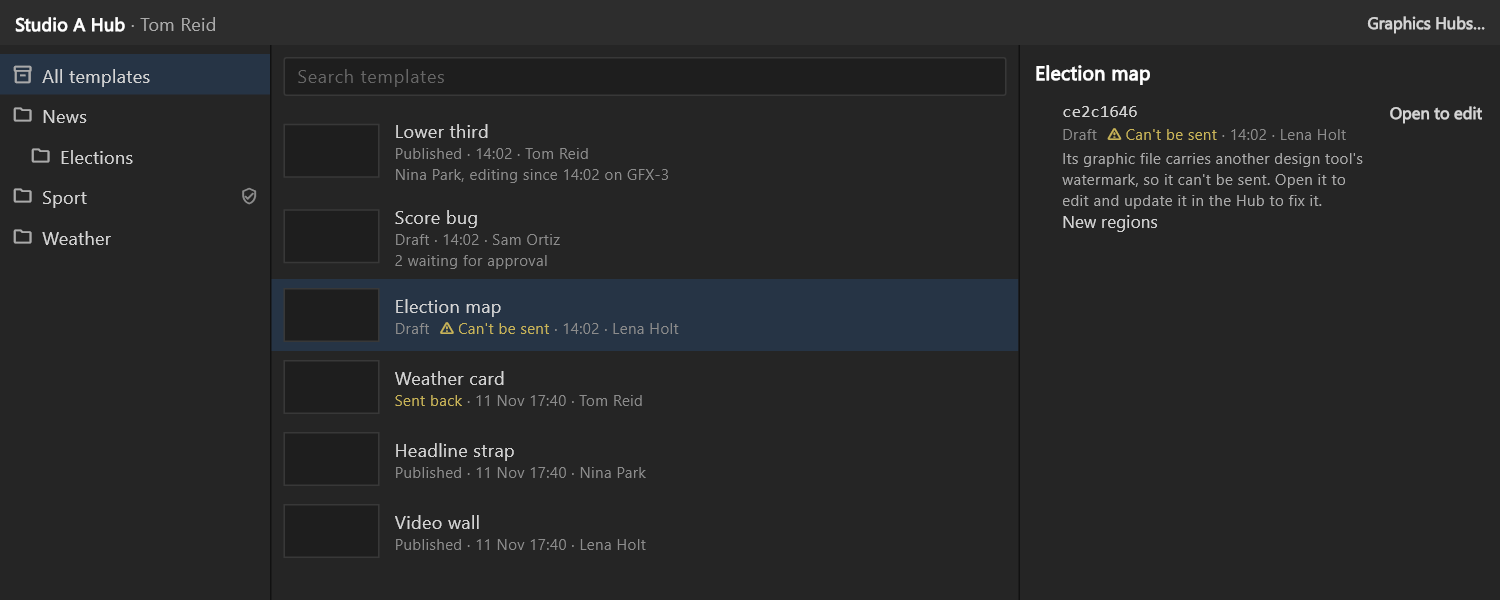
Can't be sent, in amber, marks a template whose graphic file the Hub cannot send to air. Select it to read why: "Its graphic file carries another design tool's watermark, so it can't be sent. Open it to edit and update it in the Hub to fix it." If the file cannot be read at all, the history says that instead.
The arrow keys move through the list.
A template's history
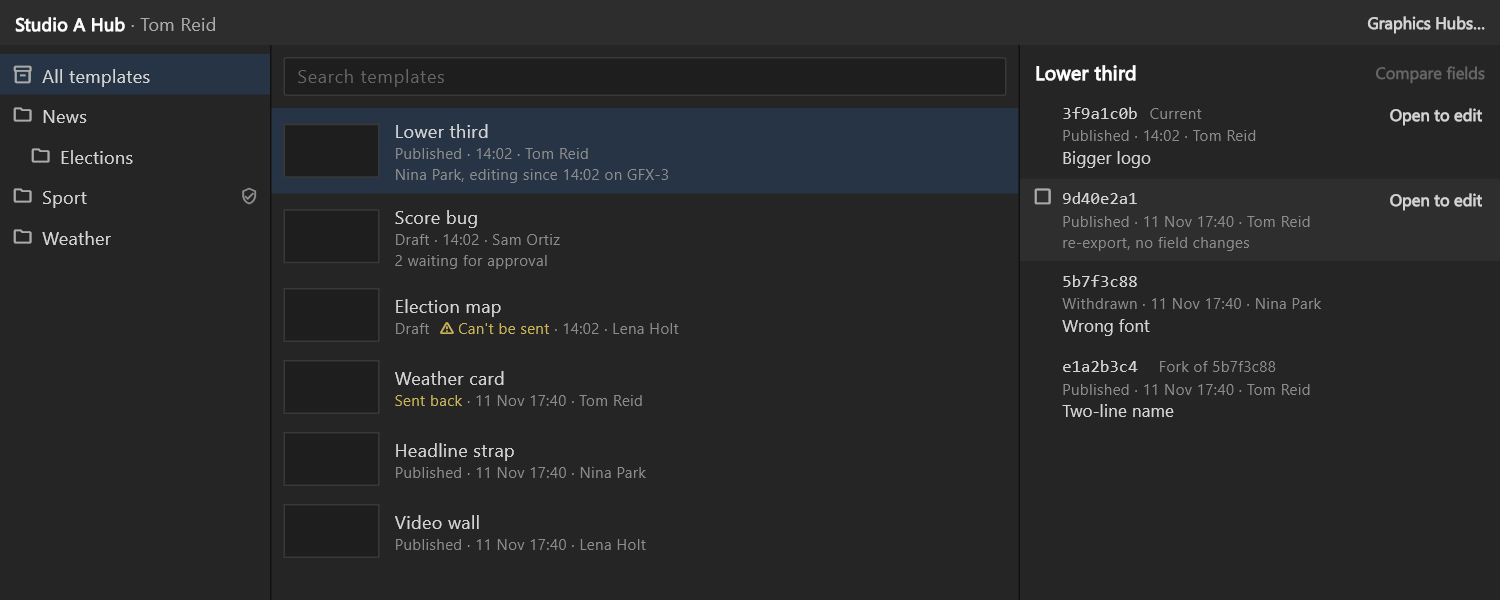
Click a template to see its revisions on the right, newest first. Each shows:
- its short id, such as
3f9a1c0b, with Current on the revision the Hub plays now; - its state, when, and who;
- the note it was published with, for example "Bigger logo";
- Fork of 5b7f3c88 when it was made from an older revision;
- "re-export, no field changes" when only the graphic file was exported again.
Opening a template to edit
- Double-click a template, or press
Enteron it, to open its current revision. - Double-click a revision to open that revision.
- Open to edit is always shown on the current and the newest revision. On the others it shows when you point at them or select them.
Opening replaces the document you have open. If that document has unsaved changes, the editor asks first, as it does whenever you open another document.
The template opens under its own name, for example Lower third (not saved yet). It is not saved on this computer until you save it, and it is not added to the recent documents.
If it cannot be opened, the window says why, for example:
| It says | What to do |
|---|---|
| "This revision needs a newer airZ Editor (build 12; this one is build 11)." | Update airZ Editor |
| "This revision's source can't be opened here: it needs the designer role on the Hub." | Ask a Hub admin for the designer role |
| "The Hub no longer has this revision, or it is not yours to open." | Choose another revision |
| "Sign in to this Hub again first." | Sign in from Graphics Hubs |
| "The Hub is busy. Try again in a moment." | Try again |
Comparing two revisions
Tick two revisions, then press Compare fields. The history shows what changed in the template's fields between them, the newer first: "3f9a1c0b compared with 5b7f3c88".
| Group | What it lists |
|---|---|
| Added | Fields the newer revision has, with their type |
| Removed, amber | Fields it no longer has |
| Renamed | Fields under a new name. values carried: their values follow them |
| Type changed, amber | Fields whose type changed, for example text → number |
| Options removed, amber | Choices a field no longer offers |
| Legacy inputs | Older-style inputs added, removed or changed |
If no field changed, it says "Nothing that plays changed: only the source." or "Re-export, no field changes." Back to history returns to the list.