Appearance
Fills and strokes
What paints a shape: its colours, its outlines, and the effects on them.
A section in the inspector of any shape, text, layout or path.
Adding paint
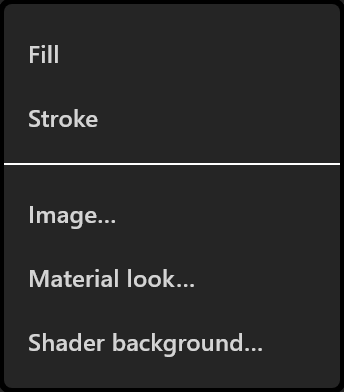
+ Add Paint offers:
| Item | What it adds |
|---|---|
| Fill | A colour inside the shape |
| Stroke | An outline, with a thickness |
| Image… | A picture drawn inside the shape's geometry |
| Material look… | A ready-made look, picked from the library; its search finds looks by name, colour or feel (see Materials) |
| Shader background… | A moving backdrop |
An object can have several fills and several strokes. Strokes are listed front-first, so the top row is the outline drawn over the others.
A paint row
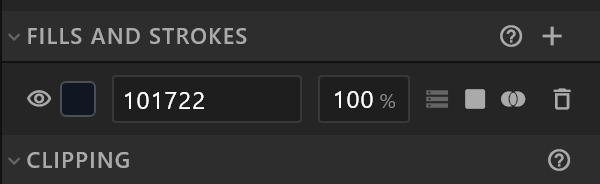
| Control | What it does |
|---|---|
| The eye | Hides this paint. It keeps its colour while hidden, so you can bring it back |
| The swatch | Opens the colour picker |
| The hex box | Type a colour directly |
| The percentage | Opacity of this paint alone |
| The diamond and the glyph | Key the colour, or bind it to a property |
| ⋯ | Paint options: type, blend, feather, trim |
| The arrows | Move a stroke in front of or behind the others |
A stroke also has its thickness on the row, keyable on its own, and a cap and join button for how its ends and corners are drawn.
Gradients
Choose Linear or Radial in the paint options and the colour becomes a gradient with stops you can add, move and colour. On the stage, a bar with a dot at each end sets where the gradient starts and finishes — drag it with the Select tool.
Feather, trim and dash
| Effect | What it does |
|---|---|
| Feather | Softens the paint's edge, by an amount, with an offset and a choice of inner or outer |
| Trim | Draws only part of a path — start, end and offset, as percentages. Key them and a line draws itself on |
| Dash | A dashed stroke: a dash length and an offset |
Trim mode decides how several paths in one shape are trimmed: Sequential treats them as one long path, one after another; Synchronized trims each at the same time.
A text's fill can be feathered but not trimmed.
Fill rule — which parts are inside
When a shape holds several paths, the fill rule decides which parts count as inside and which are holes. The button cycles: non-zero, even-odd, clockwise.
A path marked Hole cuts out of the fill. That needs the clockwise rule, and the panel says so when the rule does not match — "Needs the Clockwise fill rule" — rather than leaving you with a hole that does not appear.
Colour, once, everywhere
Document colours at the bottom of the inspector is the document's palette. Editing a swatch there changes every paint in the document using that colour, in one undo step. That is how a channel's red is changed across sixty graphics without hunting for it.