Appearance
Drawing tools
Making something new on the stage.

The rule that applies to all of them
Pick a tool, drag on the stage, and the tool goes back to Select. The thing you just drew is selected and ready to move, so drawing ten rectangles means picking the tool ten times — which is the right trade, because the far more common next action is to adjust what you made.
A shape smaller than a few units is not created at all, so a stray click never leaves a speck behind.
Shapes
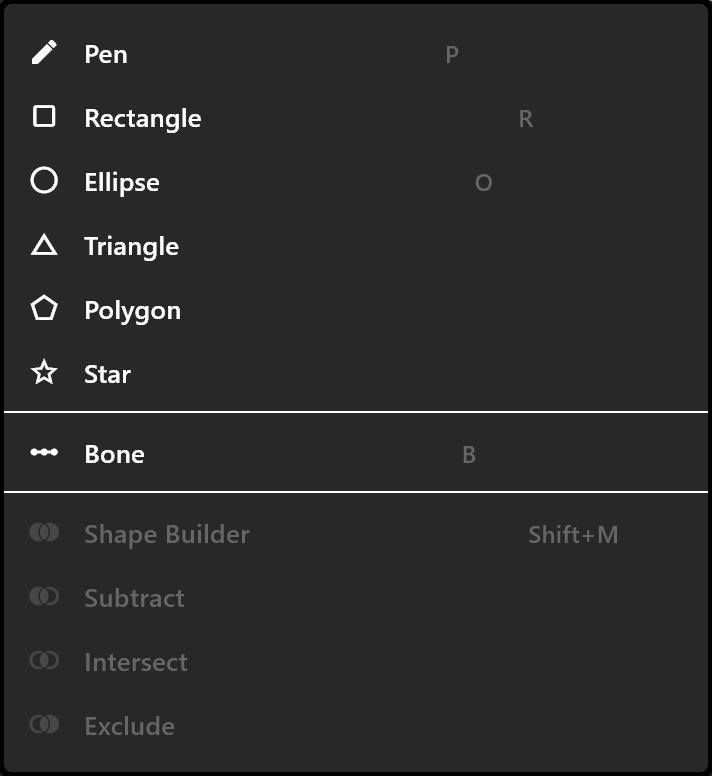
R rectangle, O ellipse, and triangle, polygon and star from the shapes menu. Drag the box you want; the shape fills it, with its middle at the middle of the box and a mid-grey fill to start.
Shapes are drawn from their numbers, not from points — a rectangle knows it is 400 × 120 with a 24 px corner. To pull its outline about instead, convert it to a path: see Paths and points.
Text
T, then click. You get the word Text at 48 pt, sized to fit itself. Double-click it to type. What it does next depends on its Sizing, which is the row worth setting early — see Text.
Artboards
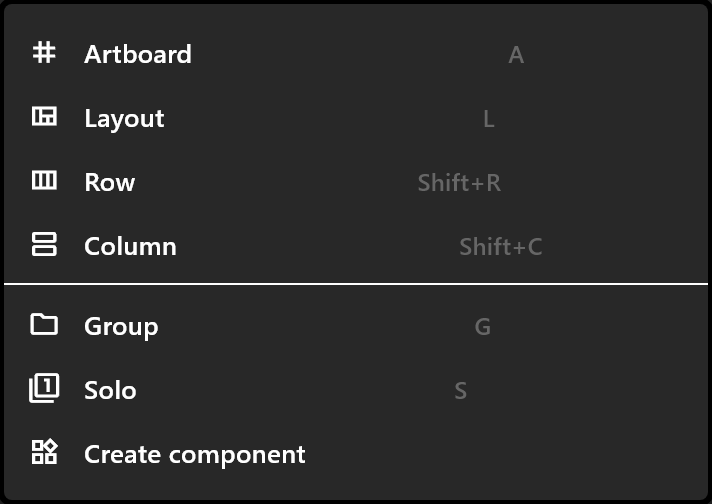
A, then drag anywhere, including over an existing artboard. The size is drawn beside the rectangle as you go, and it snaps to the other artboards and to a comfortable gap around them, so a row of artboards stays tidy.
A new artboard arrives with a timeline and Animation States of its own.
Layouts
L for a column, Shift+R for a row, Shift+C for a column. Drag the box. Drop it inside an existing layout and it joins that layout's flow rather than sitting on top of it — which is how a row of chips inside a bar is built.
Pictures and video slots
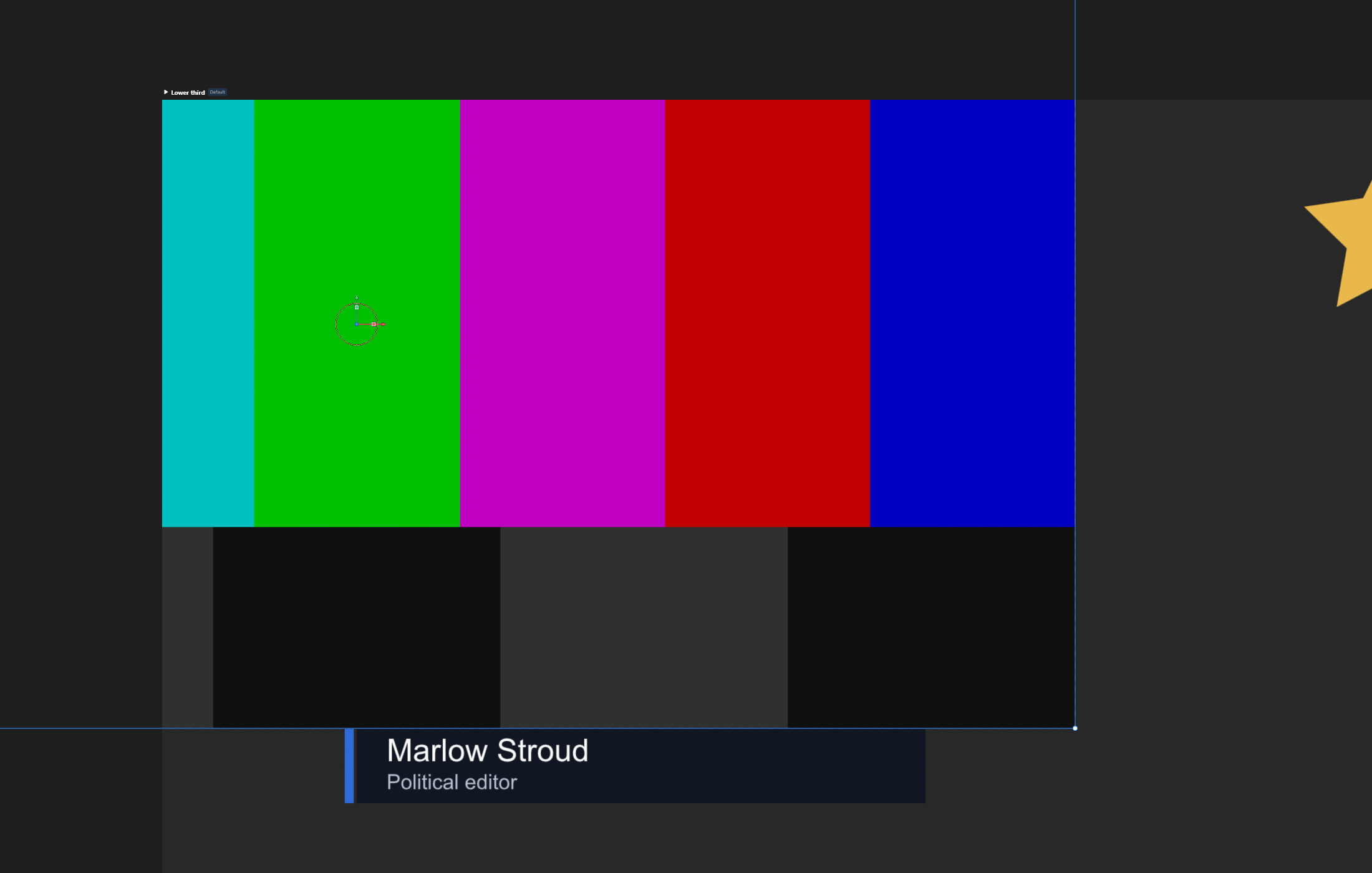
The video-slot button places a 640 × 360 picture element with a property to drive it. For a still picture, drag it from Assets onto the stage — dropped onto a shape it becomes that shape's texture; dropped on empty artboard it becomes an element of its own.
Bones
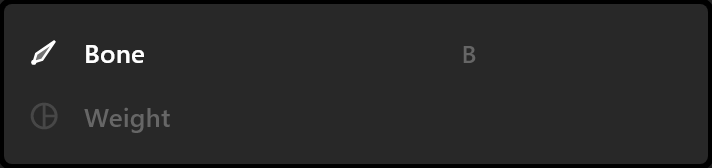
B. Press to place a bone and drag to aim it. The next press chains another from its tip, so a limb is drawn in one go. Esc ends the chain without leaving the tool.
Bones move artwork through weights — see Bones and weights.
Events
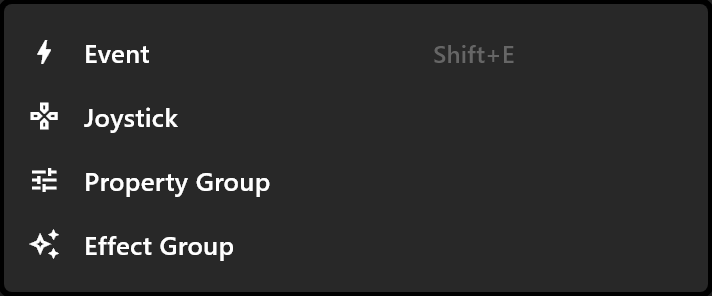
Shift+E, then click. An event is a message a graphic sends while it plays, so the icon can sit anywhere, inside the artboard or beside it. See Event.
Combining shapes
Select two or more and the shapes menu offers Shape Builder (Shift+M) to union them, and Subtract, Intersect and Exclude. The result takes the bottom-most shape's fill and strokes, in one undo step. Curves become fine straight segments, so combine late rather than early.