Appearance
Data panel
The values your graphic is driven by — the names a control system will fill in, and what they start as.
Left sidebar, Data section.
What it does
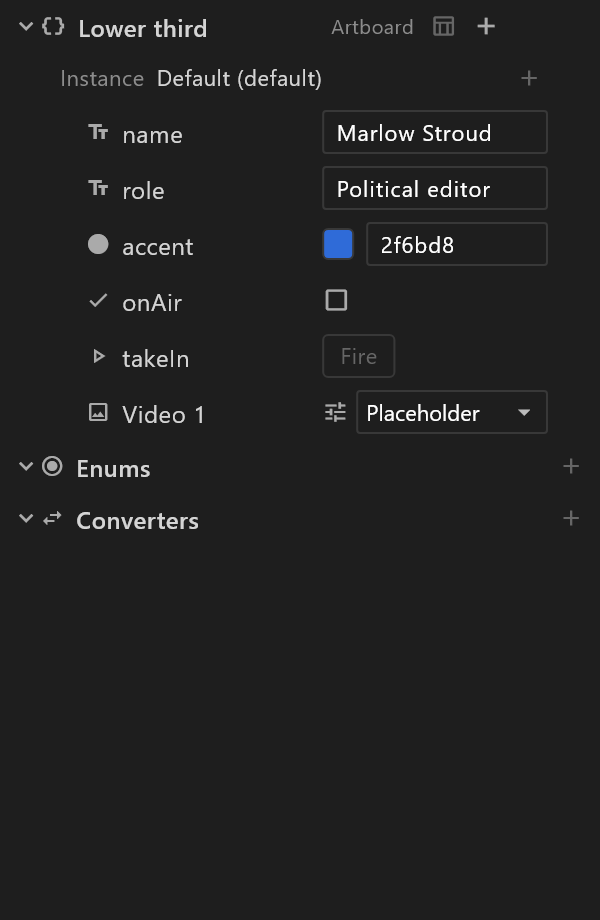
A view model is a named set of properties: name, role, accent, onAir. Those properties are what you bind your artwork to, what Animation States conditions test, and what a controller sends values into on air.
A view model can hold several instances — named sets of values for the same properties. One per candidate, one per team, one for rehearsal. The artboard shows one of them; the first instance is the default, and that is what a player creates when the graphic opens.
Use it
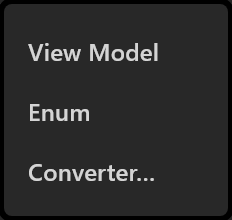
- + on the Data header › View Model. The first one you add is bound to the artboard you are on, marked Artboard.
- + on the view model's row to add a property, and pick its type.
- Give it a value. That value is what the graphic shows until something sends a different one.
- Bind artwork to it from the inspector, then check it is offered to the control system under Visible to controller.
Keys instead of the menu. Select a view model and a single letter adds a property: N number, S string, B boolean, C colour, T trigger, E enum, I image, F font, A artboard, L list, Shift+L list index, V view model. Selecting something on the stage hands the keys back to the stage, where Q, W and E are translate, rotate and scale.
Find a property with Ctrl+F, or with the box that appears once the document has twenty properties or more.
Property types
| Type | What it holds | How it edits |
|---|---|---|
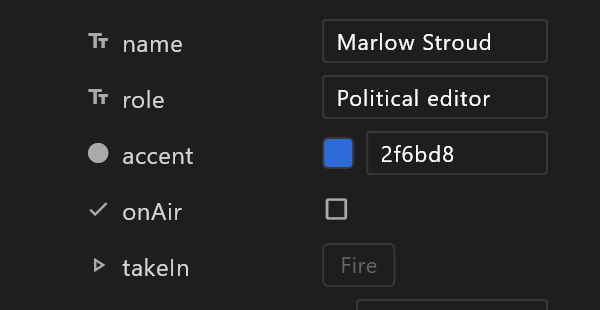
| Number | A number | A field; whole numbers show without decimals |
| String | Text | A field |
| Boolean | On or off | A checkbox |
| Color | A colour | A swatch and a hex field |
| Trigger | A "do it now" pulse | A Fire button. It works in Animate mode; in Design it is greyed, with "Switch to Animate mode to fire this trigger". It reads Fired for as long as the row glows |
| Enum | One of a named set | A dropdown of that enum's values |
| Image | A picture, or a live source | Its placeholder size and source, and the picture this instance starts with: Placeholder, No picture, or one of the document's images |
| Font | One of the document's fonts | A dropdown, starting at Arial (default) |
| Artboard | One of the document's artboards | A dropdown |
| List | A list of instances to repeat | Pick the item view model, then add items |
A trigger nothing will hear. In Animate mode, a trigger that is not part of the active artboard's data gets a warning mark beside its Fire button. Its tooltip says why, for example "TICKER_FILLER's Animation States never see this trigger: it is Artboard's data.", or that no artboard uses this data, and an Open link switches to the artboard that does. Fire still presses, but on this artboard nothing hears it. If you fire a trigger and nothing happens, check that the Animation States header names the artboard you mean, or follow the mark beside Fire. | List Index | Which row this is | Not editable: the list fills it in | | View Model | Another view model, nested | Two dropdowns, and the row expands to edit it in place |
Adding properties from the keyboard
Select a view model's row, and the panel takes the keyboard. One key adds each type of property:
| Key | Adds | Key | Adds |
|---|---|---|---|
N | Number | I | Image |
S | String | F | Font |
B | Boolean | A | Artboard |
C | Colour | L | List |
T | Trigger | Shift+L | List index |
E | Enum | V | View model |
Delete removes the selected property and Ctrl+D duplicates it.
The panel lets go as soon as you pick something else. Select an object on the stage or in the hierarchy and the view model's highlight goes, and the keys belong to the stage again — Q, W and E move, rotate and scale instead of adding properties. All these keys can be changed in Keyboard shortcuts.
Instances

The bar under a view model says which instance you are looking at. The first is marked (default).
| Control | What it does |
|---|---|
| The name | Double-click to rename |
| Switch instance | Appears once there are two or more |
| + | Adds one, and switches to it |
| Duplicate, with its values | A copy of this instance, values and all |
| Delete instance | Only on instances other than the default |
Switch to the table view (the toggle on the view model's row) to see every instance at once, one row each, and edit them side by side.
The property menu
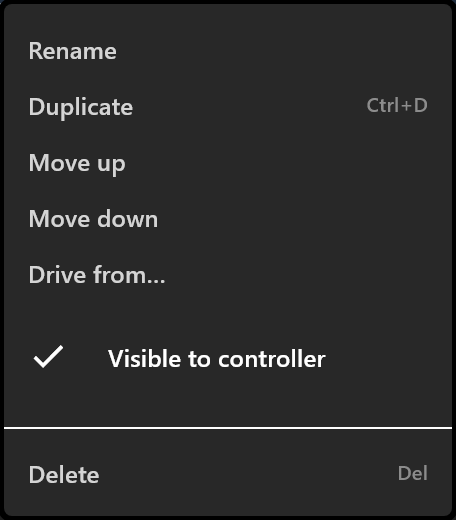
The ⋯ on a row, or a right-click.
| Item | What it does |
|---|---|
| Rename | Renaming rewrites every binding that runs through it, so nothing breaks inside the document |
Duplicate Ctrl+D | Same type, same settings, the value it holds on every instance. Bindings are deliberately not copied |
| Move up, Move down | Reorder |
| Placeholder size / default source… | Image properties: the slot's shape and what plays in it |
| Drive from… / Change what drives it… | Have one property's value come from another, optionally through a converter |
| Stop driving it | Hand the value back to you |
| Visible to controller | See below |
| Delete |
Visible to controller
Ticked — the default — the property goes into the bindings.json written beside the exported file, and into what a sync sends: its name, its type, what it starts as, an enum's values, an image slot's placeholder. Unticked, the property still works inside the document, the row is drawn dimmed, and both lists leave it out. The controller also reads the graphic itself, and today it lists every property it finds there: see The controller.
Renaming a property that has already been synced says so, because controllers bind by name:
Renamed "Score" to "Points". The controller this was synced to binds by name, so anything wired to "Score" over there stops filling until it is pointed at the new name, or this is synced again.
Driven values
A value can be driven by another property rather than typed. The editor is replaced by a link icon, the path it comes from, and the converter it runs through — "Driven by <view model> › <path>. Right-click to change it."
A value driven through a path this editor cannot name shows a padlock and the words as authored: the file is kept exactly as it came and written back unchanged.
Lists
Choose the item view model first — until then the row says "Choose the item view model to add items." Each item is a row: a drag handle to reorder, its number, and which instance it uses. + Add <view model> item appends one. Over twenty instances, the picker becomes a search.
An artboard list bound to this property draws one artboard per item.
Enums and converters
Enums are named sets of values — Live, Break, Off air. Type the values as a comma-separated list. An instance pointing past the end of a shortened list falls back to the first value.
Converters change a value on its way to what it drives: round it, map it to another range, format it as text, pad or trim it, ease a counter so it animates instead of jumping, negate a boolean, take a list's length. One converter can serve many bindings; its row shows what its steps do and how many places use it, for example Round › Pad text · 7. See Converters.
Live inputs and video
+ › Live input or Live video makes an image property named input1, video1, and so on. The name is the role: operators map inputs by number, so the number is never reused, and what you type is a label shown in the editor rather than a rename of the slot.
Click the settings icon at the start of a slot's row — "Slot settings: size, source and playout" — to choose what fills it, or choose Placeholder size / default source… from its menu. On a row that shows the source's state, such as "Clip not found", a click on that text tries again.
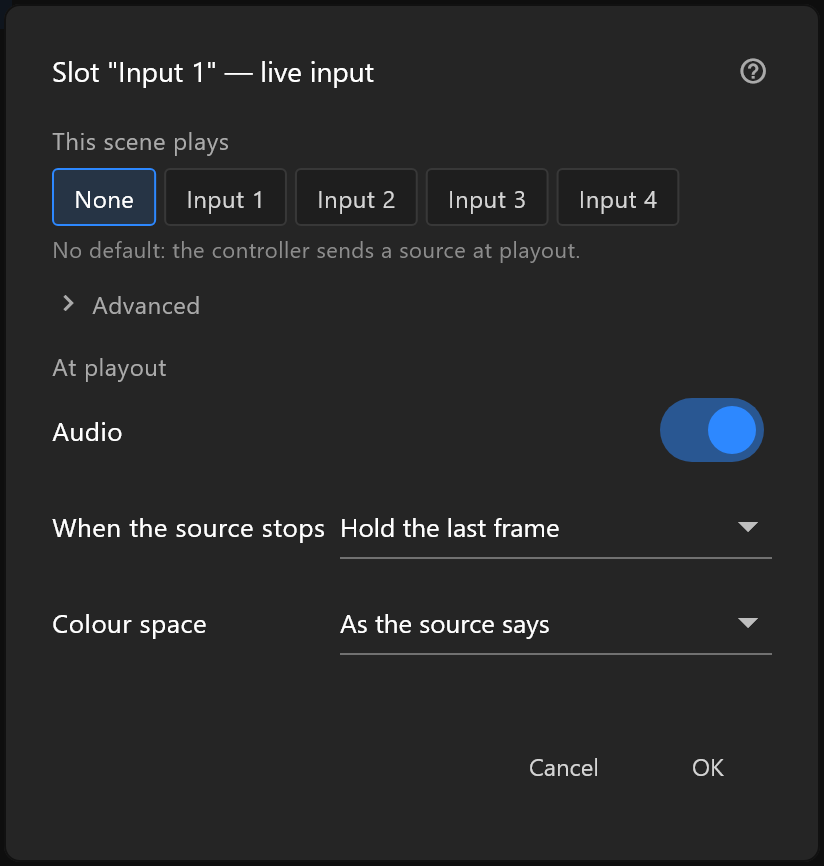
This scene plays is the part saved with the scene, and it means the same on every machine:
| Choice | What it means |
|---|---|
| None | "No default: the controller sends a source at playout." |
| Input 1 … Input 4 | The scene plays that input. "Saved with the scene as Input 1. It plays whatever each machine wires to its Input 1." |
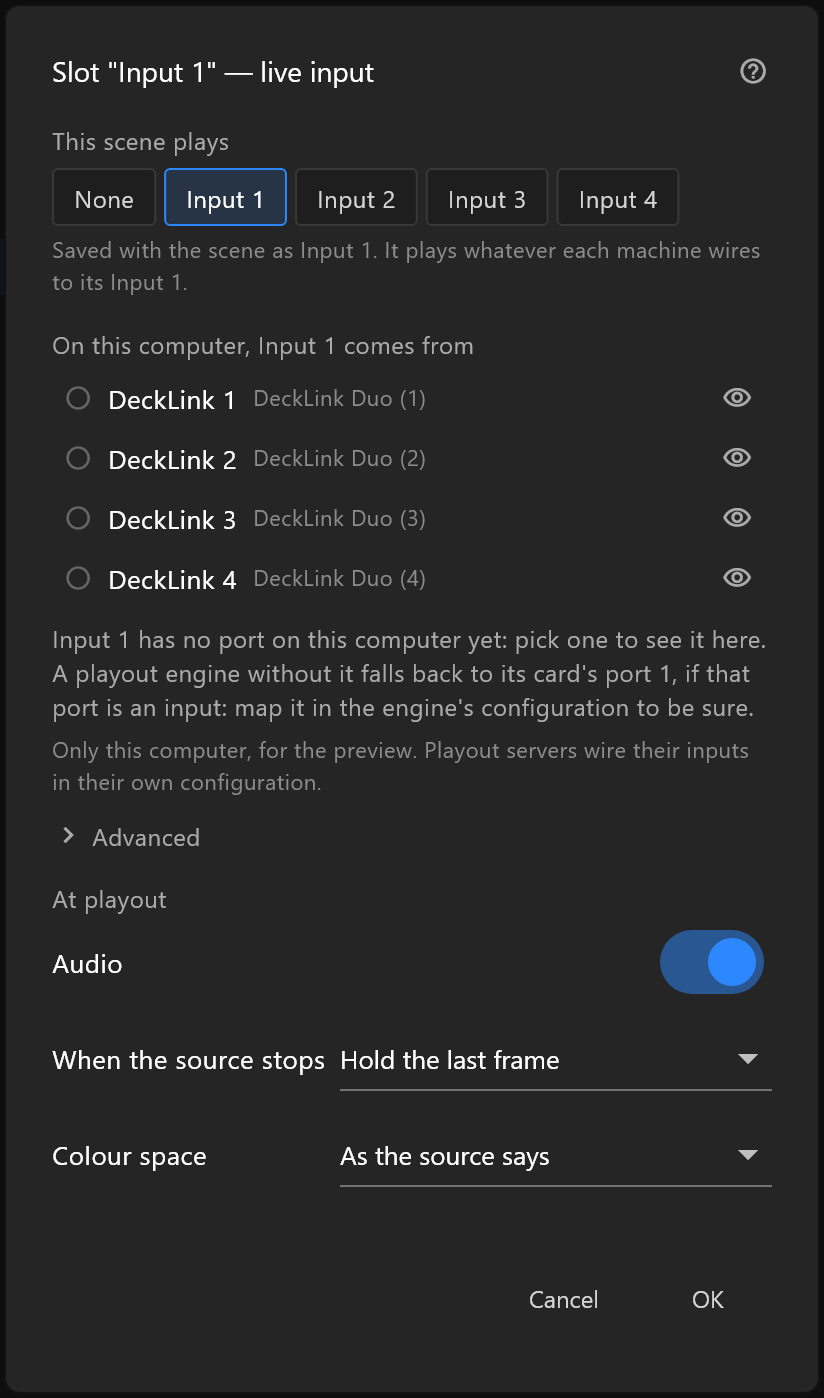
With an input chosen, On this computer, Input 1 comes from lists the DeckLink ports this machine has. Pick one to see the picture in the editor. The eye beside each port previews it. This choice is only for this computer: "Only this computer, for the preview. Playout servers wire their inputs in their own configuration." With none picked, the dialog says what playout will do: "A playout engine without it falls back to its card's port 1, if that port is an input: map it in the engine's configuration to be sure."
Under At playout:
| Row | What it does |
|---|---|
| Audio | Whether the input's sound plays with it |
| When the source stops | What the slot shows if the feed drops: Hold the last frame, and the other choices in the list |
| Colour space | As the source says, or a colour space you set |
Advanced holds the rest. See Live video slots for the whole picture, including what happens at playout when a feed drops out.
"1 more property, set by airZ Engine"
A grey line under a view model's properties, such as "1 more property, set by airZ Engine", means the view model holds values that airZ Engine sets for itself while the graphic plays: today, the 3D poster's switch. They are kept out of the list and out of the bind menus, because nothing you do should change them. Hover the line to see their names and what each is for.
Your own properties are never hidden, even when their names start with airz.
When it is empty
"No view models yet. Use + to add one; its properties bind to the inspector and drive Animation States conditions."
See also
- Data and view models
- Naming properties — how a control system sees them
- Converters · Live video slots