Appearance
Animation States graph
States, and the rules for moving between them: the logic that makes a graphic react instead of just play.
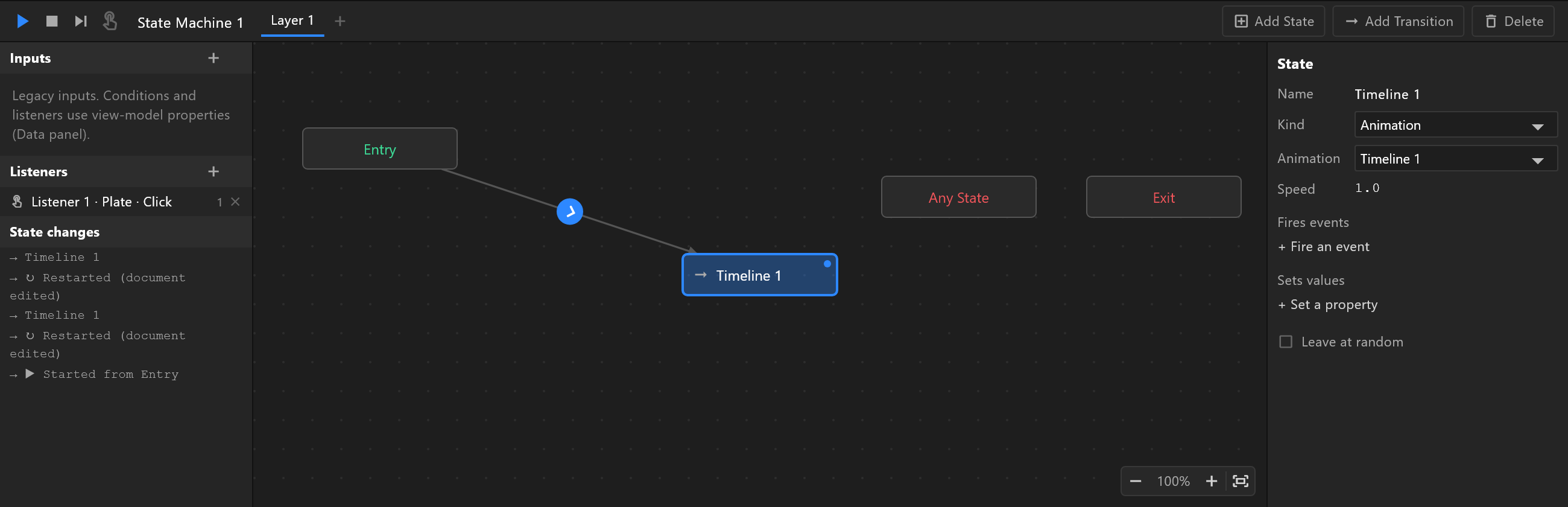
Open Animation States from the Animations panel and it takes the bottom of the window, in place of the timeline. When the document has more than one artboard, the panel's header names the artboard it belongs to, for example "TICKER_FILLER › State Machine 1": every artboard's first one is called State Machine 1, so the name tells you whose it is.
What it does
A state plays a timeline. A transition moves from one state to another when its conditions hold. Together they are how a graphic waits off screen, comes on when told, changes with the data, and leaves.
Three states are always there and cannot be deleted:
| State | What it is |
|---|---|
| Entry | Where the layer starts |
| Any State | Transitions from it apply from every state — the "whatever is happening, do this" route |
| Exit | Where the layer ends |
Adding states
| How | What you get |
|---|---|
| Add State | A new state in the middle of the view, named after the first timeline. If Entry has nothing wired yet, it is wired to this |
| Drag a timeline from the Animations list onto the graph | A state playing that timeline, where you dropped it |
Wiring a transition
Hover a state and a blue dot follows your pointer around its edge. Press on the edge and drag onto another state: a line follows you, the target lights up, and letting go wires it.
Add Transition does the same in two clicks — press the button, click the state to leave, then the state to enter. Esc cancels.
A transition is a line with an arrow and a disc in the middle. That disc is what you click to select it.
Exit has nothing leaving it, nothing can transition into Entry, and a state cannot wire to itself.
Layers
Tabs along the top. Each layer runs states of its own, at the same time as the others: one layer for "on screen or off", another for "which badge is showing". + adds a layer, already carrying its own Entry, Any State and Exit. Rename a tab by double-clicking it.
Watching it run
Press play and the graph shows what is happening:
- The current state is filled blue and breathes gently.
- A transition that fires lights green, with a dot travelling along it for as long as the transition takes.
- A move with no wire to light — an entry, a jump from Any State — shows a ring around the state it entered.
- While it plays, a dot beside each of the current state's transitions says whether its conditions hold now (green) or are waiting (yellow). Other transitions show no dot.
Hovering a transition tells you its conditions in words, for example shown is true, exit time 50%.
Step advances one frame and evaluates the conditions once — the way to watch a condition that fires and immediately un-fires.
While the Animation States play, clicks and keys on the stage go to the graphic, not to the editor, so listeners can be tested exactly as an operator will use them. The tag on the stage says so and names the key that stops it.
Getting around the graph
The graph zooms and pans like the stage:
- Zoom: the mouse wheel zooms at the pointer; on a touchpad, pinch.
- Pan: drag empty space; drag with the middle mouse button, or hold
Spaceand drag, from anywhere; on a touchpad, swipe with two fingers. - The zoom control, bottom right: − zooms out, the percentage goes back to 100 %, + zooms in, and ⛶ fits every state in view (never above 100 %). Zoom runs from 15 % to 300 %.
The side panel's hint says it too: "Drag empty space or with the middle button to pan; the wheel or a pinch zooms."
The state changes log
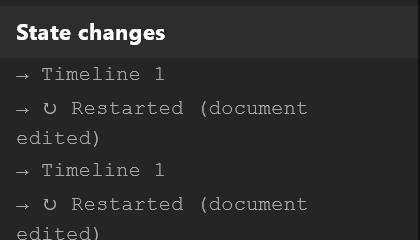
Bottom left, the Animation States' own account of themselves:
→ Idle → Hover (shown is true)
→ ⚡ clicked
→ ▶ Started from Entry
It says which state it went to, when, and what made it. When the Animation States do nothing you expected, this is the first place to look — before theorising about conditions.