Appearance
Bring in an HTML animation
An animation written as a web page, by a designer or by an AI tool such as Claude, comes into airZ Editor as a native graphic: every shape, text and move editable on the timeline, its scenes taken one after another with NEXT, and the parts you mark ready as fields in airZ Controller.
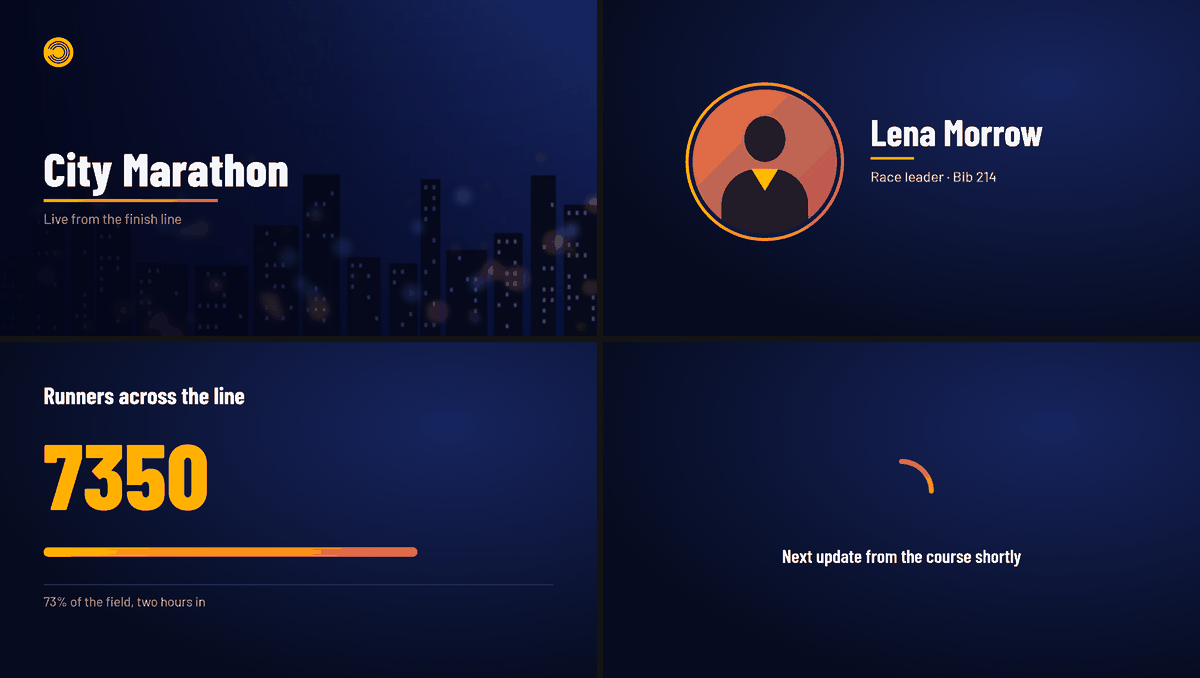
The example used here is City Marathon: four scenes, an opener over a backdrop, a runner card with a portrait, a finishers counter and a waiting loop.
1. Get the kit, and write the page to it
The page must follow the airZ HTML scene format: each scene an SVG drawing, every move a CSS animation, fonts and pictures in folders beside the page. The editor carries everything needed to write one. In the Assets panel, + › HTML scene kit (guide + template)…, choose a folder, and Save kit here. It saves an airZ HTML scene kit folder: the format guide, AIRZ_HTML_SCENE_FORMAT.md, and examples/, with a template, the City Marathon page, and their fonts/ and images/. Show in folder opens it.
Give the guide and the template to whoever writes the page. For an AI tool such as Claude, attach both and ask:
Write a broadcast animation as one HTML page that follows the attached airZ HTML Scene format exactly, using the attached template as the model. Use only what the format allows; put the fonts I name in a fonts/ folder and the pictures in an images/ folder, declare the fonts with @font-face, and mark every text and picture the operator should be able to change with data-bind.
Check it in a browser first: what you see there is what comes in.
Keep the page with its two folders:
city_marathon.html
fonts/    BarlowCondensed-Bold.ttf, Barlow-Regular.ttf, …
images/   backdrop.jpg, runner.png, …
2. Import it
In the Assets panel, + › Animation (HTML scene), and pick the page. Or drag the .html file onto the editor.
airZ Editor reads the page in Microsoft Edge, which comes with Windows and runs out of sight. A panel shows how far it has got, under Importing city_marathon.html: Starting the browser…, Loading the page…, Reading scene 1 of 4 with a bar, then Building the artboard…. Stop, or Esc, ends it: "Import stopped: nothing was added.", and the document is as it was.
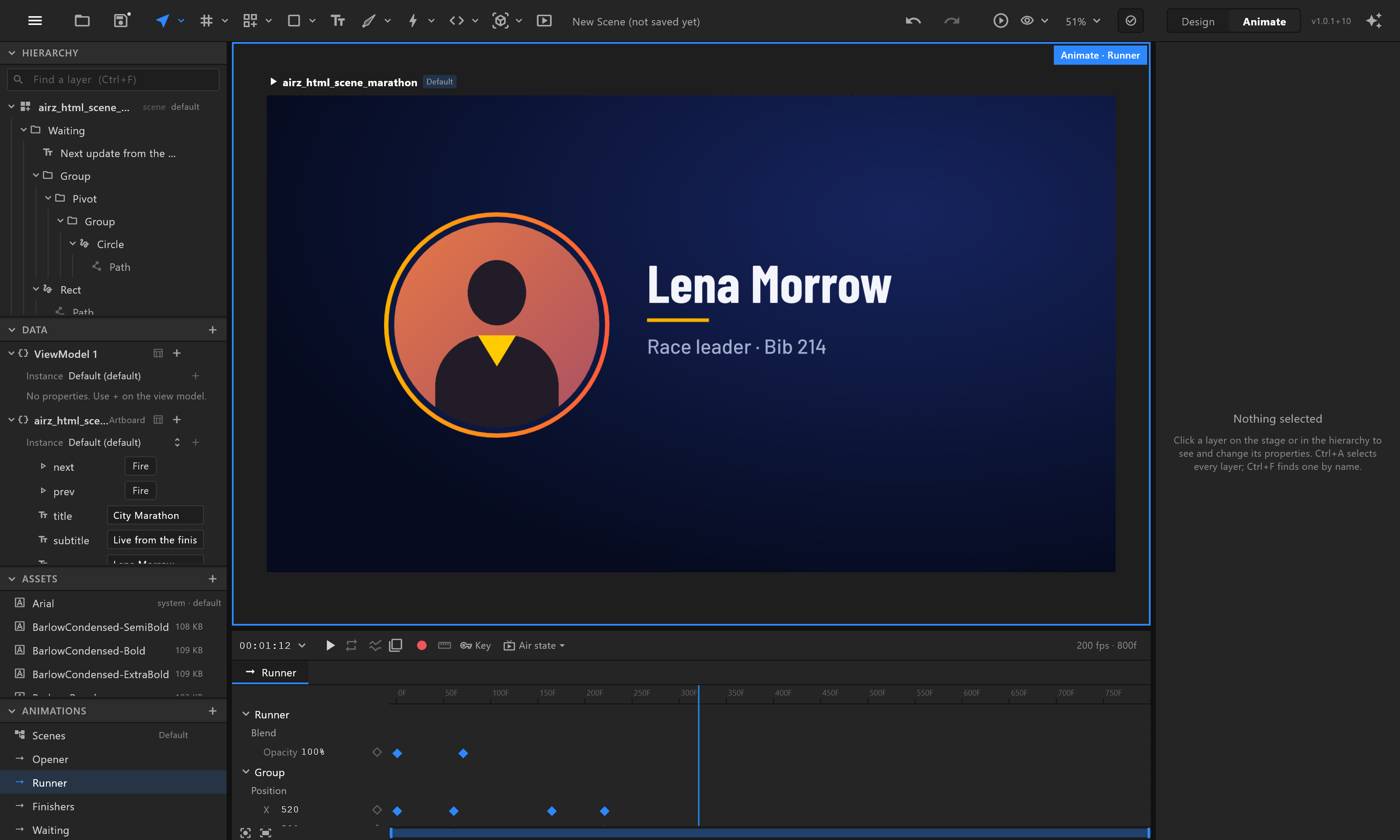
When it is done, a new artboard named after the file is open, and the editor says what it made:
"city_marathon" imported: 4 scenes, 7 bound texts, 2 picture slots, 1 picture, 5 fonts. "Scenes" plays the scenes in order; next moves on.
Only what the page has is counted. In a new, empty document the page takes the empty artboard's place. One undo removes the whole import.
3. What you get
| From the page | In airZ Editor |
|---|---|
| Each scene | A timeline, named after the scene: Opener, Runner, Finishers, Waiting |
| The scenes, in page order | Scenes, the Animation States that play them one after another |
| A scene that holds at its end (the default) | Waits for next |
data-next="auto" | Follows on to the next scene by itself |
data-loop | Repeats until next |
A text with data-bind | A text property in the Data panel, and a field in airZ Controller |
A picture with data-bind | A picture the operator can swap for another in airZ Controller. Named like a live slot, such as data-bind="video1" or "input1", it takes live video instead: a camera, a channel or a clip |
A counting number (data-count) | A number that counts up on the timeline |
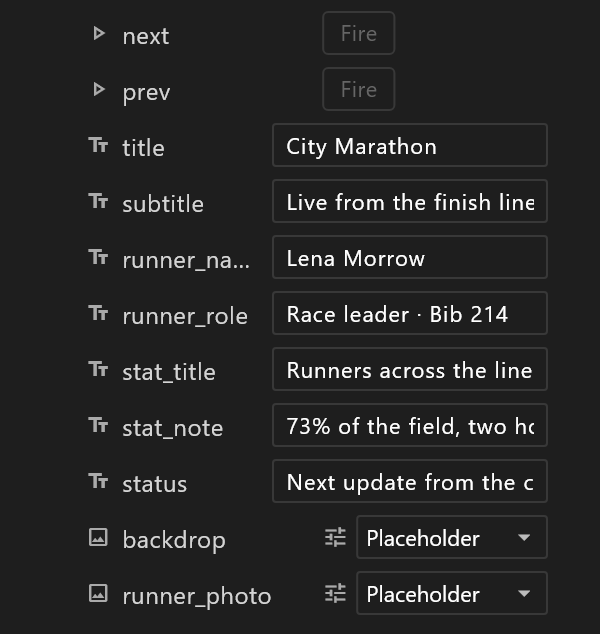
The data also has next and prev: triggers that take the next scene, or go back one. The operator presses them in airZ Controller.
The timelines come in at 200 fps, so every key lands exactly where the page put it (CSS times are in milliseconds, and 200 fps is a 5 ms grid). It still plays at the channel's own rate on air, 25, 50 or 59.94. Leave it as it is: changing a timeline's frame rate keeps the keys on their frame numbers, so the animation would run slower or faster (see Timeline settings).
Every shape, text and key is an ordinary one: select, move, recolour and retime it like anything you drew yourself. On air it is an ordinary graphic; airZ Controller and airZ Engine need nothing else to play it.
4. What does not come across
Filters and blurs, masks, video, canvas and embedded frames, pictures from the web, CSS layout inside a scene, animations that repeat or run backwards (loop the whole scene with data-loop instead), stepped easing, and anything a script moves frame by frame. A script may still build the drawing when the page loads. The page's own preview player is ignored.
When something did not come across, the line after an import says how many things, and the first: "3 things could not come across — …". With two or more, the import report lists them all. When a font file is missing it names the exact file to add to fonts/.
When the page cannot be imported at all, the editor says "Could not import <file>: <reason>". A page with no scenes adds where to find the format: "(Assets + → HTML scene kit has the format and a template)".
When it does not look right
| What you see | Why, and what to do |
|---|---|
| Text in the wrong font | The file is not in fonts/. A Google Fonts link alone is not enough: add the file the report names, such as BarlowCondensed-SemiBold.ttf |
| A gradient missing | The shared gradients sit in an <svg> with display:none, so the browser never resolves them. Hide that <svg> with a zero size instead |
| Part of a line does not move | It is a <tspan>. Browsers do not move a tspan either: animate the whole <text>, or a <g> around it |
| The scenes do not move on by themselves | Each waits for next unless it is marked data-next="auto" |
| "Reading an HTML scene needs Microsoft Edge" | Edge is missing from this computer. Install it, and import again |