Appearance
A template's details
Where you see a template play and set the values every new item starts from.
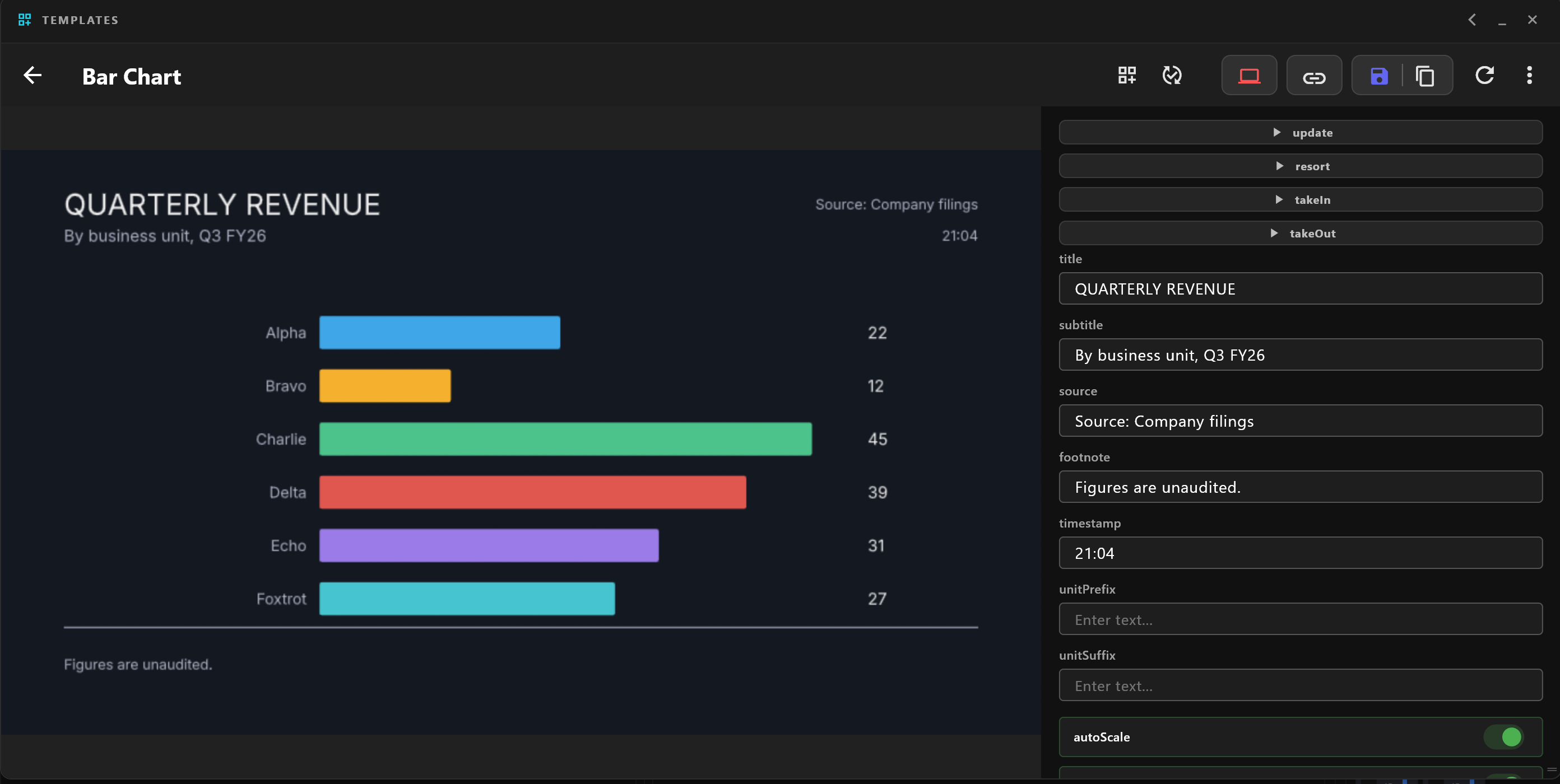
Select a template's card in the Template Library. The graphic plays at the left; its actions and fields are at the right. The arrow at the top left goes back to the library.
Try it
Each action (such as takeIn or takeOut) has a button that plays it on this screen. Nothing here goes to air.
Set the values
Change the fields as on an item: text, numbers, colours, switches, images and choices from a list. For an image, Browse Assets picks one from your assets and Clear Image removes it.
These are the template's own values, which new items start from. Items already in a rundown keep any values set on them.
- Save keeps your changes. Its tooltip says how many there are.
- Reset to defaults returns every field to the value in the template file.
Variations
A variation is a copy of the template with its own values, kept beside the original. Select the variation button, give it a Variation Name, and select Create. Keep Data Sources keeps the template's data sources on the copy. A variation opens with Variation of: and a View Original button.
Other buttons
| Button | What it does |
|---|---|
| Design Operator Panel | Builds a custom control panel for this template. |
| Replace file | Swaps in a newer template file for an imported template, keeping a backup of the old one. airZ Controller asks first. |
| Send to another controller | Sends the template to another airZ Controller you are paired with. Shown only when one is. |
| Engine routing | Chooses which playout engines play items made from this template. Broadcast licence |