Appearance
Live data in templates
Fill a template's values from a feed or a file, and keep them current while the graphic is on air.
A data link ties one of a template's values, such as a headline, a score or a temperature, to a field in a source. The link belongs to the template, so every item made from it uses the same source.
How many links a template can have depends on your plan; see Plans and licence.
Link a source
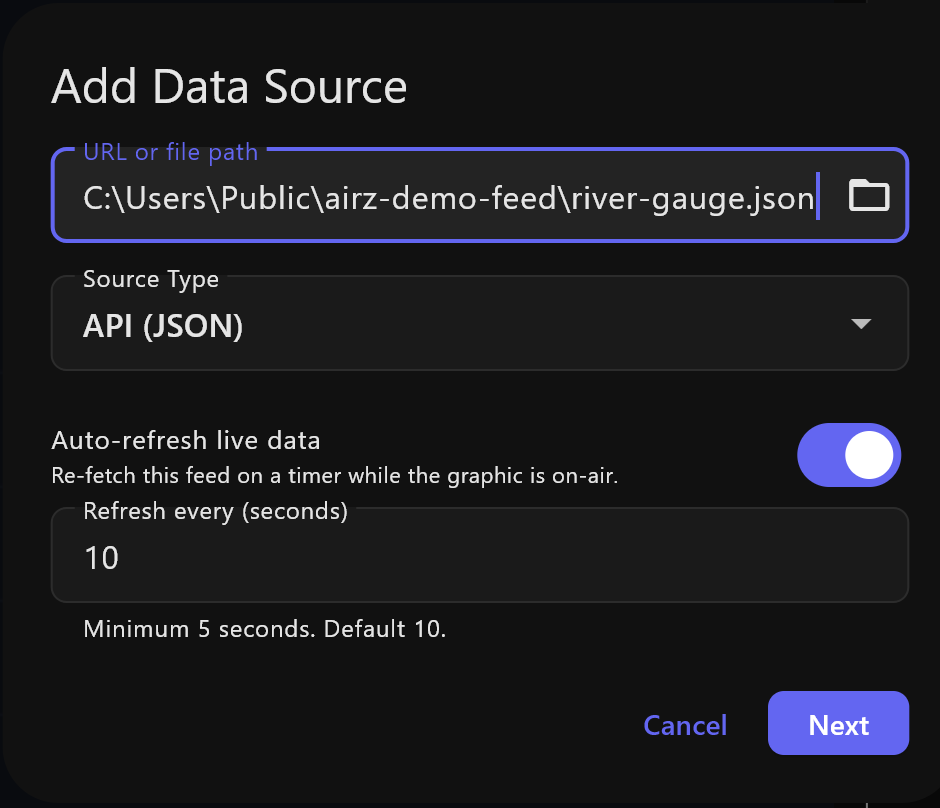
- Open the template's details and select the link button (Manage Data Links) at the top. It lists the template's Active Links.
- Select Create New Link. Add Data Source opens.
- Choose the Source Type and enter where the data is:
| Source Type | Where the data is |
|---|---|
| RSS Feed (XML) | A web address, or a file on this computer. Browse picks the file. |
| API (JSON) | A web address, or a file on this computer. Browse picks the file. |
| Website (HTML Scraping) | A web page's address. |
- Select Next and choose the fields.
A file is read from disk each time, so a file that another program rewrites keeps the template current.
Choose the fields
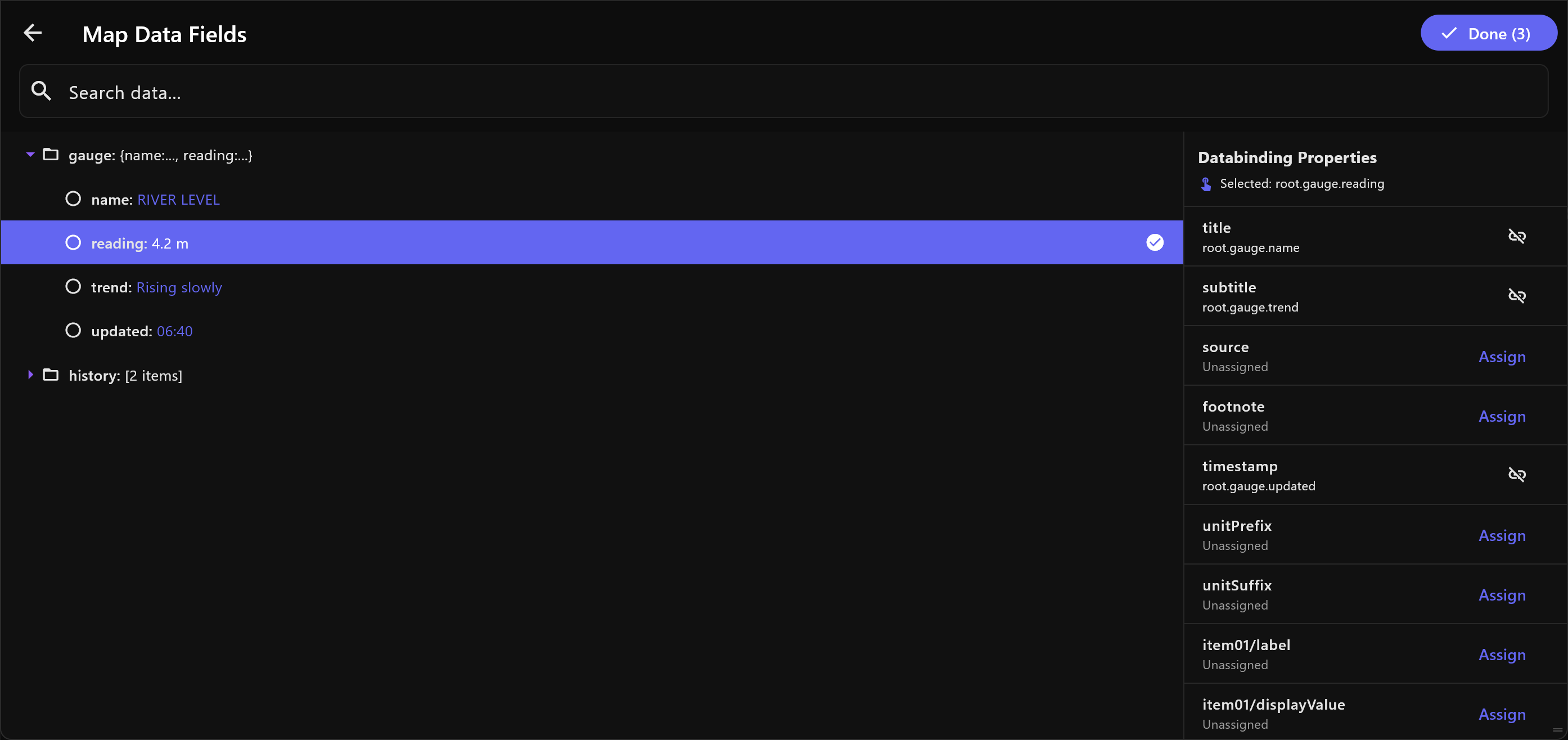
For a feed or an API, Map Data Fields shows the source's data on the left and the template's values under Databinding Properties on the right.
- Select a field on the left. Lists show how many items they hold; open one to reach its fields.
- Select Assign beside the template value it should fill.
- Repeat for other values, then select Done.
Search data... finds a field by name or value. A value already linked shows the field it reads; the remove button beside it clears the link.
A link reads one field in one place: the title of the first story, for example. To show the second story, link to the second item's field.
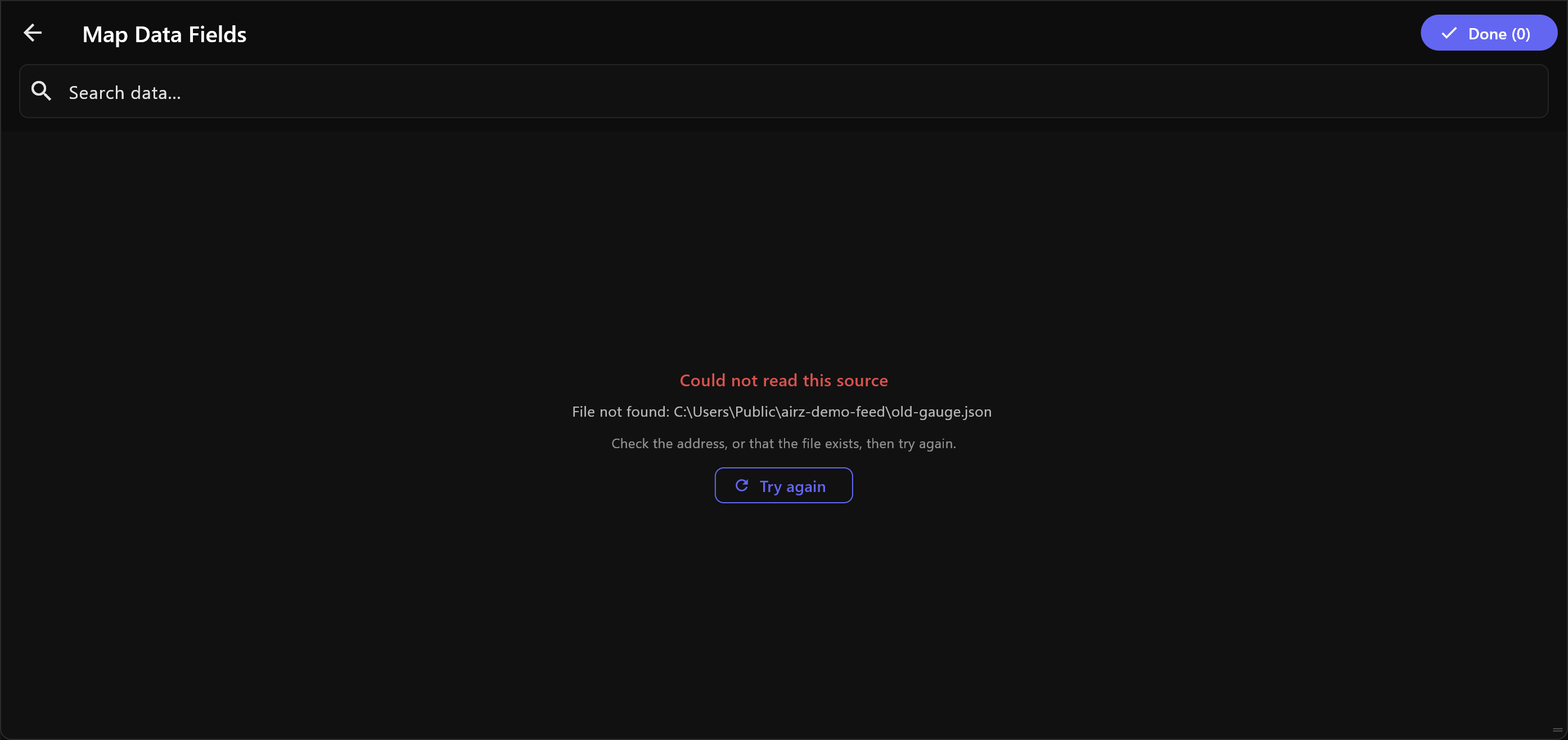
If the source cannot be read, Map Data Fields says Could not read this source, with the reason and the address it tried: for example No answer from the address within 15 s, or File not found and the file's path. Check the address, or that the file exists, then select Try again.
For a website, Select HTML Data shows the page. Select a value on it, then the template value it should fill. The count at the top says how many values are still unlinked.
Fetch now
| Where | How |
|---|---|
| A template's details | Fetch Live Data fetches every link and updates the template's values. |
| An item | The fetch button at the bottom of Item Configuration, then Quick Refresh. |
Quick Refresh changes the preview and the item, not what is on air. To send the new values to air, press the item's UPDATE; see Taking items to air.
Keep it current on air
While an item is on air, its feed and API links are fetched again on a timer, and new values go to air by themselves, without playing a trigger. Website links are not fetched again on their own.
The timer is set per template, for all its feed and API links:
- In Add Data Source, with Auto-refresh live data and Refresh every (seconds). The setting is kept when you select Done in Map Data Fields; Cancel changes nothing.
- At any time, with Auto-refresh settings in the template's details.
The shortest interval is 5 seconds. A template's first feed starts with auto-refresh on, every 10 seconds.
When a feed fails
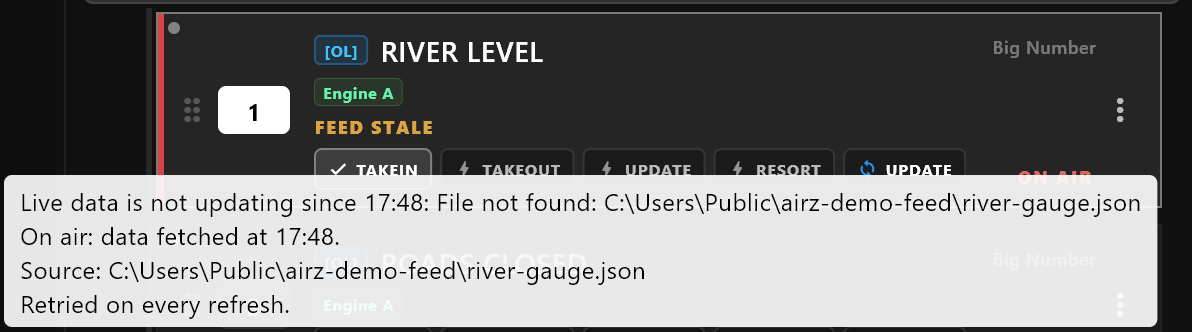
If a feed cannot be read while its item is on air, or it arrives without a field a value is linked to, the item's row in the rundown shows FEED STALE beside ON AIR. Air keeps the last values that arrived; nothing goes blank. Point at the mark to see since when, why, and from which address. A missing field is named: the feed may have changed shape. The feed is tried again at every refresh, and the mark goes when it is right again.
Fetching by hand says what failed, and keeps the rest: Live data: 1 of 3 links could not be fetched — … Values from the last good fetch are kept.
| Reason | Means |
|---|---|
| No answer from the address within 15 s | The feed or API did not answer. |
| The page at the address did not load within 30 s | The website did not answer. |
| HTTP and a number | The server answered with an error, such as 404 for a wrong address. |
| File not found | The file is not where the link says. |
Remove a link
In Manage Data Links, selecting a link in Active Links removes it at once, without asking. In Map Data Fields, the remove button beside a value clears its link when you select Done.
Variations
A variation made with Keep Data Sources keeps the template's links; see A template's details.