Appearance
Assets
Your images, in folders, ready to put into graphics.
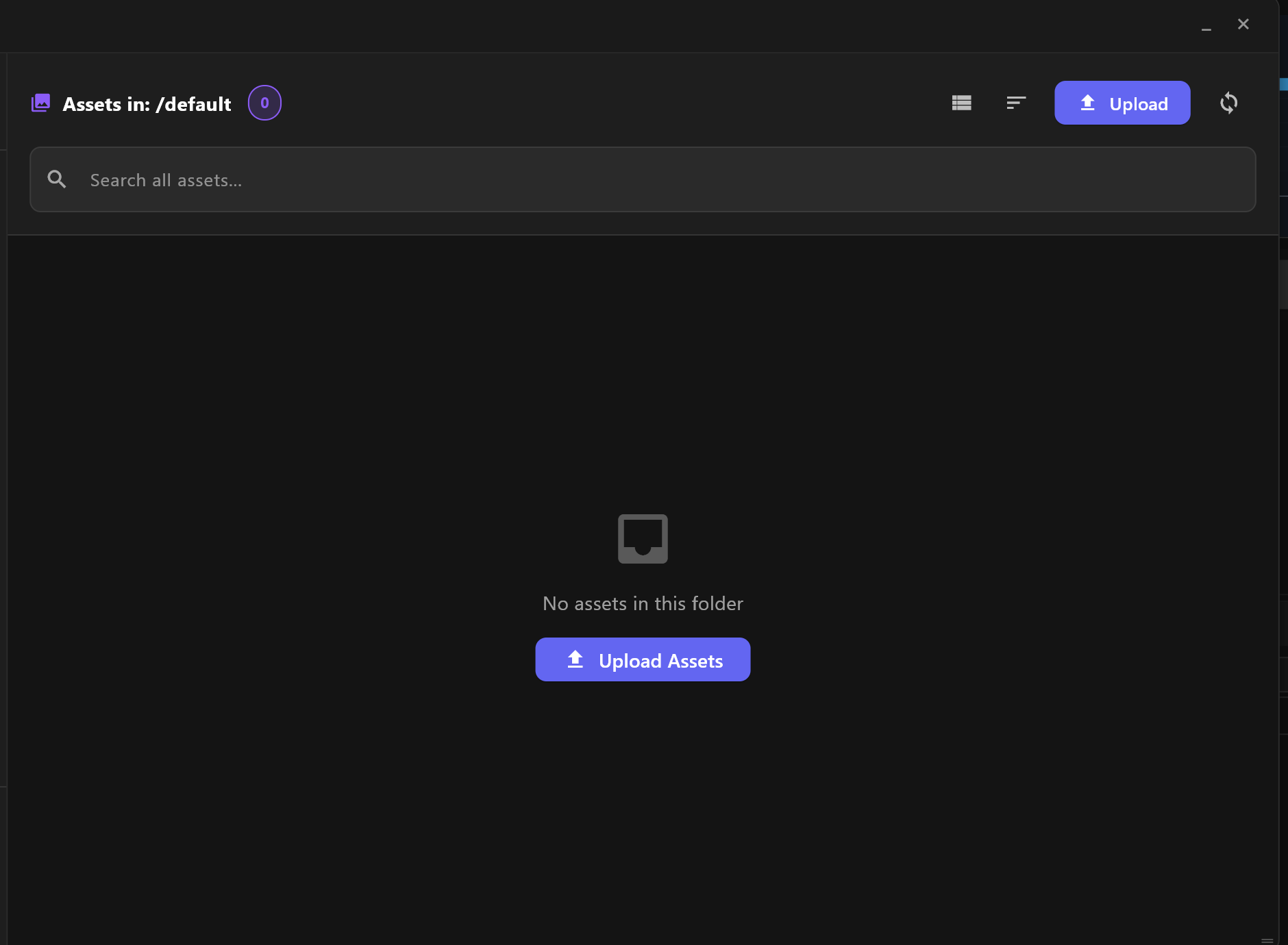
Select Assets in the title bar. Folders are at the left; the chosen folder's images are at the right. Images chosen here appear wherever a graphic asks for one, through Browse Assets.
Add images
- Choose a folder at the left.
- Select Upload, or drag images from your computer onto the window.
JPG, PNG, GIF, WEBP and SVG images are accepted. If your plan's limit is reached, airZ Controller says Limit Reached.
Folders
- To make one, type a name in the box at the bottom of the folder list and select Create Folder. With a folder chosen, it makes a subfolder.
- Right-click a folder for Create subfolder here and Delete folder. Deleting a folder deletes the images in it: airZ Controller says how many and asks first. It cannot be undone.
Find and arrange
- Search all assets... searches every folder.
- The buttons at the top switch between a list and a grid, and sort by name, date or size.
- Right-click an image and choose Show in Folder to see the file on your computer.
Remove a background
Select the AI Tools button on an image. Remove BG cuts the subject out of its background (Generate Alpha); Crop and Adjust are there too. Save the result as a copy with Save as Copy, or replace the image with Overwrite Original.
Delete an image
airZ Controller asks Delete Asset? first. Deleting cannot be undone.