Appearance
Plans and the Broadcast licence
What each plan includes, and how a licence key turns every feature on.
Plans
airZ Controller runs on one of three plans. Your plan shows under your studio's name at the top left of the window.
| Plan | For |
|---|---|
| Free | Trying airZ Controller and small productions, with limits on how much you can keep. |
| Pro | Working productions: output up to 4K at 60 fps, unlimited rundowns, widgets and data links, recording each source separately, voice control, the news ticker, live chat moderation, a backup stream, NDI output, DeckLink capture and the Stream Deck plugin. |
| Enterprise | Everything in Pro, plus DeckLink SDI output, SRT bonding across several network connections, private AI models, and priority support with a dedicated account manager. |
A new account starts with seven days of Pro. Your plan, its renewal date and Upgrade are in your profile: select your studio's name.
Where this manual describes a feature that needs a plan, it says so: Pro means Pro and Enterprise; Enterprise means Enterprise only.
The Broadcast licence
Studios receive a licence key from airZStudio. With a valid licence, every feature of airZ Controller is on, whatever the plan: the broadcast features — MOS integration with your newsroom system and the playout engines — as well as everything Pro and Enterprise include. It works without internet and has no limits.
Where this manual describes a feature that needs the licence, it says Broadcast licence.
Activate a licence
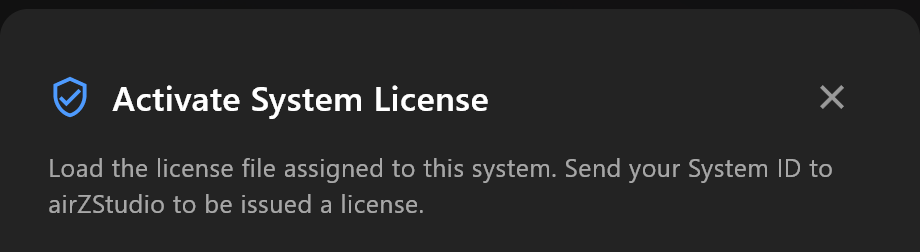
A licence belongs to one computer. To have one issued:
- On the sign-in screen, select Activate with License (Ctrl+L), or press
Ctrl+L. Once signed in, the same is in Settings › License. - Activate System License shows this computer's System ID. Select Copy and send it to airZStudio.
When your licence file (.airzlic) arrives:
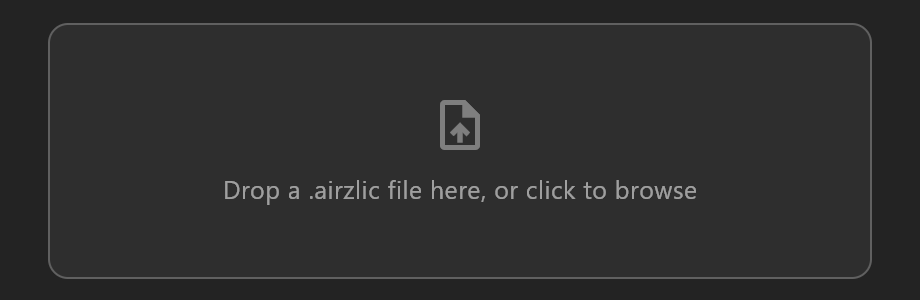
- Drop it onto the dialog, or select the drop zone to browse for it.
airZ Controller checks it at once and says what it found, for example Licensed to your studio, all features, and its expiry date. A licence issued for another computer, or one that has expired, is refused with a message saying so.
A computer with a valid licence opens without an account.
Keep an eye on the expiry
Settings › License shows who the licence is for, its expiry date and the days remaining. From 14 days before it expires, airZ Controller warns you there. Setting the computer's clock back does not extend a licence.
When the licence runs out on a computer that has no account, airZ Controller stops at a screen offering Load New License or Sign in with an account.
Replace License… loads a renewed file; Deactivate removes the licence from this computer, after asking.