Appearance
Importing a bulletin from XML
How a running order exported by your newsroom system becomes a rundown, with each story's graphic already filled in.
A newsroom system can export a bulletin as an XML file: one entry per story, each with fields such as a title and the text for its graphic. airZ Controller reads that file and makes a rundown item for every entry that needs a graphic.
What goes where is set once, in the routing profile: which entries become which template, and which field fills which value. After that, importing a bulletin takes three clicks.
Set up the routing profile
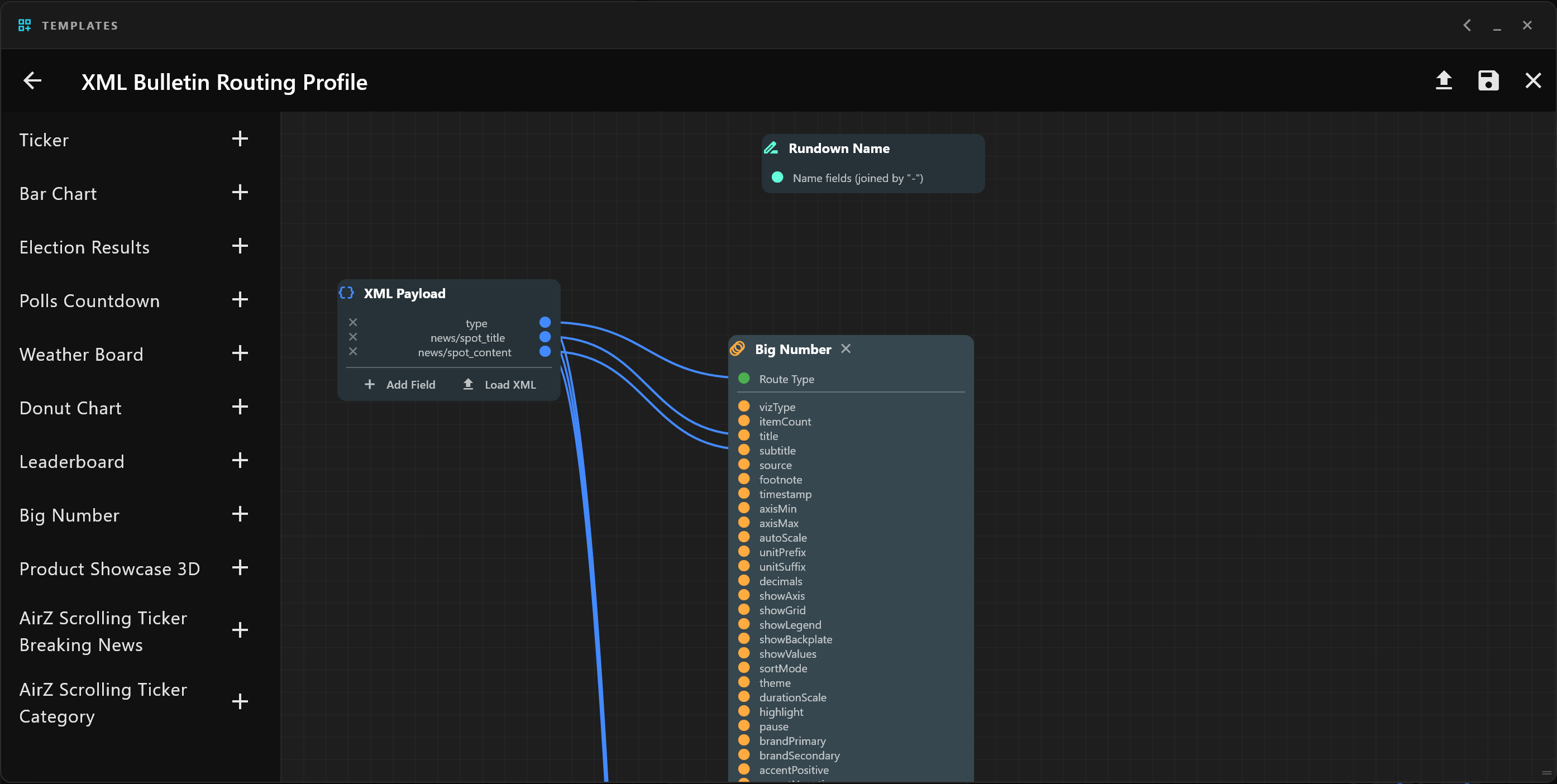
Open Templates, then the routing button at the top right of Template Library (XML Routing Profiles). The XML Bulletin Routing Profile opens: your templates on the left, and the profile on the canvas.
- Load a sample. Select the upload button at the top right (Load Sample XML) and choose a bulletin your newsroom system exported. The XML Payload node lists every field in it, each with a wire point. Fields read
entry/field, such asnews/spot_title;@marks an attribute anddoc:a field of the whole bulletin. - Add the templates the bulletin needs: select + beside each one on the left. Each becomes a node listing its values.
- Wire the values. Drag from a field's wire point to a template value. That field fills that value on every item made from that template.
- Route the entries. Each template node has a Route Type input. Wire into it the field that names the graphic: an entry goes to this template when that field is the template's name. Capitals do not matter.
- Name the rundown (optional). Wire fields into the Rundown Name node; their values are joined with
-. - Save with the disk button at the top right. The profile is kept on this airZ Controller.
The field type
Many newsroom exports name the graphic at the start of an entry's title, as in KJ++++…. The field type reads exactly that: the tag before ++++, or the whole title when there is no ++++. If it is not in the XML Payload node, add it with Add Field, then wire it into Route Type.
A template with nothing wired into Route Type takes every entry.
Entries whose wired fields are all empty, and divider entries such as -----HEADLINES-----, are skipped.
Each airZ Controller has one routing profile. When another control room is paired with this one, the send button at the top right replaces their profile with this one; Check first shows what would not carry across.
Import a bulletin

- Open the RUNDOWNS rail. Select Load XML Bulletin, the file button at the top of the panel.
- Choose the bulletin file.
- Check the XML Bulletin Import Preview, then select Create rundown.
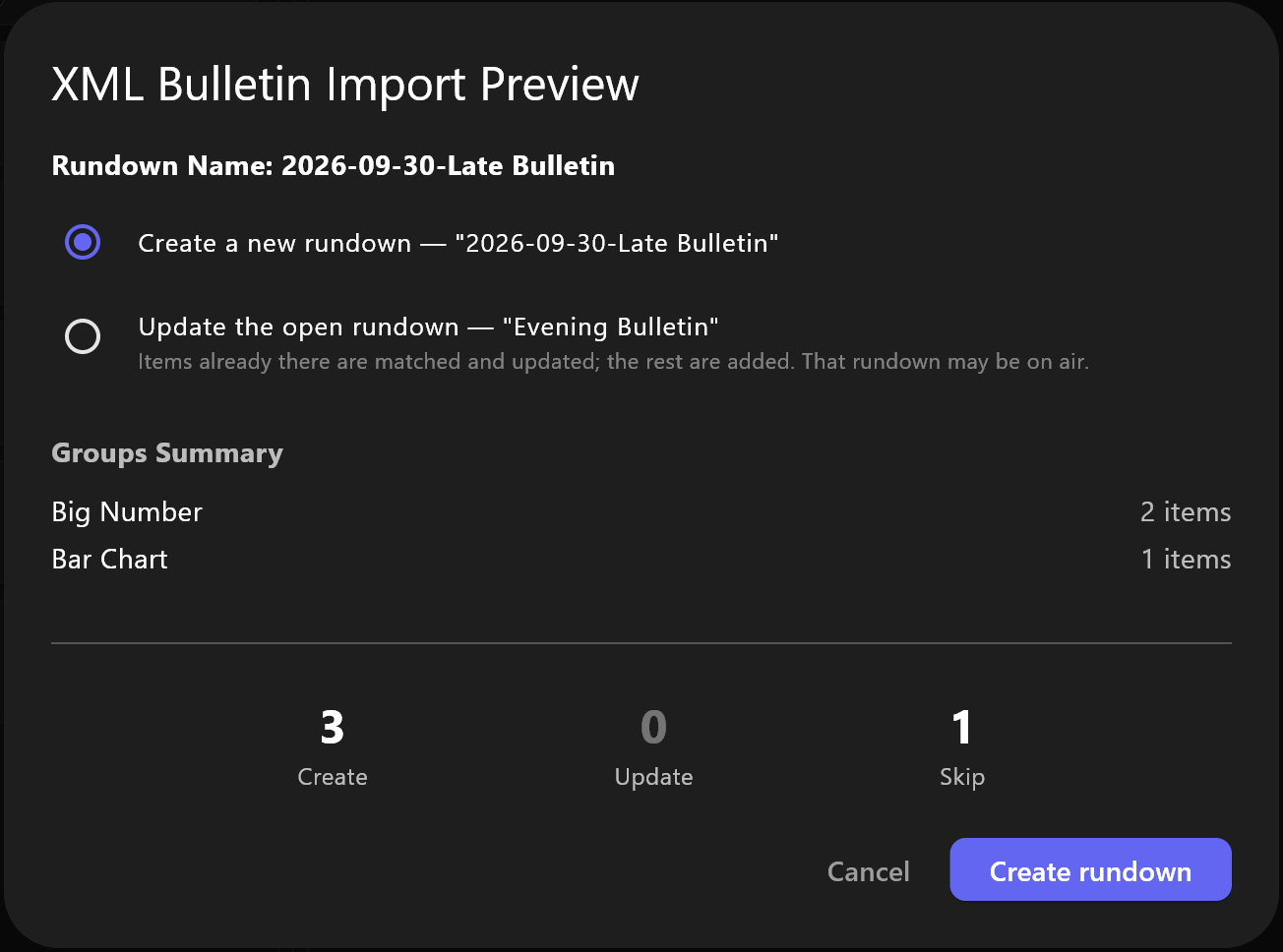
The preview shows:
| Part | What it tells you |
|---|---|
| Rundown Name | The name the new rundown gets: from the Rundown Name wiring, else the bulletin's date and name, else the file's name. |
| Groups Summary | One group per template, with how many items each gets. |
| Create, Update, Skip | How many items will be made, how many changed, and how many entries go to no template. |
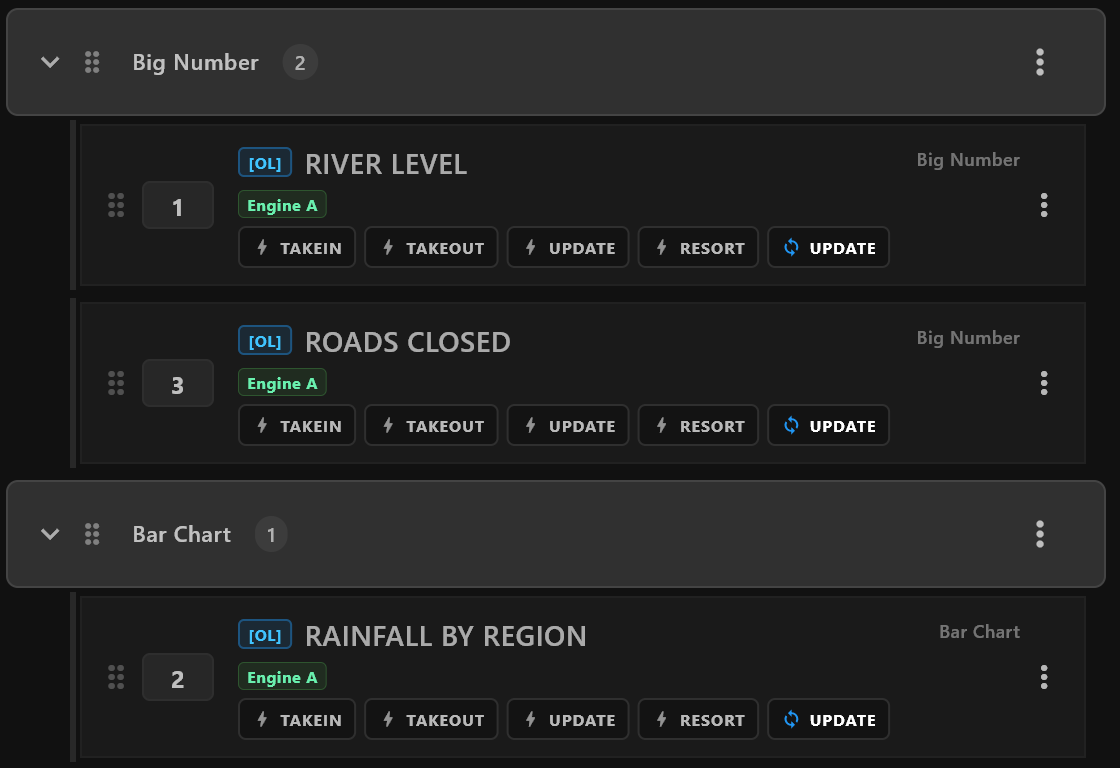
The new rundown opens. Each item is named after its first wired value and numbered in the bulletin's order.
Update a rundown from a newer file
When a rundown is open, the preview also offers Update the open rundown. Items imported before are matched by the entry's identity in the file and their template: they get the new values and name. Entries not yet in the rundown are added at the end. Nothing is removed.
The open rundown may be on air
Updating changes the items of the rundown you have open, which may be on air. The preview says so. An import cannot be undone.
When something is wrong
| Message | What to do |
|---|---|
| That file is not XML, or is not well-formed. | The file is damaged or not an XML export. Export it again. |
| No rows were found in that file. | Open the routing profile and load a sample of this kind of file, so it learns where the entries are. |
| No items matched the routing rules. | No entry names a template in the profile. Check what is wired into Route Type. |
Up to 5,000 entries are read from one file.