Appearance
Template bindings
Chain templates so that one graphic's action plays the next, with a pause between them if you want one.
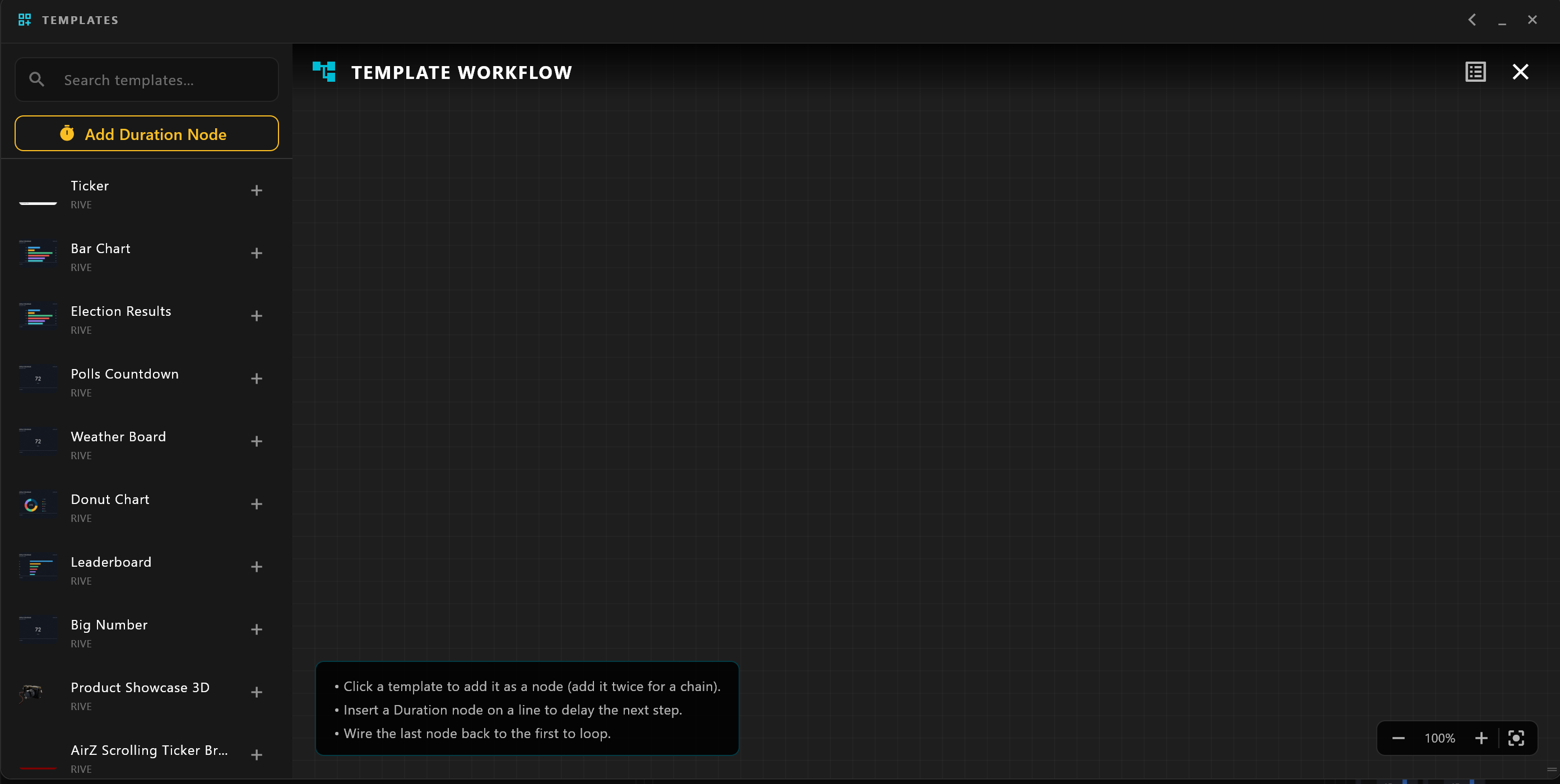
Open it from the Template Library: select Template Bindings, the first of the three buttons at the top right. TEMPLATE WORKFLOW opens.
Build a chain
- Select a template in the list at the left to add it as a node. Add a template twice to use it twice in the chain.
- Drag from one node's action to another node's port to connect them: when the first action plays, the next one follows.
- To wait between two steps, right-click the line between them and choose Insert Duration Node, then enter the time in seconds. Add Duration Node at the top of the list adds one on its own.
- To repeat the chain, wire the last node back to the first.
A video template's node has TAKE IN and TAKE OUT ports, so a video can start or stop in the chain.
Check and share it
- Show resolved chain lists the steps in the order they will run, and warns ⚠ self-loop where a node plays itself.
- Send these bindings to another control room copies the chain to another airZ Controller.
Changes are kept as you make them. To remove a line, select it and right-click, then choose Remove Selected Connection.