Appearance
Adding items
How to put graphics and video into a rundown.
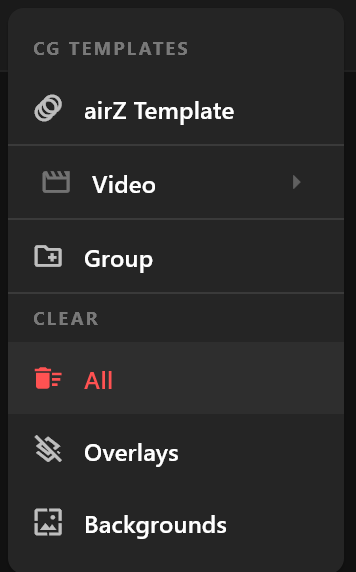
Everything you add to a rundown starts from one menu: right-click anywhere in the item list in Rundown Operations. The playout engines play two kinds of item, airZ templates and videos, so the menu offers those, with Group to keep related items together. The same menu holds CLEAR, which takes things off air.
Add a graphic from your templates
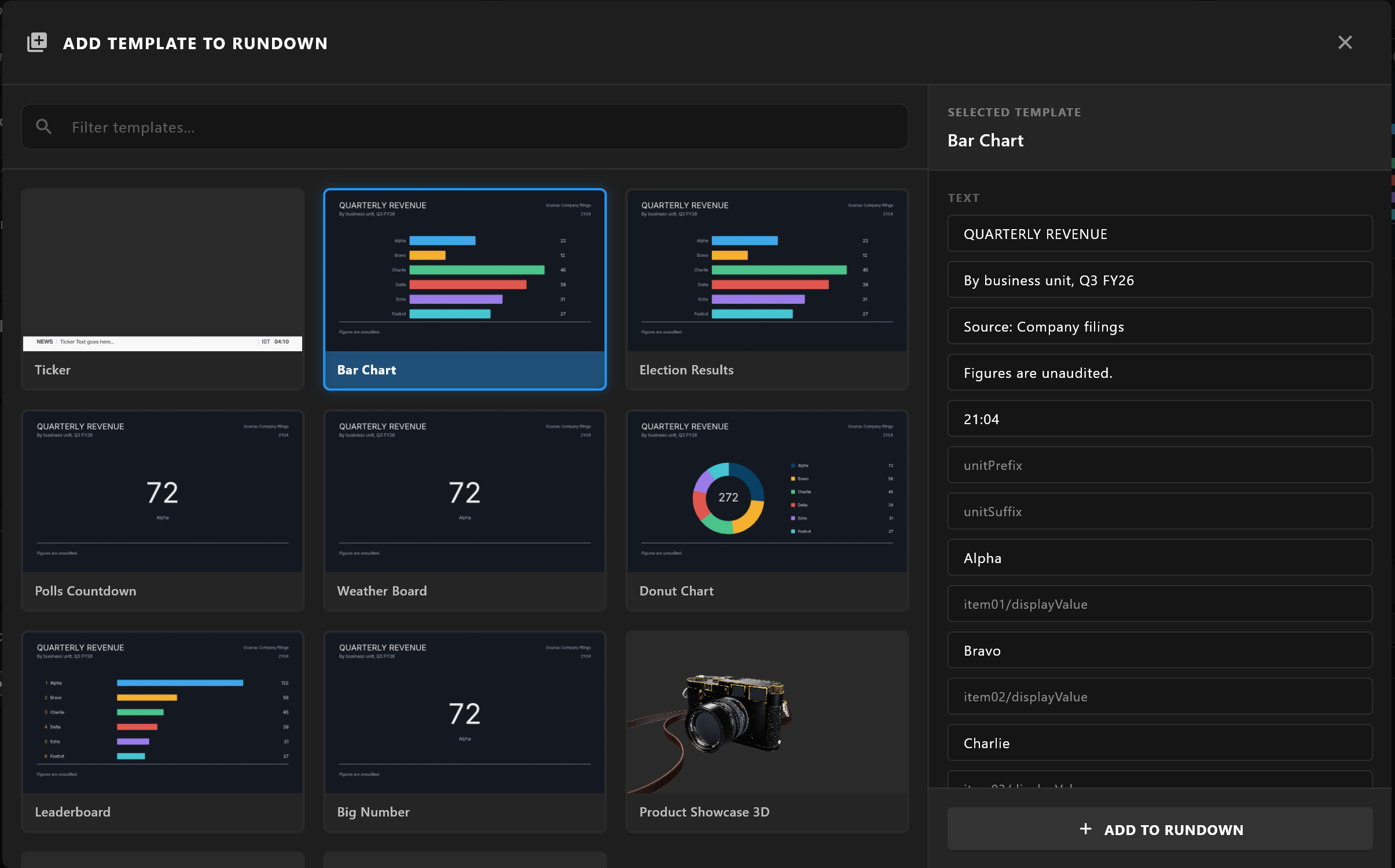
- Right-click the item list.
- Under CG TEMPLATES, choose airZ Template.
- In ADD TEMPLATE TO RUNDOWN, find the template. Filter templates… narrows the list by name.
- Select it. Its values appear under SELECTED TEMPLATE, where you can set them before adding.
- Select ADD TO RUNDOWN.
A template that airZ Controller has not yet shown anywhere may appear with a film icon instead of its picture: the picture is made the first time the template is shown in the Template Library. Its values may not be known yet either; the dialog then says so. Add it anyway, and set its values in Item Configuration once the item is selected.
The new item goes to the end of the rundown with the next free number.
Add a video
Right-click the item list, choose Video, then one of:
| Entry | Adds |
|---|---|
| Background Video | A video file as the background. One background is on air at a time. |
| Overlay Video | A video file drawn over the background. |
| From Template… | A video from one of your video templates. |
Add a group
Choose Group and name it. See Working with items for moving items in and out.
Which engines an item plays on
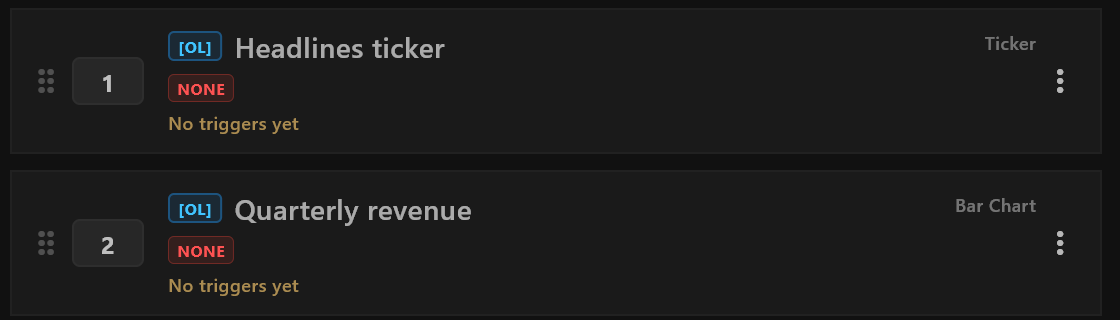
Each item shows, under its name, the engines chosen for it or for its template. NONE means neither has one. The item then goes to the default engine for overlays or backgrounds, if one is set in Settings, and otherwise to no engine. Bind to Engines in its menu chooses engines for the item. An item of another kind, added before the licence, shows Not sent to engines.