Appearance
Working with items
How to find, arrange and tidy the items in a rundown.
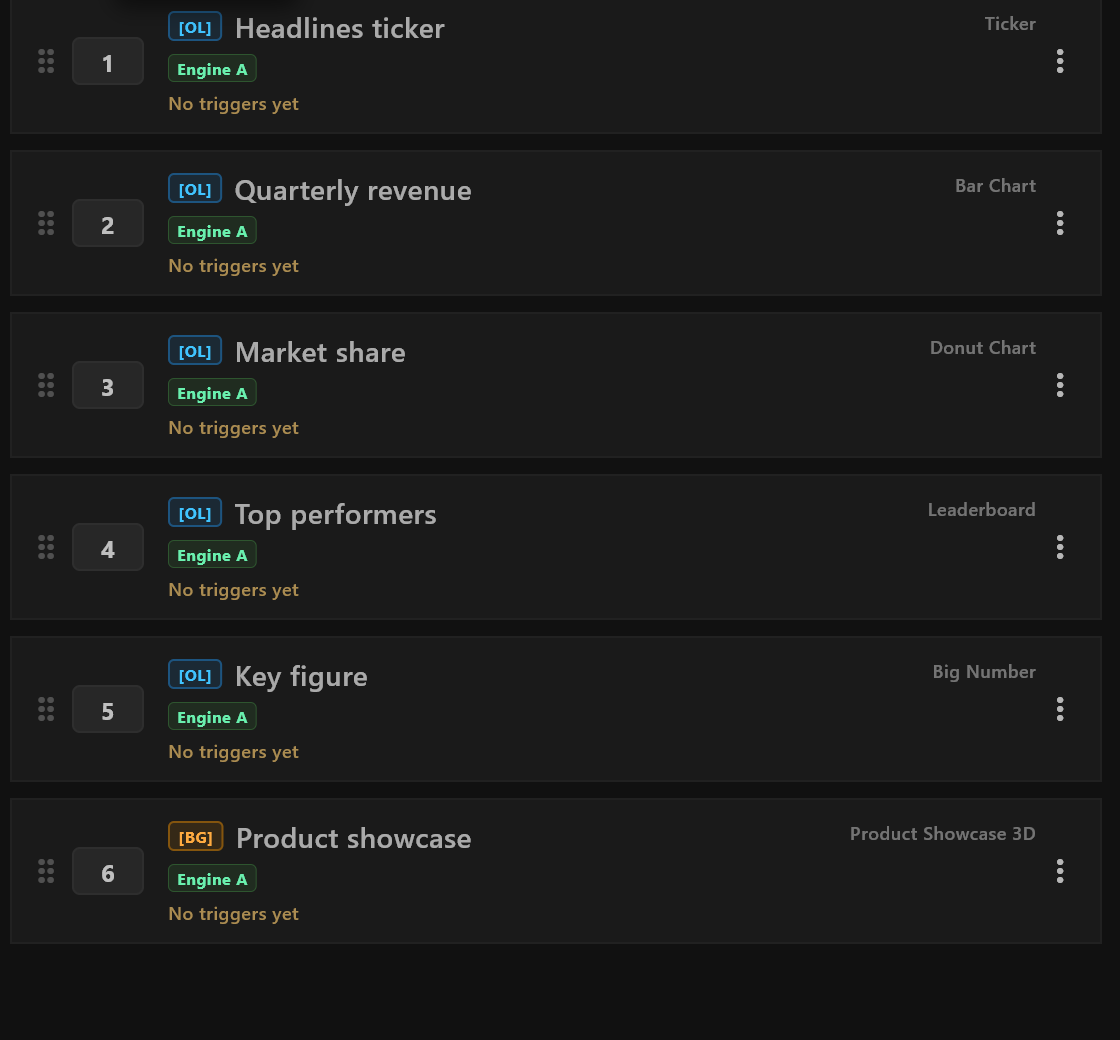
Each row in Rundown Operations is one item. From left to right:
| Part | What it tells you |
|---|---|
| Drag handle | Grab it to move the item. |
| Number | The item's call number, used to jump to it. Select the number to change it. |
| [OL] or [BG] | On graphics: [OL] is an overlay, drawn over what is on air; [BG] is a background, which fills the screen and replaces the background on air. |
| Name | The item's name. Double-click it to rename the item. |
| Template name | The template the item is made from. |
| ⋮ | The item's menu. |
Under the name, an item made from an airZ template shows a button for each of its template's triggers; Taking to air explains them. Until airZ Controller knows the triggers, the row reads No triggers yet. Select the item once, and its preview loads them.
Two marks show an item's state:
| Mark | Means |
|---|---|
| A red edge on the left and ON AIR at the top right | The item is on air. |
| A small grey dot at the top left (Loaded and ready) | The item is prepared and goes to air at once. It is not on air. |
Select items
- Select an item to open it in Preview. Selecting never puts anything on air.
Ctrl+ select adds or removes one item;Shift+ select adds a range.↑and↓move to the previous and next item.
Jump to an item by its number
Type the item's number in the ID… box at the top of Rundown Operations and press Enter. Ctrl+K puts the cursor in that box. Anywhere else in the rundown, type the number on the numpad, with Num Lock on, and press Enter. Either way it selects the item; it does not put it on air.
The top-row number keys fire triggers
The keys 1 to 9 above the letters fire the selected item's triggers on air; see Taking to air. To type an item's number, use the numpad or the ID… box.
Move items
Drag an item by its handle. When several items are selected, they move together. Drop items on a group's heading to put them in that group.
The item menu
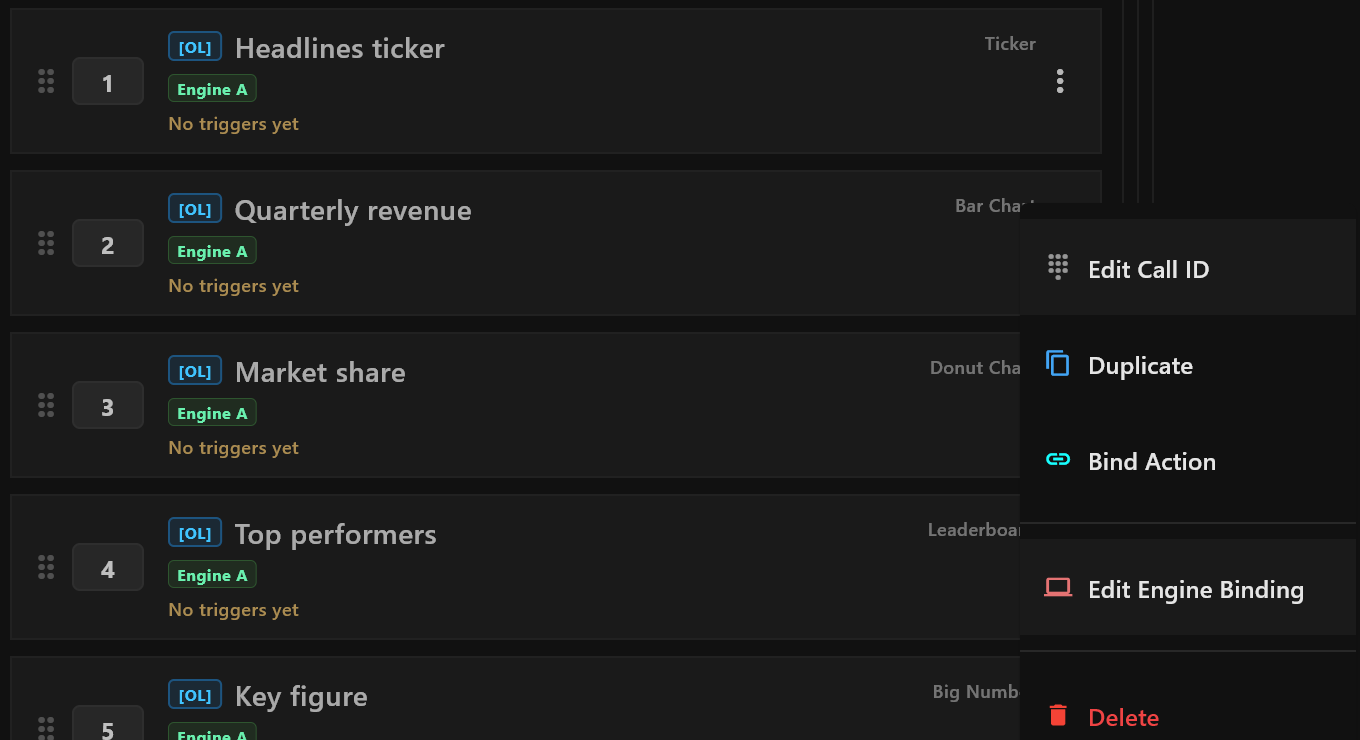
| Entry | What it does |
|---|---|
| Edit Call ID | Lets you change the item's number, as selecting the number does. |
| Duplicate | Adds a copy of the item. |
| Bind Action | Wires this item to others, so that taking it in or out, or firing one of its triggers, plays them too. On an item that already has a binding, it reads Edit Binding. |
| Bind to Engines | Chooses which playout engines play this item. Once the item has engines, it reads Edit Engine Binding. Broadcast licence |
| Delete | Removes the item. |
Delete items
Choose Delete in the item menu, or select items and press Delete. airZ Controller does not ask first; Ctrl+Z brings them back.
Groups
Groups keep related items together under a heading.
- To make one, right-click the item list and choose Group, then name it. Or select items and press
Ctrl+G. - To move items in or out, drag them, or right-click and choose Move … into Group or Remove from Group.
- A group's own menu has Rename Group, Ungroup Items and Delete Group. Delete Group asks first, and its items stay in the rundown.
Undo and redo
Ctrl+Z undoes and Ctrl+Shift+Z redoes, except while you are typing in a field. They cover creating and renaming rundowns; adding, duplicating, renaming, moving and deleting items; and creating, renaming and filling groups. Deleting a rundown or a group cannot be undone.
Shortcuts
| Keys | What they do |
|---|---|
↑ ↓ | Select the previous or next item |
Ctrl+K | Go to the ID… box |
Number on the numpad, then Enter | Select the item with that number |
1 to 9 above the letters | Fire the selected item's first to ninth trigger, on air |
Ctrl + select | Add or remove an item from the selection |
Shift + select | Select a range |
Ctrl+G | Group the selected items |
Delete | Delete the selected items |
Ctrl+Z / Ctrl+Shift+Z | Undo / redo |