Appearance
The ticker desk
Where headlines are written, lined up and kept running along the bottom of the screen.
Pro
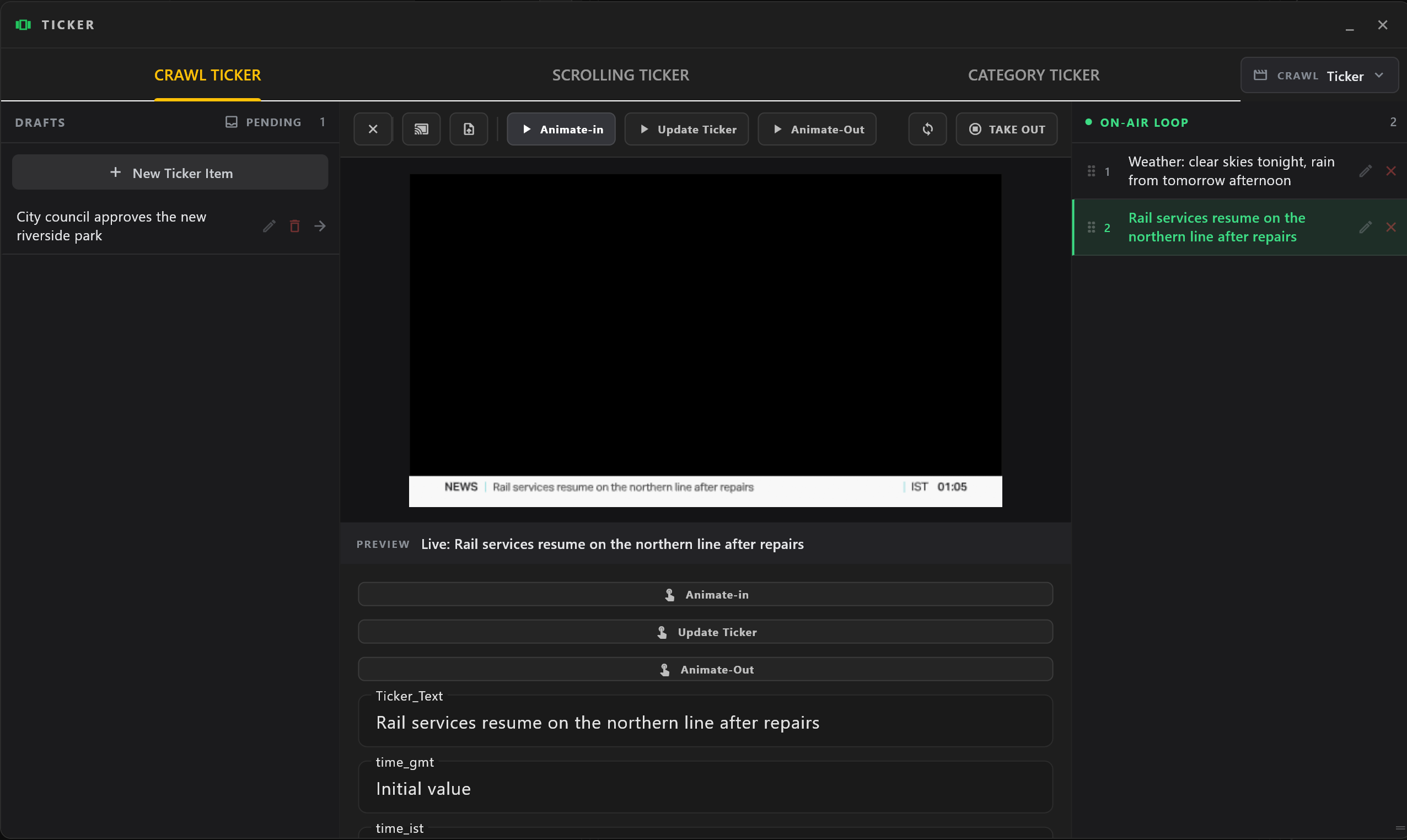
Open it with Ticker in the title bar. The small arrow beside it opens the ticker in a window of its own instead, for a second screen. Closing the Ticker, in either form, leaves the ticker on air.
The desk reads from left to right: headlines waiting (DRAFTS), the preview and the controls, and what is on air.
Three tickers
| Tab | On air |
|---|---|
| CRAWL TICKER | One headline at a time. The ticker moves on to the next by itself. |
| SCROLLING TICKER | Every headline in the loop, moving along the bar together. |
| CATEGORY TICKER | Headlines grouped by category, such as sports or weather. One category scrolls at a time, in its own colour, then the next takes over. |
The Crawl and Scrolling tabs share the same drafts and the same loop. The Category tab keeps its own categories and drafts.
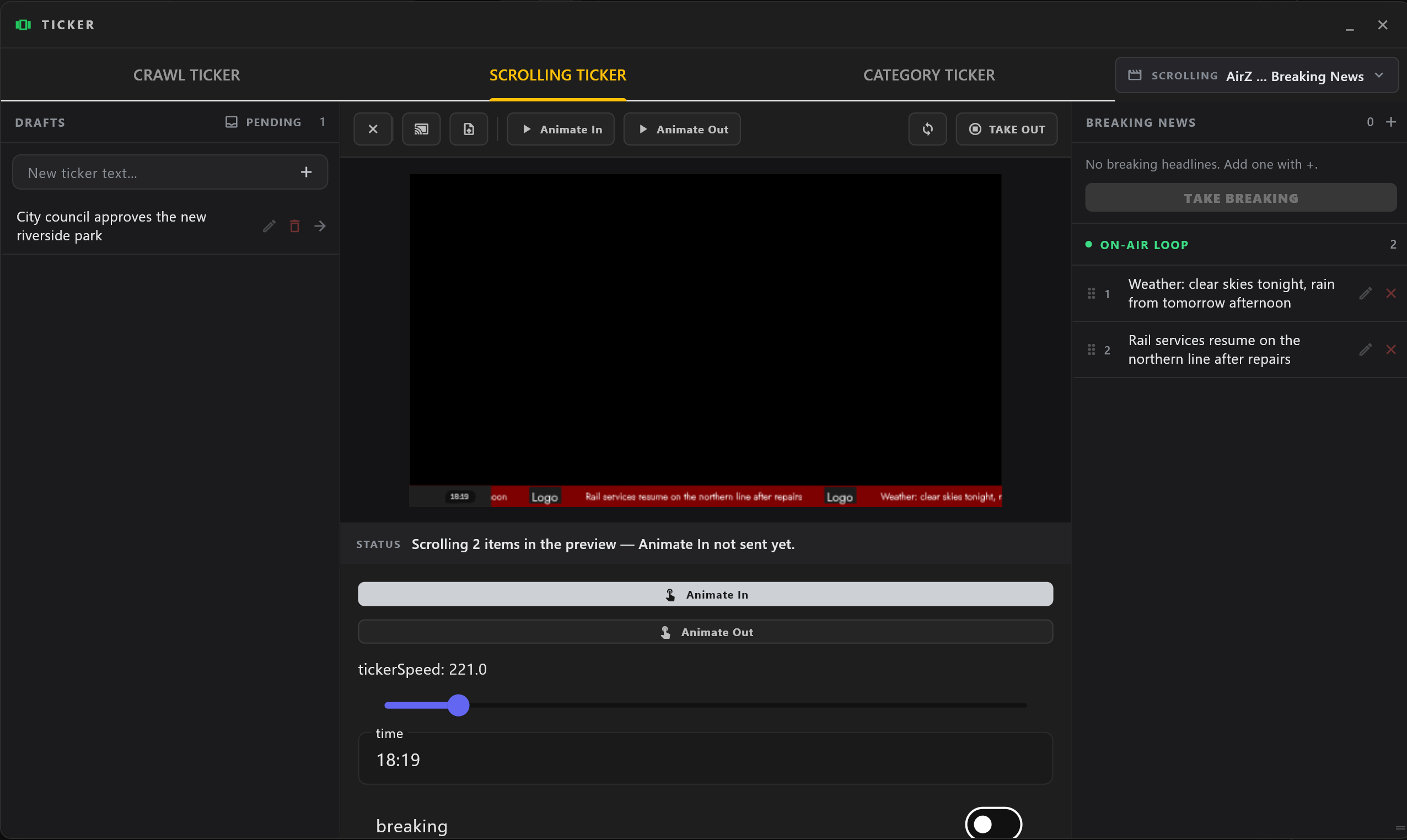
Each tab uses its own ticker template, shown at the top right; select it to choose another. airZ Controller comes with a scrolling ticker and a category ticker ready to use.
Write headlines
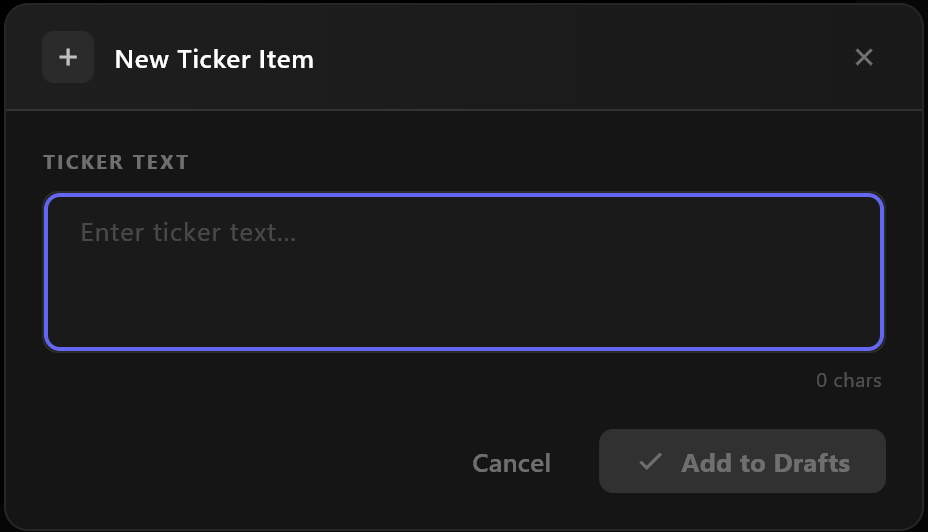
- On the Crawl tab, select New Ticker Item, type under TICKER TEXT and select Add to Drafts. The count below the text shows its length.
- On the Scrolling tab, type in New ticker text… at the top of the drafts and press
Enter, or select +.
Each draft has, on its right:
| Button | What it does |
|---|---|
| Pencil | Edits the text. Selecting the draft does the same. |
| Bin | Deletes the draft, after asking. |
| Arrow | Sends it to the end of the on-air loop. |
The on-air loop
The loop is what the ticker runs, in order. Drag a headline by its handle to move it. The pencil edits it; the × takes it out of the loop and back to the drafts. While the ticker runs, the headline on screen is highlighted.
Changes to the loop reach air at different times on each tab:
| Tab | A change to the loop reaches air |
|---|---|
| CRAWL TICKER | When the ticker moves on to its next headline. |
| SCROLLING TICKER | Added and removed headlines at once. Edited text at once on the program output, and on playout engines with the next UPDATE. Moved headlines when you press UPDATE. |
Breaking news
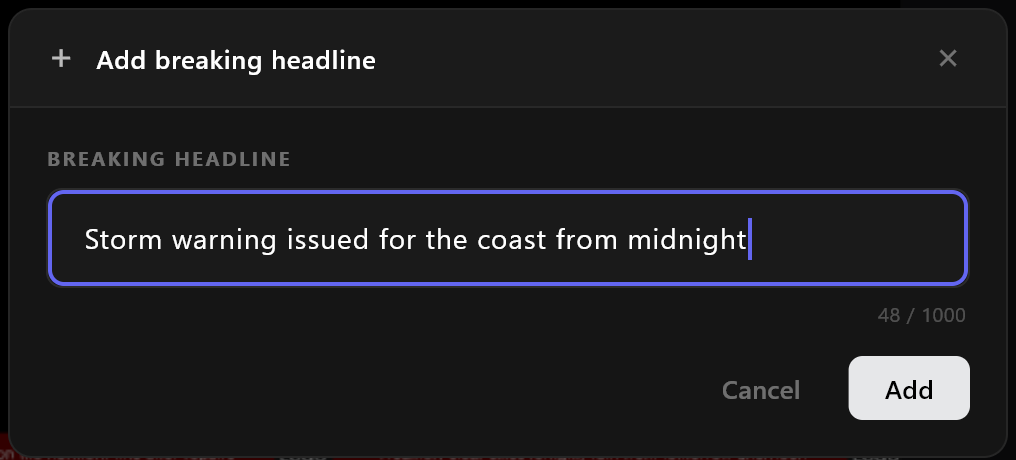
On the Scrolling and Category tabs, BREAKING NEWS sits above what is on air. It holds headlines that replace the regular ones on air, under a breaking band, until you end it.
- Select + (Add a breaking headline), type the headline and select Add. Add as many as you need. Nothing goes to air yet.
- Select TAKE BREAKING. The breaking band wipes in and only these headlines scroll.
- Select END BREAKING when it is over. The band wipes back and the regular headlines resume.
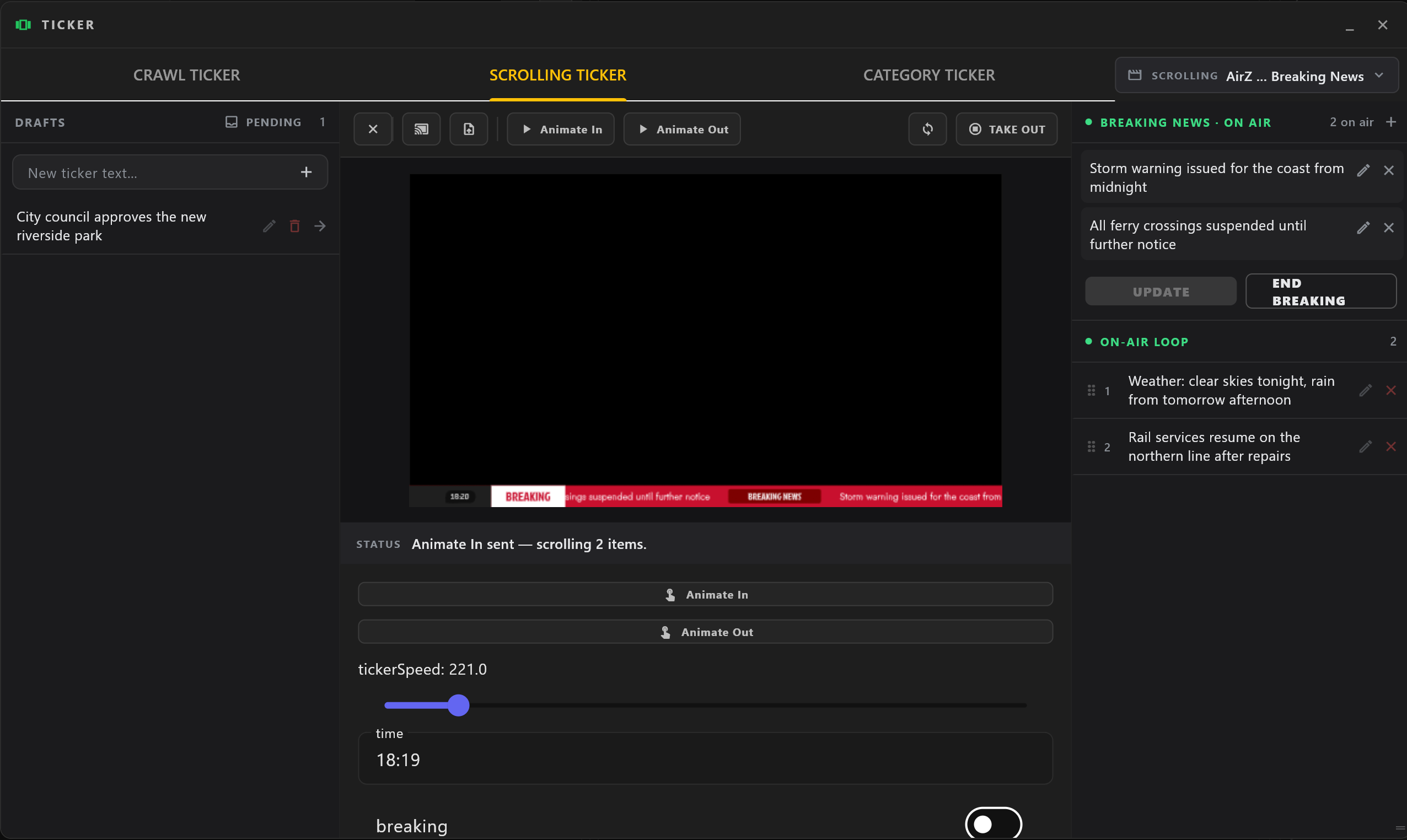
While breaking news is on air, the section reads BREAKING NEWS · ON AIR. Edits and removals then wait: an amber note says Changes are not on air yet. Press UPDATE to send them. Select UPDATE to send them.
The breaking headlines are kept after END BREAKING, so the same news can be taken again. Remove them with × when they are no longer needed.
The Scrolling and Category tabs share one breaking section: what you write on one is there on the other.
If the ticker has not been brought in, the breaking headlines are loaded and show when you take the ticker in; a message says so.
The category ticker
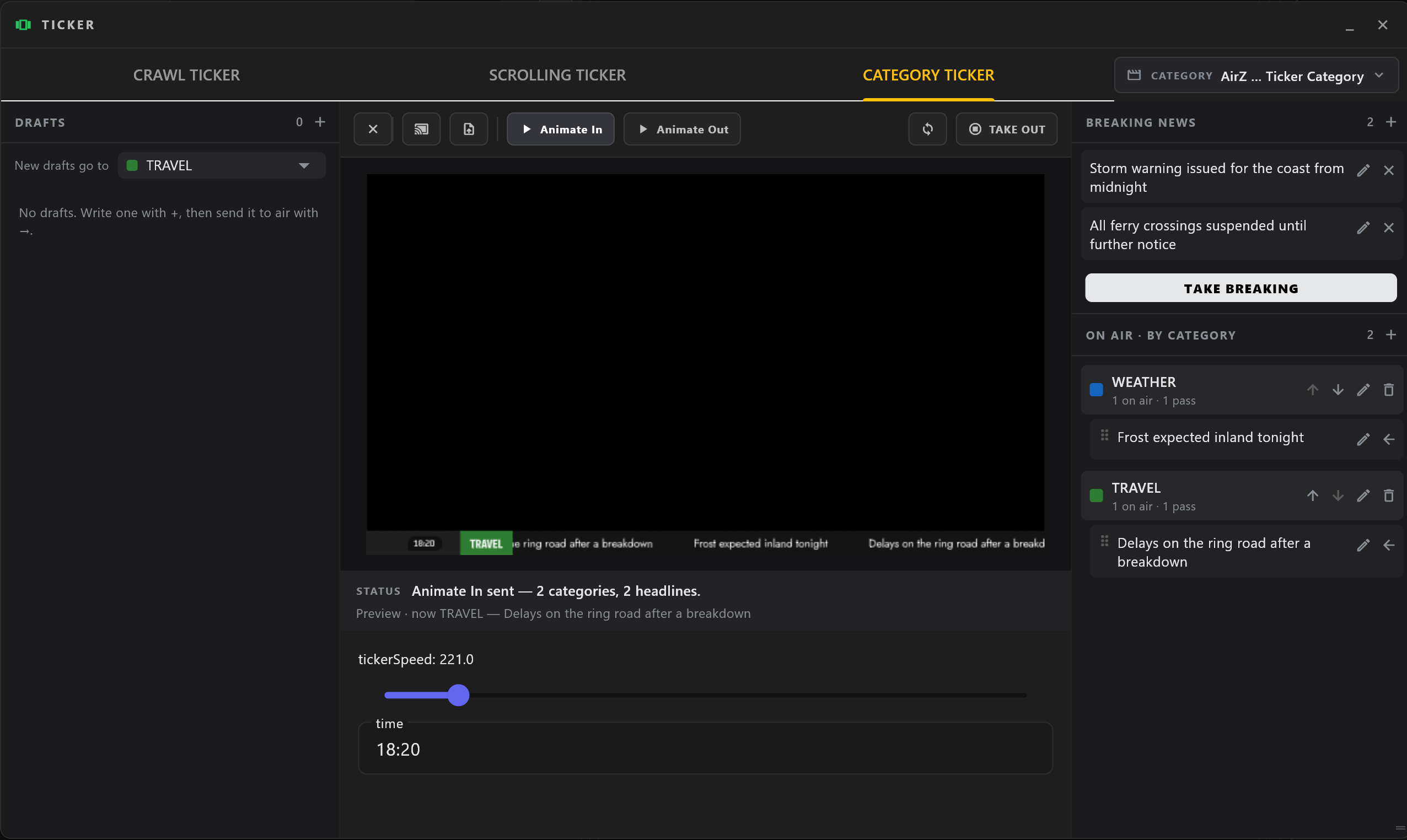
Categories
Categories are on the right, under ON AIR · BY CATEGORY. Select + (Add a category) to add one:
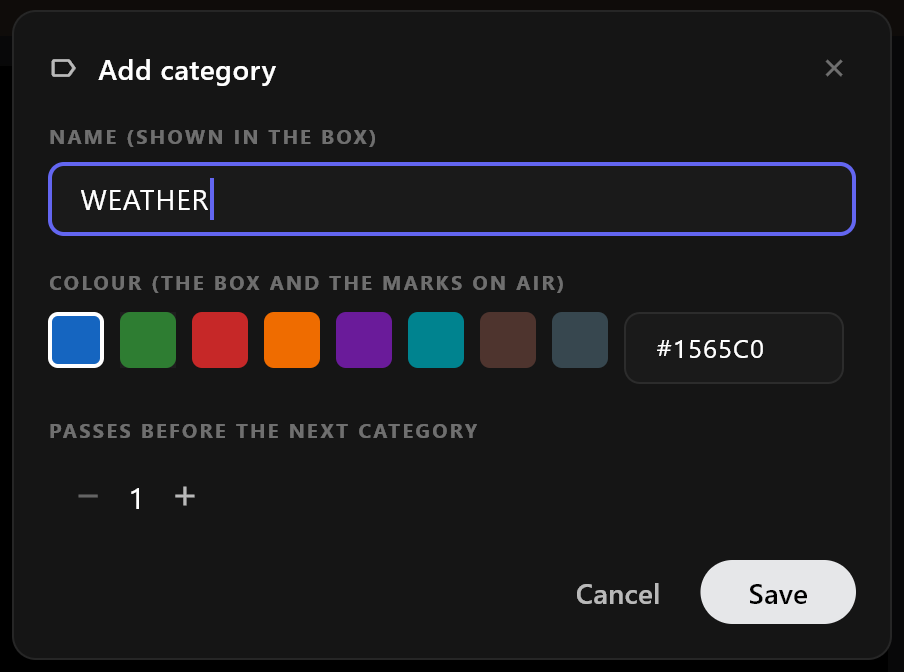
| Field | What it sets |
|---|---|
| NAME (SHOWN IN THE BOX) | The name shown on air, such as SPORTS. |
| COLOUR (THE BOX AND THE MARKS ON AIR) | Pick a colour, or type one as #RRGGBB. |
| PASSES BEFORE THE NEXT CATEGORY | How many times the category's headlines scroll round before the next category takes over, from 1 to 99. |
Each category shows how many of its headlines are on air and its passes. Its buttons move it up or down in the running order, change its name, colour and passes, or delete it. Deleting asks first; what is on screen finishes crossing before it goes.
Drafts
Every draft belongs to a category, so add a category first.
- Choose the category in New drafts go to.
- Select + (New draft). The window names the category the draft goes into. Type the headline and select Add draft.
- Select the arrow (Send to air in its category) to put it on air.
Drafts are grouped by category. Move to another category moves a draft when there is more than one category.
On air
Headlines on air are grouped under their category. Drag a headline by its handle to move it within its category. The pencil edits it, and the edit goes to air at once; the arrow back (Take off air, back to drafts) returns it to the drafts.
On this tab every change to categories and headlines on air goes to air at once. If it cannot be sent, the change is undone and a message says why.
The category ticker needs the Pro plan.
Put the ticker on air
The buttons along the top of the preview act on air. When the window is narrow, ENGINES, LOAD and UPDATE show only their icons; point at one to see its name. TAKE OUT always shows its name, at the right.
| Button | What it does |
|---|---|
| ENGINES | Chooses the playout engines the ticker plays on. Broadcast licence |
| LOAD | Puts the ticker template on the program output and the engines, with the current values, ready for its in trigger. What shows before that trigger depends on the template. |
| The template's triggers | Play on air. The in trigger (Animate In in the templates that come with airZ Controller) brings the ticker in and starts it running. |
| UPDATE | Sends the current headlines and values to air. |
| TAKE OUT | Takes the ticker off air. |
The line under the preview says what is happening. On the Crawl tab it reads Live: and the headline when the crawl runs on air, Preview: when it runs in the preview only, or Waiting for start… before it runs. On the Scrolling and Category tabs, STATUS says how many headlines are in the loop and whether the in or out trigger was last sent to air.
The buttons under the preview, with the same trigger names, play the animation in the preview only. Nothing goes to air from them.
Below them are the template's own values, such as its speed. Changing them changes the preview; they reach air with the next UPDATE, LOAD or trigger.
Another ticker on the same engine
On the Scrolling and Category tabs, only LOAD replaces a different ticker already on air on an engine. Every other change (the loop, breaking news, UPDATE, the triggers) leaves that engine alone, and a message says so, such as: Another ticker is on air on an engine: left alone. LOAD the scrolling ticker to put it there. The program output follows the same rule: it takes a ticker's changes only while it shows that ticker, or no ticker.
When the ticker is not sent
| Message | Meaning |
|---|---|
| No engines are assigned to this ticker template, so it goes to the Program monitor only. | The ticker plays on the program output only. Choose its engines with ENGINES. Broadcast licence |
| Ticker not sent: … Air keeps what it has. | The headlines are over a limit, such as more than 500 headlines or a headline over 1000 characters. Nothing changed on air. |
Headlines from the newsroom
Journalists can send headlines from the browser, from Ticker in the web rundown. PENDING, at the top of the drafts, opens what is AWAITING APPROVAL: Approve puts a headline in the drafts, where it still has to be sent to the loop; Reject asks for a reason, which the writer sees.
The web rundown has the Crawl and Scrolling tickers, not the category ticker. Breaking news can be written and taken from the browser's Scrolling tab by OPERATOR, TICKER EDITOR and BREAKING NEWS accounts, and by administrators; other accounts see only what is on air. From the browser, breaking news reaches the scrolling ticker and the category ticker, wherever either is already loaded on air; it never loads one over the other. If neither is loaded, the browser says so, and the ticker takes the breaking news when the operator loads it.
Who may write, approve and put headlines on air depends on their role; see Accounts and roles.
After a restart
The drafts, the loop, the categories and the breaking headlines are kept. The ticker itself does not start again: put it back on air with its in trigger.