Appearance
Panel logic
Make a panel do things by itself: fill one control from another, show and hide controls, format text, fire triggers.
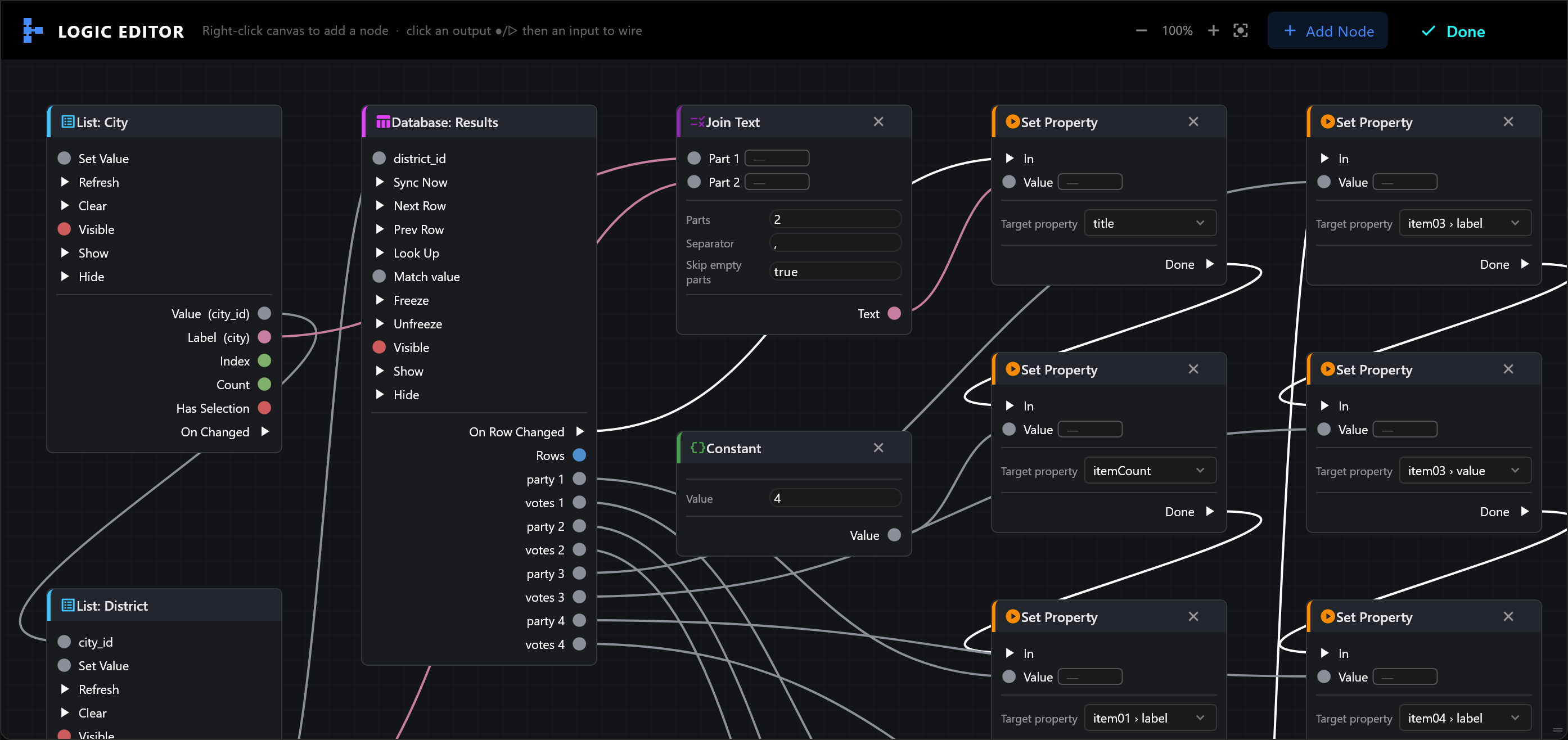
This is the logic of the election results example.
A panel's logic is a set of nodes joined by wires. Every control on the panel has a node of its own; other nodes compare, calculate, format text and act on the graphic. Values flow along the wires from left to right.
Open it with Logic in the Panel Designer's toolbar. The LOGIC EDITOR shows the logic of the tab you are on. Done keeps your changes and closes it; they are saved with the panel when you Save in the designer.
Add a node
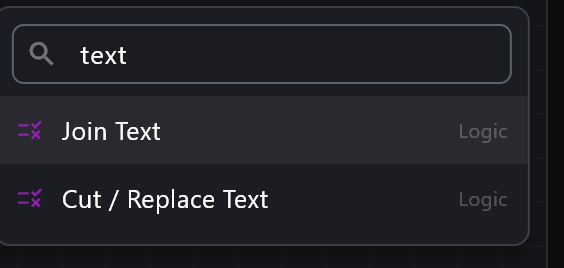
- Right-click the empty canvas. A menu opens where you clicked, listing every node with its group. Click one, or click Search nodes… and type to narrow the list.
- Or use Add Node at the top, which lists every node by group.
Wire nodes together
- Click an output on the right of a node: a round ● for a value, a triangle ▷ for a step (see below).
- Click an input on the left of another node.
While a wire is waiting for its end, the top line says so; Esc cancels it. Right-clicking the canvas, or resting the pointer for a moment, then offers only the nodes that can take that wire, and connects the one you pick.
Two kinds of wire:
| Wire | Carries | For |
|---|---|---|
| ● value | A text, a number, a yes/no, a colour or a set of rows. | Feeding one node from another: the chosen city into a district list, a score into a text. |
| ▷ step | Nothing but "now". | Making something happen, in order: when this button is pressed, set that value, then fire that trigger. |
A value wire joins only pins that can use each other's values: text and numbers join each other, any joins everything, and rows join only rows. When a wire does not fit, the Logic Editor refuses it and says why at the top.
An input that is not wired shows a small field or switch: type a fixed value there instead of wiring one.
Remove, move and zoom
| To | Do |
|---|---|
| Remove a wire | Right-click it, then Remove connection. |
| Remove a node | Right-click it, then Remove node, or its ×. |
| Move the view | Drag the empty canvas. |
| Zoom | Ctrl and the mouse wheel, or the zoom buttons at the top (25 % to 200 %). |
When logic runs
Logic runs while the panel is open: in the designer's Preview, under CONTROLS in Item Configuration, in Controls and in UI Interface. Whatever it sends to the graphic follows the panel's mode: Staged shows it in the preview only, On Air holds it until a trigger or Update On-Air, and Armed sends it to air at once. See Operator panels.
In the designer's Preview, nothing reaches the graphic: it is for trying the panel.
Logic does not run in the web rundown. There, lists that depend on other lists still follow their choices when they are wired straight from list to list; controls that need logic say they work only in the desktop panel.
Values the logic works out, such as a formatted score or a joined line, are kept with the item as if the operator had typed them, a moment after they settle. TAKE plays what the preview shows.
Nodes for the controls
Each control on the tab has a node, named after it (Select: City, List: Districts, Timer: Match clock). Every control node can be shown and hidden: ▷ Show, ▷ Hide, and a ● Visible yes/no.
| Control | Takes | Gives |
|---|---|---|
| Button | ▷ Trigger: presses it. | ▷ On Pressed. A button bound to a template trigger also fires that trigger. |
| Label, Description | ● Text: replaces the text shown. | |
| Text, number, slider, switch, colour, image | ● Set Value. | ● Value, and ▷ On Changed when the operator changes it. |
| Menu, radio group | ● Set Index; one input per Filter by column; ▷ Refresh re-reads a list from data. | ● Index (from 0), ● Value, ▷ On Changed. |
| List | ● Set Value, one input per Filter by column, ▷ Refresh, ▷ Clear. | ● Value, ● Label, ● Index, ● Count, ● Has Selection, ▷ On Changed; with Expose all columns, one value per column of the chosen row. |
| Timer | ▷ Start, ▷ Stop, ▷ Reset. | ● Value as shown (such as 45:00), ● Seconds, ▷ Reached when it reaches its target. |
| Clock | ● Text: the time or date as shown. | |
| Database | One input per Filter by column; ▷ Sync Now, ▷ Next Row, ▷ Prev Row; ▷ Look Up with ● Match value; ▷ Freeze, ▷ Unfreeze. | ▷ On Row Changed, ● Rows, and one value per column of the current row. |
| Group | ▷ Show, ▷ Hide, ● Visible. |
A List's Value is what it sends (Send (value)); its Label is what the operator reads (Show (label)). Wire Value into another list's filter: ids match reliably, names often do not.
Event nodes
Events start a chain of steps.
| Node | Gives | Fires |
|---|---|---|
| On Panel Open | ▷ Started | Once, when the panel opens. Use it to set things up. |
| When True | ▷ Then, ▷ Else | Then when its ● Condition becomes true, Else when it becomes false. It checks whenever a value on the panel changes. A condition already true when the panel opens fires Then at once. |
Data nodes
| Node | Takes | Gives | Setting |
|---|---|---|---|
| Constant | ● Value | Value: a fixed text or number. | |
| Get Variable | ● Value | Name. Reads a value kept by Set Variable. | |
| Set Variable | ▷ Set, ● Value | ▷ Done | Name. Keeps a value for this panel while it is open. |
| Format | ● In | ● Text | Pattern: {} is replaced by the value. {} pts gives 12 pts. |
| Select | ● If, ● True, ● False | ● Result | Gives True's value when If is true, otherwise False's. |
| Select Rows | ● If, ● True, ● False (rows) | ● Rows | The same, for sets of rows. |
| Row Fields | ● Rows, ● Index | ● Count, one value per column | Columns (comma separated), Rows at once (1 to 50), Row index (1 = first). Reads fields out of a set of rows: the row Index points to, or several rows at once with numbered values. |
| Now | ● Date, ● Epoch ms | Offset (days): 1 for tomorrow, -1 for yesterday. |
Variables last while the panel is open; they start empty the next time.
Logic nodes
| Node | Takes | Gives | Setting |
|---|---|---|---|
| Compare | ● A, ● B | ● Result (yes/no) | Operator: ==, !=, <, <=, >, >=. Numbers compare as numbers, other text alphabetically. |
| Equals | ● A | ● Result (yes/no) | Equals: the value to match. |
| Boolean | ● A, ● B | ● Result (yes/no) | Operator: AND, OR, NOT (A only), XOR. |
| Math | ● A, ● B | ● Result | Operator: +, -, *, /, min, max. An empty value counts as 0; dividing by 0 gives 0. |
| Clamp | ● Value | ● Result | Min, Max: keeps the value between them. |
| Map Range | ● Value | ● Result | In Min, In Max, Out Min, Out Max: turns one scale into another, such as 0–1 into 0–100. |
| Join Text | ● Part 1 … | ● Text | Parts (2 to 8), Separator. Empty parts are left out. |
| Change Case | ● Text | ● Text | Mode: upper, lower, title, trim. Locale: tr for Turkish capitals (i and İ). |
| Cut / Replace Text | ● Text | ● Text | Mode substring: Start, Length (0 = to the end). Mode replace: Find, Replace with, every match. |
| Format Date | ● Date | ● Text | Pattern, such as dd.MM.yyyy or HH:mm, and Locale. |
Flow nodes
Flow nodes decide which steps happen.
| Node | Takes | Gives | Does |
|---|---|---|---|
| Branch (If) | ▷ In, ● Condition | ▷ True, ▷ False | Goes one way or the other. |
| Switch | ▷ In, ● Value | ▷ Case 0 … ▷ Default | Goes to the case numbered by the value; anything else goes to Default. Cases sets how many. Wire a menu's Index into Value and the cases match its options. |
| Sequence | ▷ In | ▷ Then 0 … | Does each output in order. Steps sets how many. |
| Gate | ▷ In, ● Enabled | ▷ Out | Lets steps through only while Enabled is on. |
| Delay | ▷ In | ▷ Completed | Waits Duration (ms). On re-trigger: restart starts the wait again, ignore drops presses until it is done. |
A Gate with nothing wired into Enabled stays closed until you switch its field on.
Action nodes
Actions change the panel or the graphic.
| Node | Takes | Does |
|---|---|---|
| Set Property | ▷ In, ● Value | Sets a value of the graphic: pick it under Target property. |
| Set Visibility | ▷ In, ● Visible | Shows or hides a control or group: pick it under Target node. With Visible unwired and off, it hides. |
| Set Transform | ▷ In | Moves and sizes a control: Target node, X, Y, W, H. Right-click a control in the designer, Copy transform, then Paste copied transform here. |
| Fire Trigger | ▷ In | Fires a trigger of the graphic, such as its in or update animation: pick it under Trigger. |
Each gives ▷ Done when it has acted, to chain the next step.
Check the logic
The check button in the designer's toolbar reads No problems, or counts errors and warnings. Select it for the list. It catches, for example:
| It says | Because |
|---|---|
| Set Property has no target | No Target property is chosen. |
| Set Property will never fire | Its Value is wired but nothing is wired into In. |
| Fire Trigger never fires | Nothing is wired into its In. |
| … is filtered by … but nothing is wired to it | A list has Filter by set, but no value feeds that filter. |
| Filtering … by display text | A filter is fed by a list's Label (what the operator reads) instead of its Value. |
| … looks up nothing / never performs its lookup | A Database's Look Up and Match value are not both wired. |
It checks only what can be seen without running the panel: try the panel in Preview as well.