Appearance
Taking to air
How items go on air, how to change them while they are up, and how to clear them.
Selecting an item never puts it on air. It opens the item in Preview and prepares it, so that it goes up at once when you take it. Nothing reaches air until you press one of the item's triggers, or its TAKE button.
Watch the Program monitor
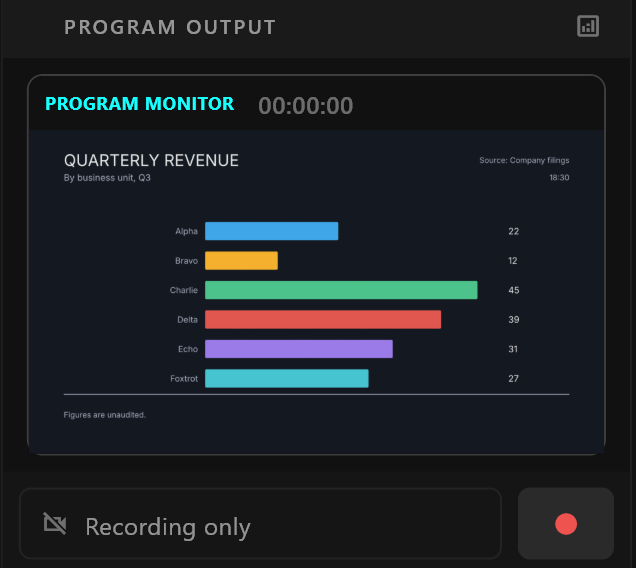
PROGRAM MONITOR, at the top of Program Output, shows what is on air. Check it after every take.
In the rundown, an item that is on air has a red edge on the left and ON AIR at the bottom right of its row. The mark stays when you open another rundown and come back.
Graphics from airZ Editor: the triggers are the take
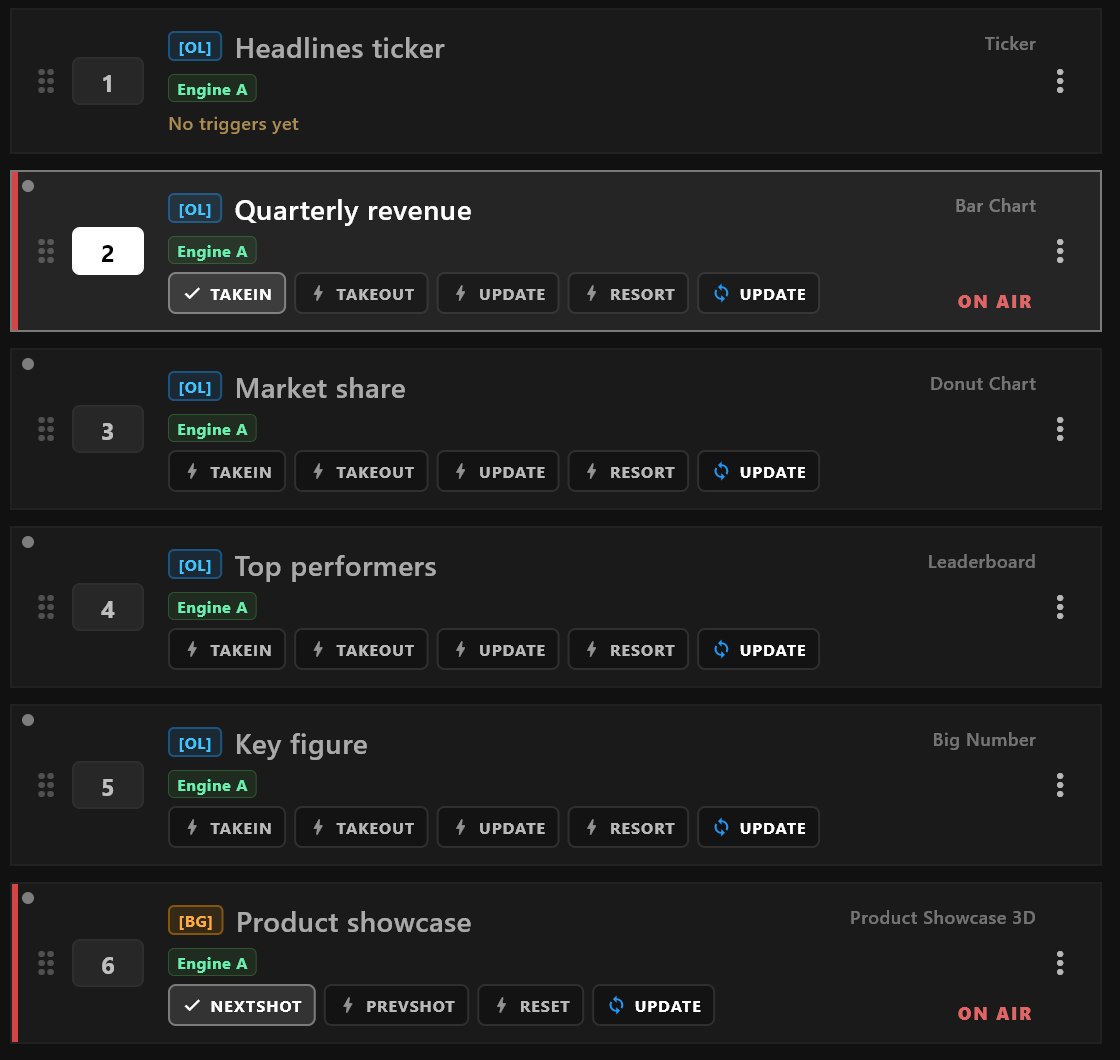
An item made from an airZ template shows one button per trigger under its name, such as TAKEIN, TAKEOUT or NEXTSHOT. The names and what they do come from the template.
Press a trigger button, and that trigger plays on air:
- If the item is not on air, it goes on air and plays the trigger. The first trigger is usually the one that brings it in.
- If the item is already on air, the trigger plays on the graphic that is up, such as the next shot or a take-out.
- If the item is not prepared yet, it goes on air as soon as it is ready. The small grey dot at the top left of a row means it is ready.
The last trigger that reached air shows a tick. The tick goes when the item is taken out with OUT, or cleared.
A trigger that takes the graphic out, such as TAKEOUT, plays its out animation, but the item stays marked ON AIR: the graphic is still loaded on its layer. Take it out with OUT, or clear it, to end it.
If a trigger does not reach air, airZ Controller says so: Trigger "…" on "…" did not reach air: and the reason, such as no playout engine being assigned.
Change a graphic that is on air
The blue UPDATE button, with the circular arrows, sends the item's current values to the graphic on air without playing its animation again. Use it to correct a name or a figure while it is up:
- Select the item and change its values in Item Configuration. This does not change air.
- Press the blue UPDATE on the item's row.
If the item is not on air, UPDATE puts nothing on air.
A template can also have a trigger of its own called update. It shows as a trigger button with the lightning mark, like the others, and plays whatever the template's designer made it do.
Overlays and backgrounds
| Badge | On air |
|---|---|
| [OL] | Overlays from different templates can be on air together. Taking an item made from the same template as one on air replaces it. |
| [BG] | One background at a time. Taking a background replaces the one on air. |
Videos: TAKE and OUT
A video item has a TAKE button on its row instead of triggers.
| Button | What it does |
|---|---|
| TAKE | Puts the video on air. On the playout engines it cuts in; see Transitions. |
| OUT | Shown in red while the item is on air. Takes it off air. |
From the keyboard
With one item selected, and the cursor not in a text field, the keys 1 to 9 above the letters press the item's first to ninth trigger button, on air, exactly as a click does. A key with no button at that place does nothing.
The numpad does not fire triggers: it types an item's number, and Enter selects that item. See Working with items.
The top-row number keys go to air
To type an item's number, use the numpad or the ID… box (Ctrl+K), never the keys above the letters.
No key takes a video with TAKE or clears the air.
Playout engines
Broadcast licence
When airZ Controller has a Broadcast licence and an item is bound to playout engines, the same trigger or take plays on those engines too. Engine badges on the row show each bound engine and whether it is connected.
Only airZ templates and videos play on the engines. Other items show Not sent to engines, and play only on the program output. See Working with items for Bind to Engines.
Clear the air
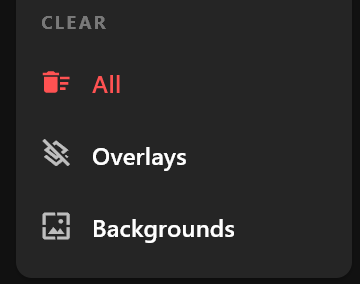
Right-click the rundown list. The CLEAR section at the bottom of the menu takes things off air:
| Entry | Takes off air |
|---|---|
| All | Everything: overlays and backgrounds. On playout engines, the whole channel, the ticker included. |
| Overlays | Every overlay. |
| Backgrounds | The background, a background video included. |
Clearing is immediate
airZ Controller does not ask first, and Ctrl+Z does not bring anything back. To put an item back on air, take it again.
All also forgets which items were prepared: the grey dots go, and each item is prepared again when you next select it.
Items from another rundown
Opening another rundown does not change what is on air. While items from the rundown you left are still up, a note above the list says so:
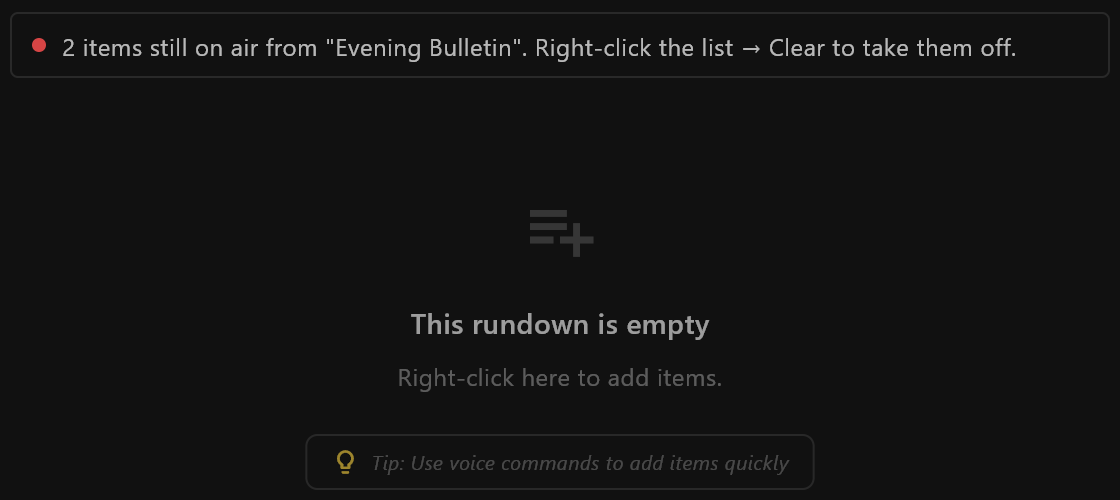
Use the CLEAR entries above to take them off.